Text messages are bursting with important information, from cherished memories with family, to business communications with clients. In some situations, having a paper copy of your conversations is needed for record keeping or even for providing evidence in a legal case. The question is, how do you get those messages from your iPhone into a physical document in your hands?
In this guide, we’ll answer that question by showing you the 3 best ways to print text messages from an iPhone. Let’s get started…
Option 1: Printing iPhone messages from a PC or Mac
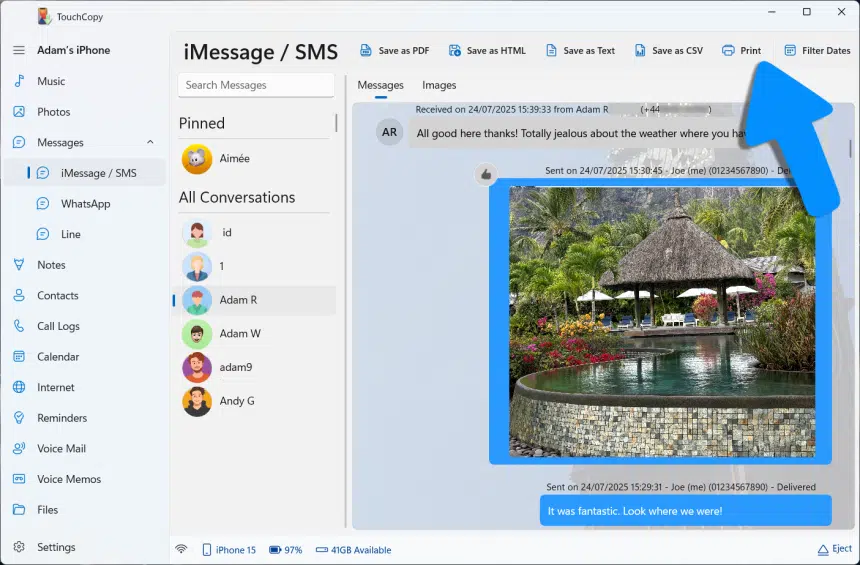
To reliably print entire conversations as professional-looking documents, you’ll need to use a computer. TouchCopy is a popular third-party app used to access, export or print iPhone messages on Windows or Mac. This option provides the most comprehensive and best-looking prints.
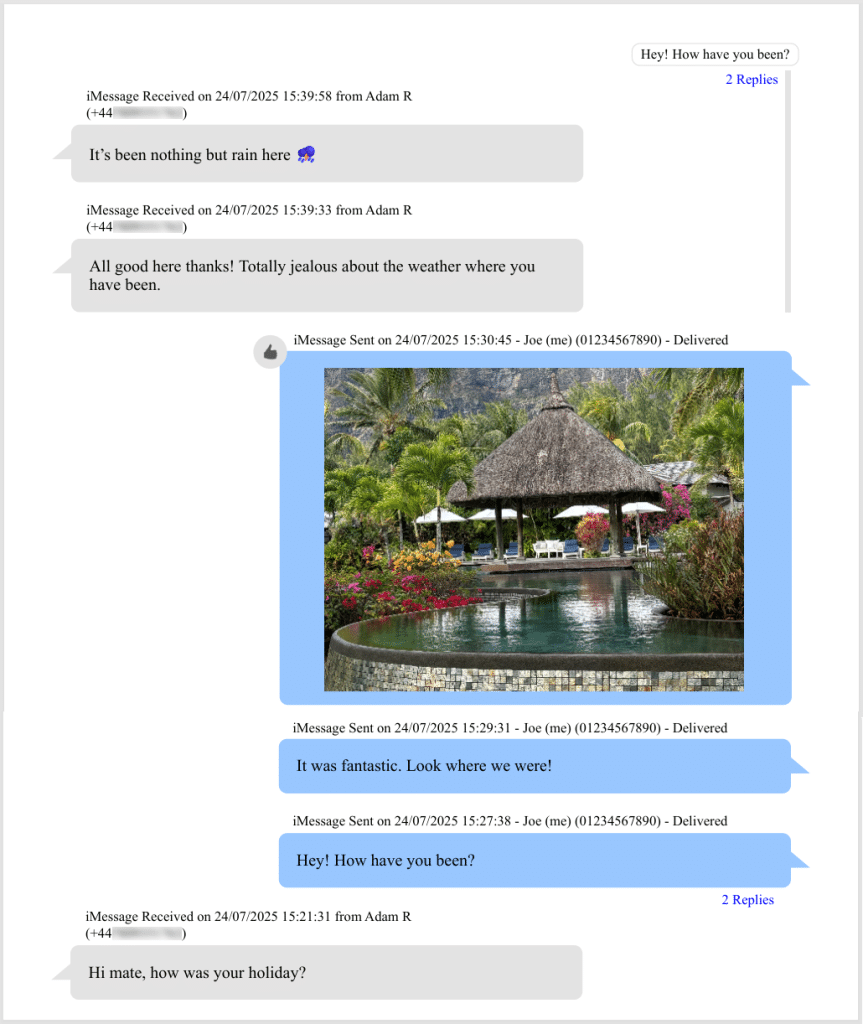
Printouts you create using TouchCopy contain all important details about your messages, including contact name and number, dates and timestamps, text, images, emojis and more. The output is clear and well structured, reflecting the message bubble style used on the iPhone. You can even tweak the output in TouchCopy’s settings to show/hide certain message details, ordering and even print options to save on paper.
You can use TouchCopy’s free trial to explore all the features, and even save some content to your computer, including the first 5 messages of your conversations and up to 100 songs and photos. To unlock unlimited prints and exports, from unlimited iOS devices, you can purchase a license.
- Download and install TouchCopy on your PC or Mac.
- Launch TouchCopy and connect your iPhone using Wi-Fi or a USB cable.
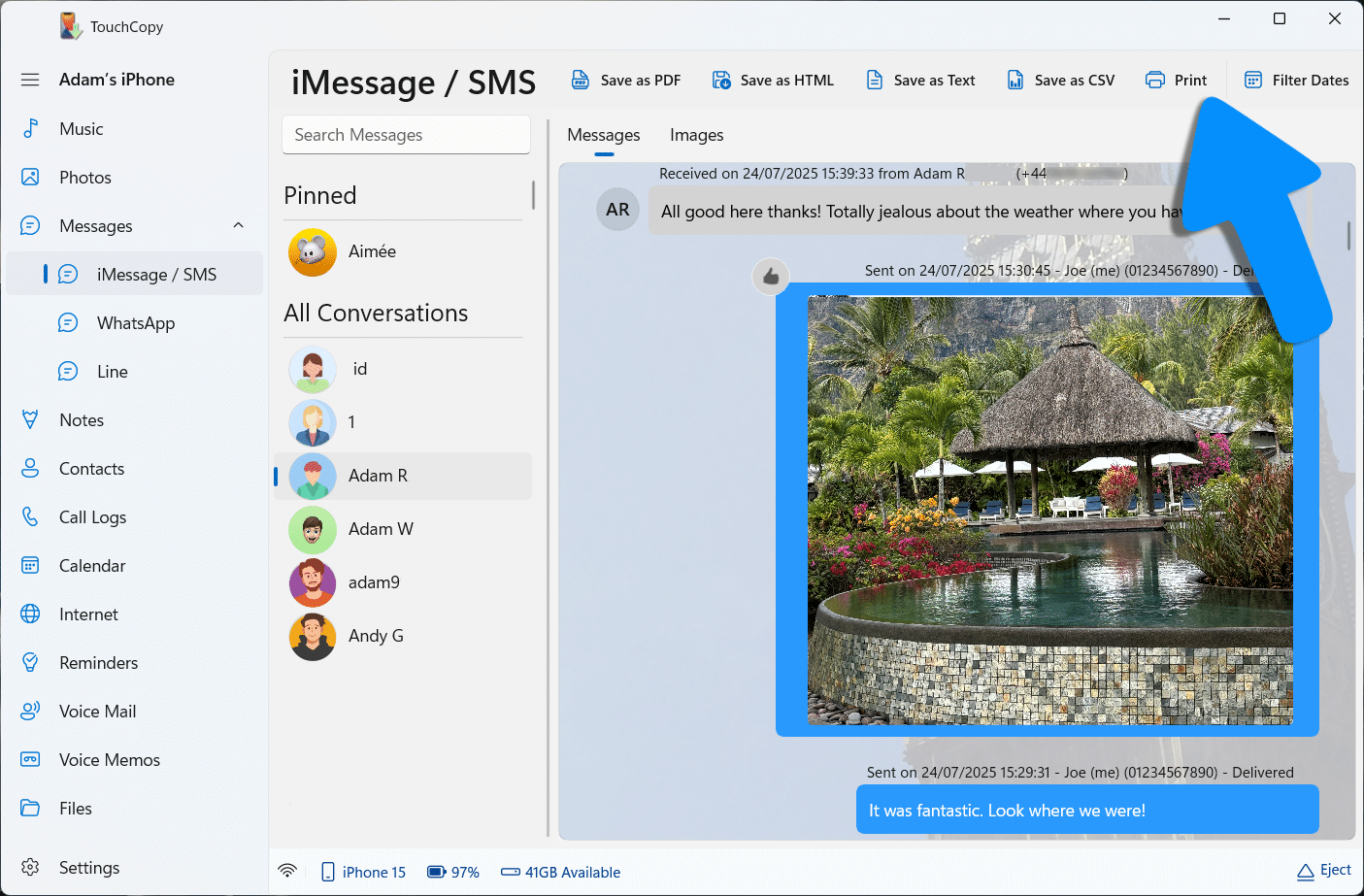
- Under Messages, choose the app containing your desired conversation: iMessage/SMS, WhatsApp or Line.
- Select your conversation from the list.
- Optional: Use the “Filter Dates / Date Range” feature if you only want to print a portion of your conversation.
- Click “Print”.
The image below shows an example page of an iPhone text message conversation printed by TouchCopy:
No personal data is collected by TouchCopy or shared elsewhere, so you can confidently access and print even sensitive conversations, knowing that your data remains private.
Pros:
- Print messages from multiple different sources: SMS, MMS, iMessage, WhatsApp, Line.
- Comprehensive documentation of all important message details.
- Well-structured and professional-looking output.
- Various printout customization options, providing the flexibility to create a tailored document for your needs.
- Ability to save messages in digital formats (PDF, HTML, CSV, Text).
- All message attachments like images, and even video, audio, documents can be saved to your computer.
- Save call history, photos, music, contacts and more from iPhone to computer.
Cons:
- A license purchase is required to unlock all features.
Option 2: Printing screenshots of your messages
If you don’t need a professional-looking record, or if you don’t have access to a computer, you can print messages directly from your phone.
To do this, you can take a quick screenshot of the messages you need on your iPhone, then send that image to your printer or email it to yourself so you can print from a computer later.
- Open the Messages app on your iPhone and select your desired conversation.
- Scroll to the messages you want to print.
- Take a screenshot: Press and hold the right-side button and the volume up button together.
On iPhone 8 or older, instead press and hold the power button and the home button at the same time. - Next, open the Photos app and select your screenshot/s.
- Tap the Share button at the bottom of your screen, then scroll down and tap “Print”.
- Select an AirPrint-enabled printer and tap the Print button.

If your printer doesn’t support AirPrint, you can instead send your screenshot/s to your email address, download the attachments on your computer, and print them from there.
Pros:
- Quick and easy if you only have a few messages to print.
- Does not require the use of a computer, if you have an AirPrint-enabled printer.
Cons:
- You can only print the messages currently visible on the iPhone screen with a single screenshot. If you need to print lots of message, you may end up with lots of screenshots which can be difficult to organise and manage.
- Screenshots omit some important details like message timestamps and contact details.
- Printed screenshots do not look professional and can waste ink and paper.
- Inability to customize the printout.
Option 3: Printing messages using the Mac Messages app
If you have a Mac or MacBook, you can print your SMS/MMS and iMessage conversations directly from the Mac Messages app.
If you can already access your messages in the Mac Messages app, you can start printing straight away. Otherwise, you’ll need to ensure that both your iPhone and Mac are signed in with the same Apple ID, and that Text Forwarding to your Mac is enabled on your iPhone.
Once your iPhone and Mac are set to sync your messages, you can print them out from your Mac:
- Open the Messages app on your Mac.
- Select the conversation you need.
- Click File > Print.
- Check your printer settings and click “Print”.

Pros:
- Quick and easy to print messages after the initial setup.
- Ability to send and receive messages on a Mac.
- Export as PDF or PostScript from the print dialogue.
Cons:
- Inability to customize the printout.
- Unable to access or print messages from WhatsApp.
- Date and time are shown for groups of messages, but each message does not have an individual timestamp.
- Text bubbles and images are cut off between printed pages, making for a messy look that can be difficult to read.
Summing Up
Now you have a selection of message printing options to choose from and can choose the one which best suits your needs.
Screenshots work well for a handful of messages when speed matters, while the Mac Messages app offers a simple built-in option for Mac users who only need basic printouts.
For more demanding or reoccurring needs, you’ll need a dedicated desktop solution like TouchCopy. This will enable you to easily print long conversations, preserving full details, and create professional, court-ready documents.