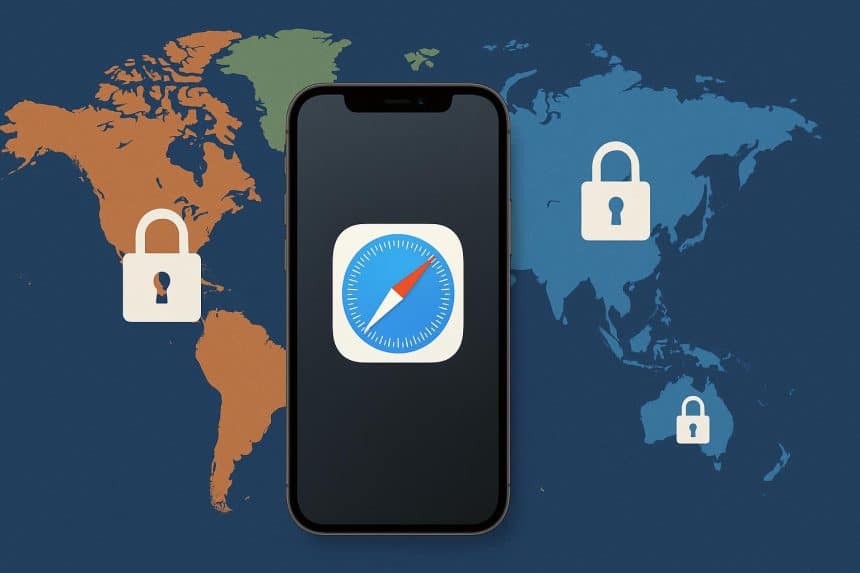
Ever get that frustrating message saying your favorite show or app isn’t available in your country? Or catch yourself wondering if your location data is floating around unsecured? iOS 26 steps up with smarter ways to hop regions and lock down privacy, all while keeping things seamless in Apple’s ecosystem. Whether you’re traveling, streaming exclusives, or just paranoid about trackers (hey, smart move), this guide has you covered with real steps, no fluff.
Tweaking iOS Region Settings Like a Pro
Your iPhone doesn’t just know your time zone; it shapes your entire App Store, Siri responses, and even emoji styles based on region. Flip it to unlock Japan-only games, EU-specific privacy laws’ app versions, or US Apple TV+ hits that skip other spots. It’s a game-changer for digital nomads or binge-watchers.
Start simple: Dive into Settings > General > Language & Region. Tap Region, scroll to your dream destination like “United Kingdom” or “South Korea,” and hit done. Dates, numbers, and calendars shift instantly, no Apple ID drama needed. Test it by checking weather or currency conversions right away.
For the big leagues, like swapping App Store countries, head to Settings > [Your Name] > Media & Purchases > View Account > Country/Region. Apple will nudge you to add a payment method and address from that spot, plus burn any store credit first. It might take a day to fully sync subscriptions like Apple Music or Arcade. Frequent switchers, beware: Apple caps changes to avoid abuse, so time it for long trips or permanent moves.
Locking Down Location in iOS 26’s Smart World
Location Services isn’t just for Maps anymore; it feeds Find My, widgets, and even AR workouts. But iOS 26 amps up controls with on-device processing, meaning your “Visited Places” history never phones home to Apple servers. Still, toggle it off in Settings > Privacy & Security > Location Services > System Services to wipe the slate clean.
Go granular: For each app, pick “While Using the App,” “Ask Next Time,” or straight “Never.” Flip Precise Location to off for city-level fuzziness instead of pinpoint tracking, great for casual use. iOS 26.2’s emergency alerts now let you opt-in for one-time shares via Apple’s encrypted shadow mode, no constant spying. And zap Significant Locations entirely to ditch those sneaky route logs piling up.
Apple’s design keeps your data local, but third-party apps? Review them weekly. iOS 26’s App Privacy Report in Settings shows who’s peeking and lets you boot them.
Why VPNs Are Your Location-Changing Superpower
Tired of region walls on Netflix, BBC iPlayer, or region-locked news? VPNs tunnel your traffic to far-off servers, swapping your IP to look like you’re sipping coffee in Sydney. Unlike region settings, it’s instant, no account juggling, and doubles as a privacy shield against Wi-Fi snoopers.
Download from the App Store (look for audited no-logs ones), sign up, pick a server city, and connect. iOS 26 auto-detects VPN profiles for one-tap bliss, even suggesting based on your calendar events. Manual mode? Settings > General > VPN & Device Management > Add VPN Configuration, plug in server details from your provider.
Nail the extras: Kill switch stops all traffic if VPN drops, nearby servers keep Netflix buffering smooth, and obfuscation hides VPN use in strict countries. Public airport Wi-Fi? VPN’s your bodyguard.
Quick VPN Steps to Change Location on iPhone
Cybernews breaks it down foolproof: Fire up the VPN app, log in quick. Swipe to servers, grab “New York” or “Tokyo,” tap connect, and watch your IP morph in seconds.
Cybernews delivers the full playbook on how to change location on iPhone, highlighting top Cybernews-recommended providers for speed and stealth. Double-check on whatismyipaddress.com, then dive into geo-blocked bliss like K-dramas or MLB streams.
When finished, disconnect and eyeball Settings > VPN status. Pro move: Turn off Location Services for non-essential apps to stack privacy layers.
Dodging Risks on the Global Web Hunt
Global hopping sounds fun until trackers latch on via sloppy IPs or over-permissioned apps, worse with iOS 26’s AI toys like Genmoji scanning surroundings. Fight back: Settings > Privacy & Security > Tracking to block cross-app stalking, and enable App Privacy Reports for the dirt on data hogs.
Ditch free VPNs; they monetize you. Stick to proven no-logs crews with third-party audits. Patch up via weekly iOS updates, and layer multi-hop VPNs for paranoia mode. Apple Vision Pro fans, rejoice: Spatial scans stay device-bound, but lock with Optic ID biometrics.
Syncing with Your Apple Ecosystem Flow
iOS 26’s Shortcuts now brews custom AI chatbots that sip location data privately, no cloud gossip. tvOS 26 weaves in Thread 1.4 for HomePods controlling lights sans spilling your spot. Word on AirPods Pro 3? 2026 blood sugar sensing, all siloed in Health app vaults.
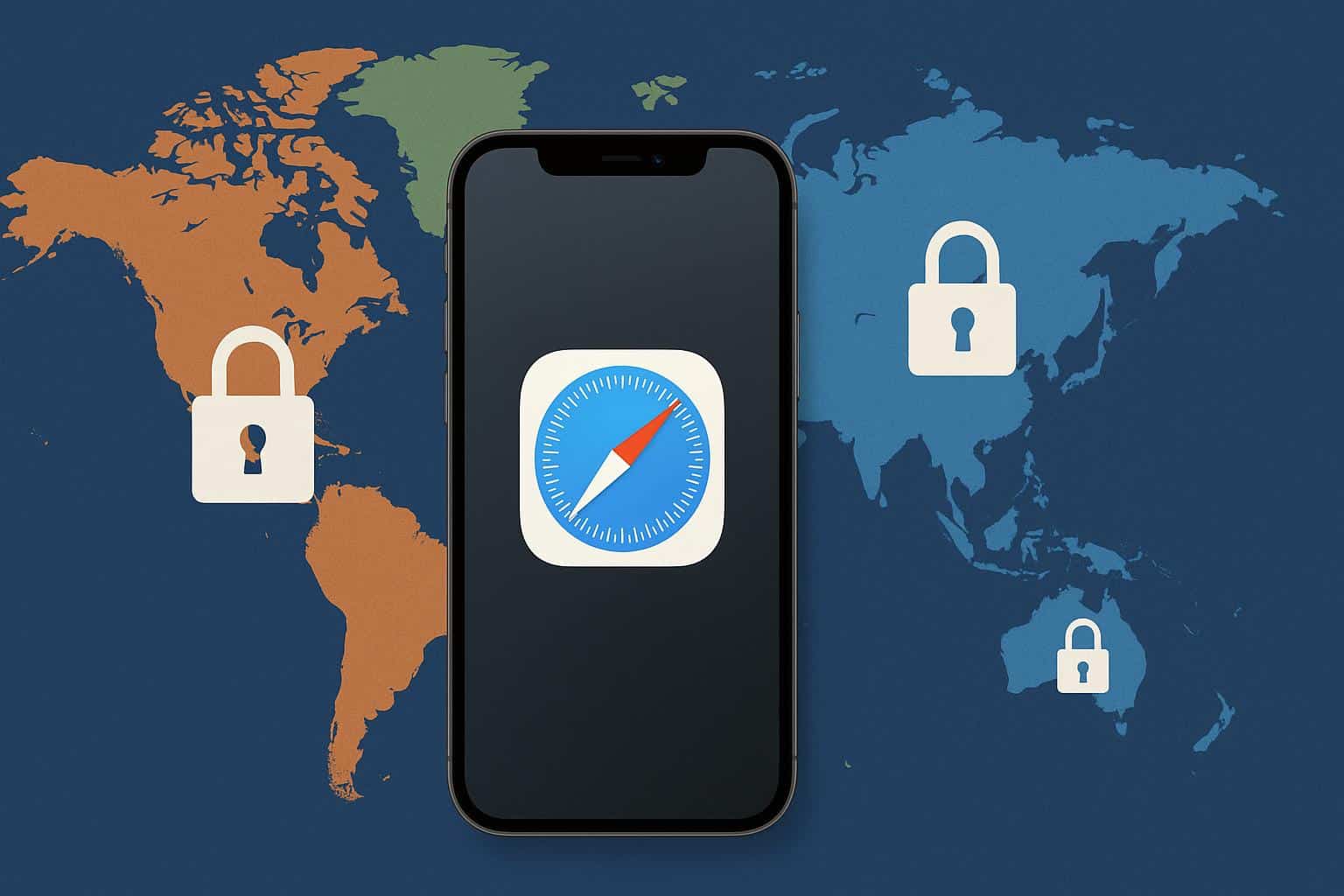
Craving Apple Music J-pop exclusives or Arcade Japan gems? Region tweak or VPN streams them sans full swaps. Toss in iCloud+ Private Relay for Safari’s IP masquerade, rounding out the fortress.
Staying Ahead on Privacy in Evolving iOS
iOS marches on with WWDC teases of AI consent pop-ups and Safari 26 nuking sneaky link trackers. Make it habit: Audit permissions bi-weekly, VPN for every overseas flight, and eyeball update notes. Global adventures await, minus the digital baggage.