Losing important photos from your SD card can be incredibly stressful, especially if those photos contain personal memories, travel snapshots, or work documents. Fortunately, there are several reliable methods to recover photos from SD card, depending on how the data was lost and how quickly you take action.
This guide explains both professional recovery software and free methods to help you maximize your chances of recovery.
Common Causes of SD Card Photo Loss & First Actions
Common situations of photo loss:
- Accidental deletion of photos
- Accidental formatting of the SD card
- Damaged or unreadable SD card
- File system error (RAW format or inaccessible card)
- Virus or malware infection
- Improper removal of the SD card during use
What to do immediately after deletion:
To improve your chances of recovery:
- Immediately stop using the SD card
- Do not save new files or take new photos
- Do not format or repair the SD card
- Safely remove the SD card from the device
- Start recovery as soon as possible
The key principle is: Avoid overwriting deleted data.
Recover Deleted Photos Using iToolab RecoverGo Windows Data Recovery
iToolab RecoverGo Windows Data Recovery is a powerful Windows data recovery tool designed to recover lost files from SD cards, USB flash drives, hard drives, and other storage devices. It is particularly effective at recovering deleted, formatted, or inaccessible photos, with a high success rate.
Key features:
- Deep scan technology to find deleted photos
- Supports formatted and corrupted SD cards
- Recovers photos, videos, documents, and more
- Preview files before recovery
- Easy-to-use interface (no technical skills required)
- Compatible with major SD card formats (FAT32, exFAT, NTFS)
How to recover photos step by step:
Step 1: Install and connect the SD card
Download and install iToolab RecoverGo, then Insert your SD card into a card reader and connect it to the computer.
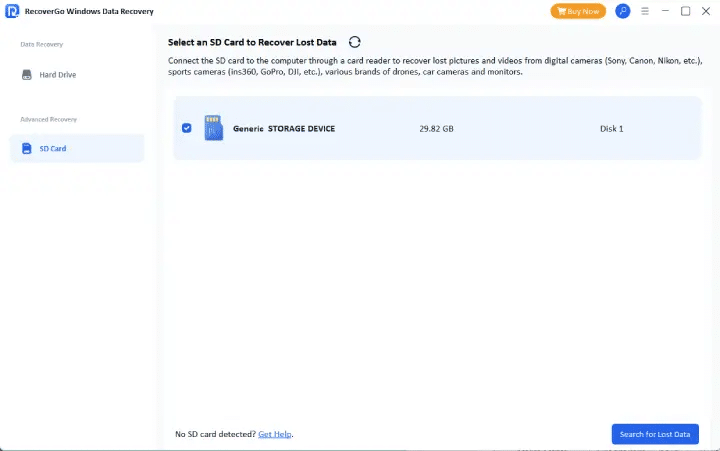
Step 2: Select the SD card
Open iToolab RecoverGo and choose the SD card from the list of available drives.
Step 3: Start scanning
Click “Scan” to begin searching for deleted photos. The tool will perform a quick scan first, followed by a deep scan.
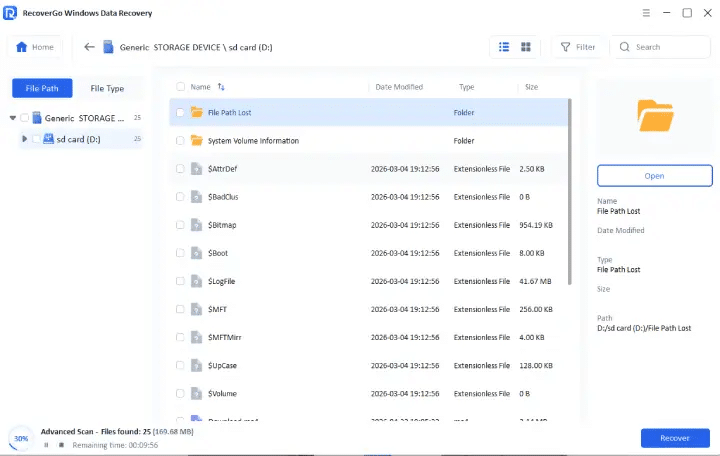
Step 4: Preview recovered files
After the scan is complete, preview the photos to check their quality and integrity.
Step 5: Recover photos
Select the desired images and click “Recover”. Save them to another location (do not save to the SD card).
Free Methods to Recover Deleted Photos from SD Card
If you don’t want to use paid SD card data recovery software immediately, there are free methods that may help depending on your situation.
-
Recover from Recent Backup
This method works if your photos were previously backed up manually or automatically.
How to use it:
Step 1: Check backup locations
Look in folders such as:
- Pictures folder on PC
- External hard drives
- Cloud storage accounts
Step 2: Search for missing photos
Use file types like .JPG, .PNG, .RAW or search by date
Step 3: Restore files
Copy the photos back to a safe location on your computer
-
Windows File Recovery Tool
Another free option is Microsoft’s official recovery tool:
When this method works:
- Files were recently deleted from SD card
- SD card is still readable by Windows
- No heavy corruption or overwriting has occurred
How to use Windows File Recovery:
Step 1: Install the tool
Download Windows File Recovery from the Microsoft Store.
Step 2: Open Command Prompt (Admin)
Search “cmd”, then run as administrator.
Step 3: Use recovery command
winfr source-drive: destination-drive: /mode /switches
Step 4: Check recovered files
Go to the destination folder and review restored photos.
FAQ
Q1: Can I recover deleted photos from SD card after formatting?
Yes, in many cases you can recover them using recovery software if new data has not overwritten the card.
Q2: What is the most effective way to recover photos from SD card?
Professional tools like iToolab RecoverGo usually offer the highest success rate.
Q3: Is free recovery enough?
Free methods can work, but only in limited situations such as existing backups or recent deletions.
Q4: Why should I stop using the SD card immediately?
Because new data may overwrite deleted files, making recovery impossible.
Conclusion
For anyone using digital devices, understanding how to recover deleted photos from an SD card is crucial. While free methods like backups and Windows File Recovery can help in some situations, they have limited functionality and aren’t always reliable.
Professional tools like iToolab RecoverGo Windows Data Recovery offer a more comprehensive and practical solution for safely and effectively recovering photos from an SD card.