Key takeaways
- Macs are well suited to everyday 3D creative work.
- Local rendering is useful for previews, tests, and smaller projects.
- Long animation sequences can keep one workstation occupied for extended periods.
- Cloud rendering can distribute frames across multiple render nodes.
- Artists can keep using their Mac while final frames render elsewhere.
- Local and cloud rendering can complement each other as projects grow.
TL;DR
A Mac Studio can handle much of a 3D artist’s everyday workflow, including modeling, animation, look development, lighting, simulations, and preview renders. Even a powerful Mac Studio remains a single workstation. For deadline sensitive animation, a cloud render farm can distribute frames across multiple rendering nodes while keeping the artist’s Mac available for revisions and other creative work. This gives artists a practical way to add rendering capacity when a project grows without replacing the Mac at the center of their workflow.
Why Macs work well for everyday 3D production
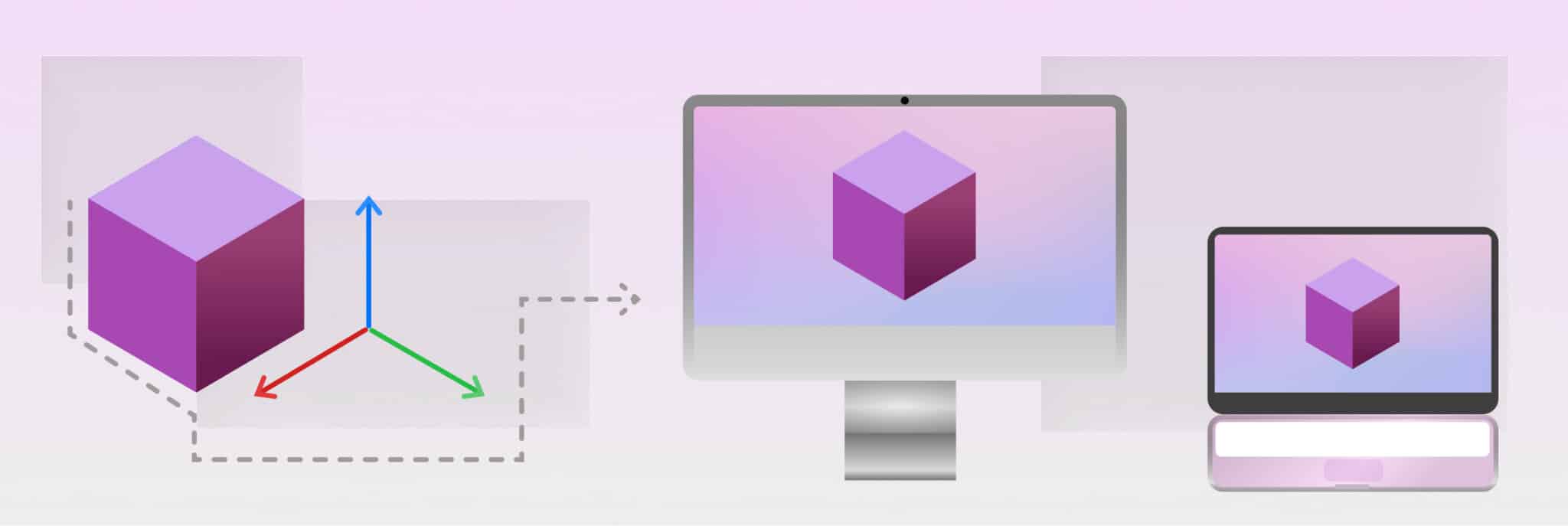
Macs work well for the hands on parts of 3D production, where artists need to make changes quickly and see the results. Modeling, animation, look development, lighting, and previews can all stay on the local workstation until the project is ready for final rendering.
Modeling and scene building
Artists can build and refine scenes locally, adjusting geometry, assets, modifiers, and layouts as they work. This keeps the creative process responsive and easy to manage.
Animation and look development
Animation and look development involve frequent changes to timing, poses, cameras, materials, textures, and lighting. Macs are also typically known for their already accurate colors that you don’t need to calibrate.
Local previews and test renders
Local previews help artists check lighting, materials, composition, motion, and scene setup before rendering the full sequence. A few test frames can catch issues early without tying up the workstation with a long final render.
When final rendering becomes the bottleneck
Final rendering can become much heavier than everyday scene work because every frame has to be processed at full quality. A sequence with hundreds or thousands of frames can quickly turn into a long render queue, especially when higher resolutions, detailed geometry, complex lighting, effects, simulations, or demanding render settings are involved. The Mac may still handle the scene comfortably, but completing the full sequence can take much longer.
Scaling from one Mac to multiple render nodes
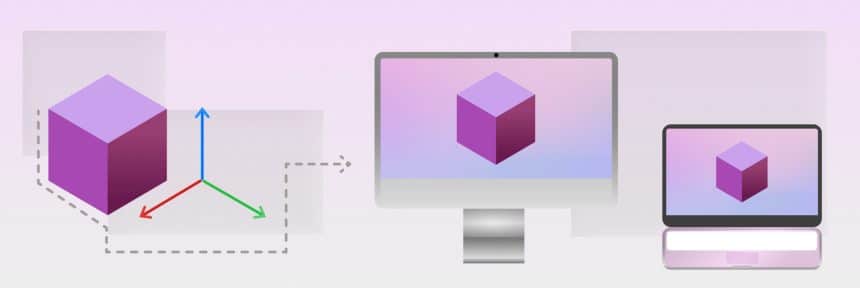
A render farm can spread an animation across multiple cloud render nodes so different frames are processed at the same time instead of one after another. This gives artists a way to increase rendering capacity without replacing the Mac they already use for modeling, animation, and look development. When a project becomes more demanding, additional nodes can handle the heavier final output while the Mac stays available for creative work.
A practical Mac to render farm workflow
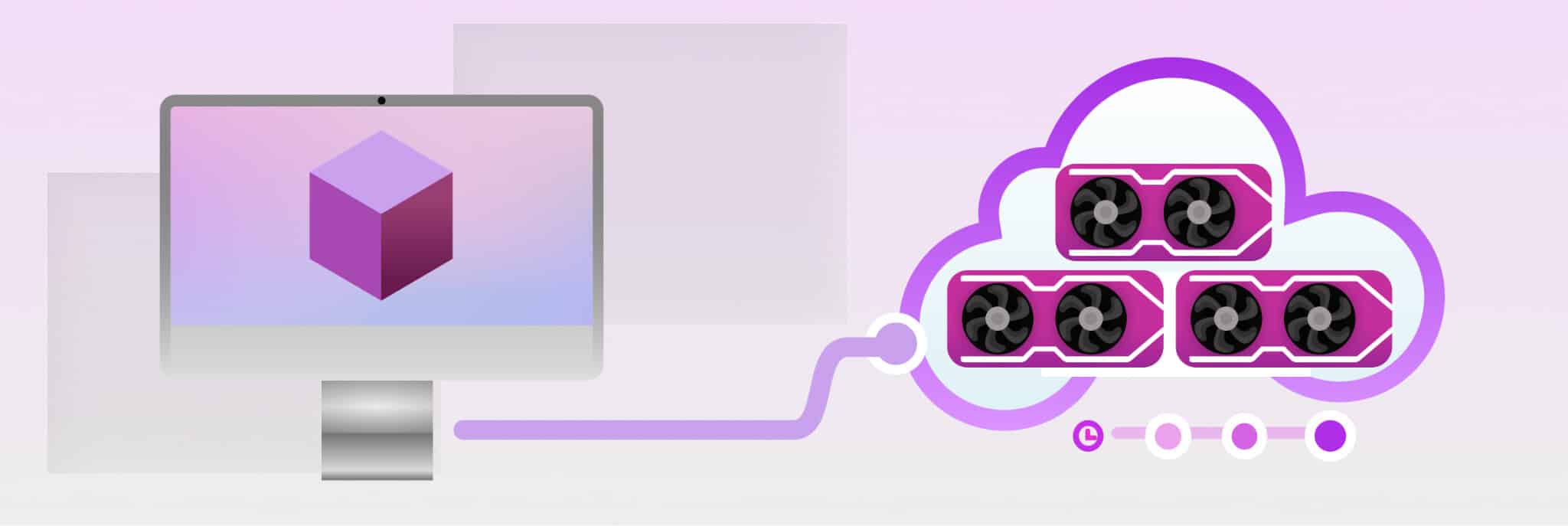
Moving final rendering away from the local workstation does not mean moving the entire creative process with it. The Mac can remain the main production environment until the scene is ready, with cloud rendering becoming part of the workflow closer to final output.
Create and refine the scene locally
The artist can build the project on the Mac as usual. Modeling, animation, lighting, materials, cameras, and other creative decisions stay within the familiar local workflow. This also makes it easier to test ideas quickly rather than treating every small change as something that needs outside computing resources.
Test representative frames
Before submitting a full animation, it makes sense to render selected frames locally. These can include frames from different parts of a shot or moments where lighting, motion, simulations, or effects are especially important. The goal is to catch obvious visual or technical problems while revisions are still easy to make.
Prepare the final scene
Once the project is ready for final output, the scene can be checked for the files and settings it depends on. Textures, assets, caches, frame ranges, output settings, and render configuration should all be in place so the submitted project represents the version the artist actually wants to render.
Send the final workload to the render farm
The heavier rendering stage can then be submitted to a cloud render farm. Multiple rendering nodes can work on different frames from the sequence, allowing the workload to progress beyond the capacity of a single local workstation.
The important part is that the creative workflow does not have to move with it. The Mac still holds its role as the artist’s main working environment, while the remote infrastructure handles the stage that benefits most from additional computing power.
Keep working while the sequence renders
Once the rendering workload is running remotely, the Mac remains available for other tasks. An artist might revise another shot, prepare assets for a different sequence, begin compositing work on completed frames, or continue with a separate project instead of waiting for the local render queue to finish.
This separation can be especially useful when several tasks overlap near a deadline. The artist does not have to choose between making a revision and allowing the machine to continue rendering the existing sequence.
When local rendering still makes sense
Cloud rendering does not need to be used for every scene. Local rendering remains practical when the project is small enough to finish comfortably on the available workstation. Still images, short animations, test frames, personal projects, and scenes with generous schedules may not benefit much from involving additional infrastructure.
Local rendering can also be useful during development because the artist receives direct feedback from the exact scene they are currently editing. For many workflows, the most practical approach is therefore to keep experimentation and smaller renders local, then consider additional resources only when the final workload becomes large enough to justify them.
When a render farm becomes more useful
The need for more rendering capacity usually becomes clearer when several pressures appear at the same time. A sequence may contain hundreds of final frames, each frame may take a substantial amount of time, and the delivery deadline may leave little room for one machine to process the entire job sequentially.
The situation can also arise when several shots are waiting for output or when the workstation needs to remain available for ongoing revisions. In those cases, distributing the rendering workload can help separate the time needed to create the work from the time needed to calculate the finished images.
Local and cloud rendering can work together
Local and cloud rendering serve different parts of the same production process. The Mac gives the artist a direct environment for creative decisions, experimentation, and quick feedback, while remote rendering provides additional capacity when a larger amount of final output needs to be processed.
This combination also allows the workflow to scale according to the project rather than around the maximum workload the artist might encounter. Smaller jobs can remain entirely local. Larger animation sequences can use additional computing resources when necessary, then the artist can return to the same everyday workstation setup for the next project.
Final thoughts
A Mac Studio can remain at the center of a 3D artist’s workflow even as projects become larger and more demanding. Modeling, animation, look development, lighting, scene preparation, and previews can stay local, giving the artist direct control over the parts of production that involve the most iteration and creative decision making.
When final rendering starts taking too much time or prevents the workstation from being used for other work, a cloud render farm can provide additional computing capacity without requiring the artist to replace the Mac. The Mac continues to handle the creative side of production, while larger rendering workloads can be distributed across multiple machines when the scale of the project calls for it.