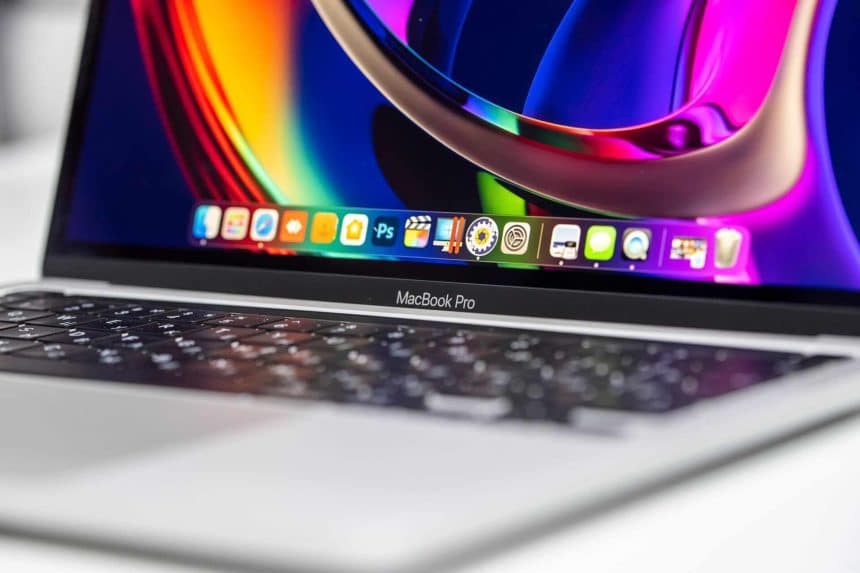
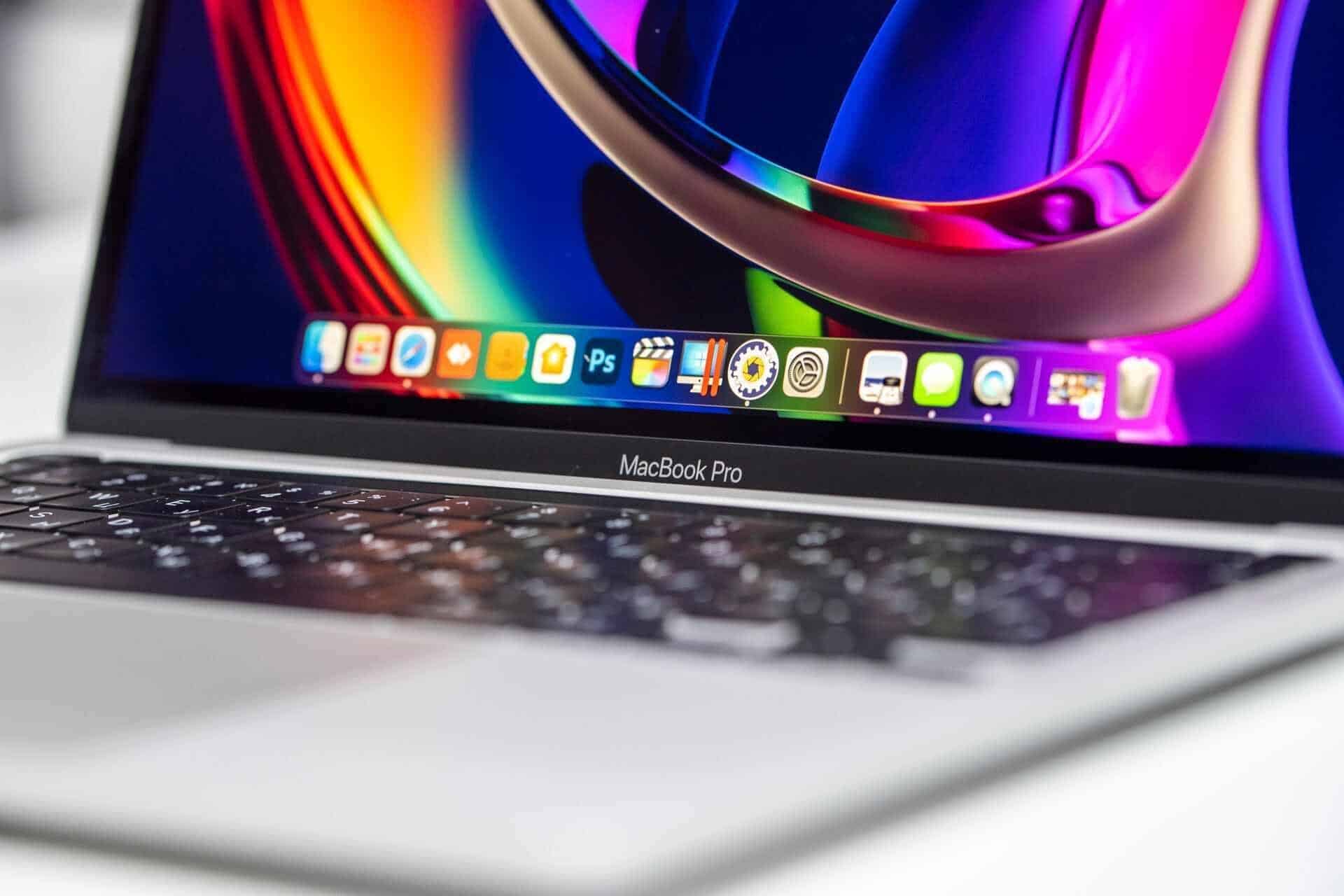
One of the selling points of Apple’s MacBook Pro is the ProMotion technology. ProMotion brings an all-around better display technology to Apple devices, improving the display quality of text and graphics. This means different things for MacBook Pro users, depending on how they use the device.
Gamers experience improved stability and battery-friendly performance, especially when streaming. Video editors, designers, and programmers can see more details about their work in real time. For traders, ProMotion means a smoother experience on the charts.
How ProMotion Works
Apple’s ProMotion works by automatically adjusting the device display’s refresh rate to match what the user is doing. This means it changes how many times the screen refreshes per second. Most older screens have a fixed refresh rate of 60Hz, which means they refresh 60 times per second. Others have 90Hz, and even up to 120Hz. ProMotion adjusts this refresh rate dynamically; it can speed up or slow down depending on usage.
How ProMotion Affects Web Charting
The 120Hz refresh rate on high-end Apple displays makes panning across interactive technical tools like TradingView via OANDA noticeably smoother compared to standard 60Hz panels. This offers several benefits to traders.
- Adaptive Refresh: ProMotion matches the screen refresh rate to the chart’s animation speed. This is crucial to the way charts load and render on the screen. Since Tradingview delivers real-time data that refreshes every second, traders can get the fastest possible access to new market data. ProMotion prevents frame stuttering by aligning screen draws with chart updates. This makes it possible to zoom in and out of a dense static or animated chart.
- Reduced Latency: ProMotion cuts frame delivery time in half from 16.6ms at 60Hz to 8.3ms at 120Hz. This reduces the lag between a user’s finger touch and the chart’s visual response. This also allows data hover states and popups to appear instantly. Trades also experience enhanced live-streaming data feeds, which improve the overall quality of the stream.
- Rendering Efficiency: JavaScript executes much of the animation in real time; ProMotion syncs its execution directly with the 120Hz timeline. It also offloads heavy vector graphics to the hardware where needed. This optimises GPU performance and prevents throttling or power constraints.
- Power Efficiency: The overall effect of ProMotion’s dynamic refresh is power efficiency. ProMotion drops the refresh rate when a trader is just reading static charts. It consumes power only relative to the amount of movement on the screen. Optimising rendering cycles helps conserve battery usage.
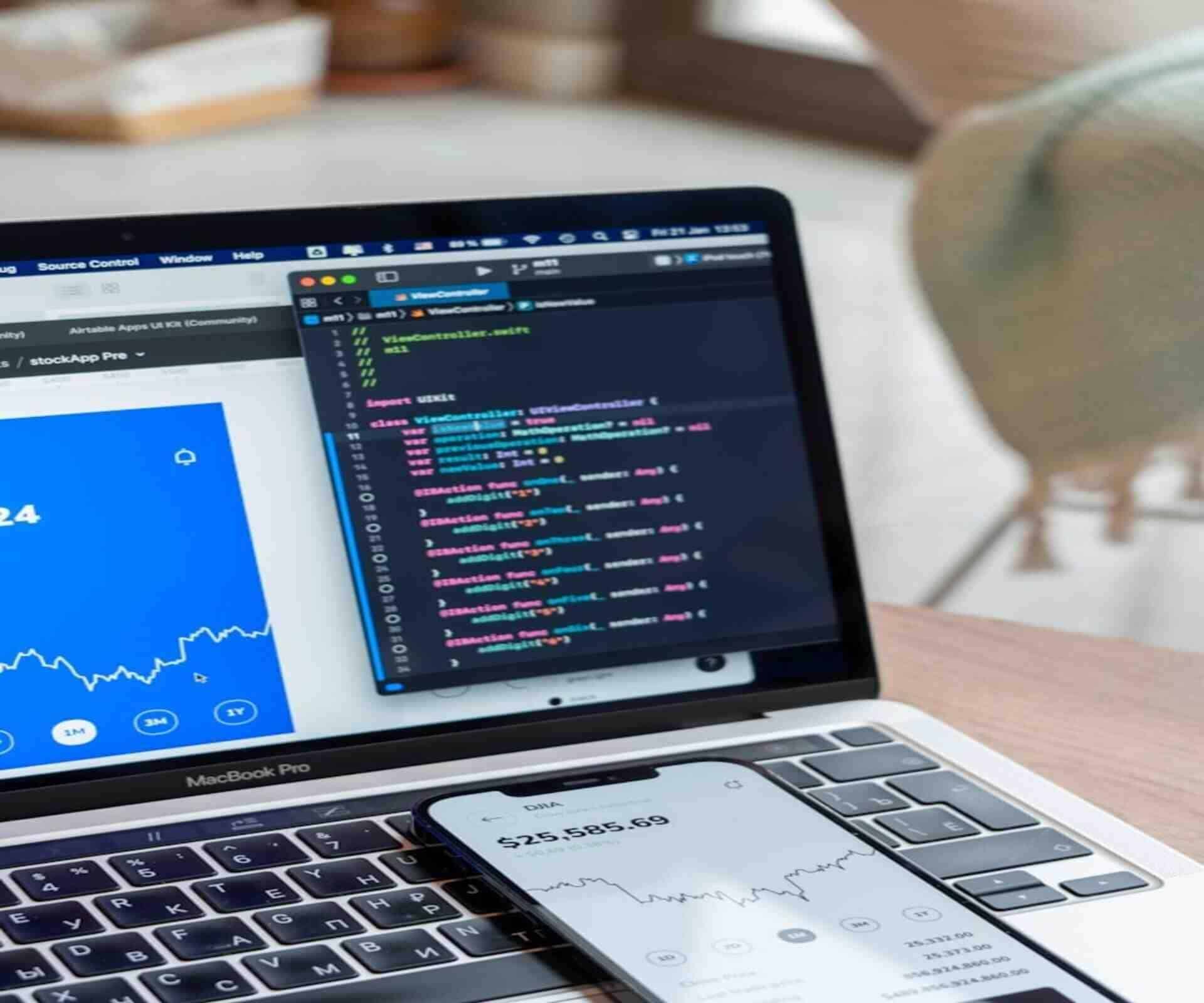
How to Unlock Full macOS ProMotion Potential on Your MacBook Pro
ProMotion works quietly in the background, handling all changes without needing manual adjustments. However, you might have to turn it on if you are using Safari or Chromium-based browsers. This is because those browsers often cap complex canvas rendering at 60Hz, like Tradingview’s indicators and ticking candles.
Step 1: Verify macOS ProMotion State
- Open the Apple menu and go to System Settings
- Click Displays on the sidebar
- Click the dropdown next to Refresh Rate and select ProMotion
ProMotion is usually pre-selected, but if it isn’t, you can simply select it.
Step 2: Unlock 120Hz Inside Your Browser
The next step is to disable a hidden feature flag in Safari to enable 120Hz.
- Launch Safari and click the top menu bar: Safari > Settings (or press CMD +,)
- Navigate to the Advanced tab and tick the checkbox at the bottom that reads: “Show features for web developers.”
- A new Developer menu will appear at the top of your Mac screen.
- Click Developer > Feature Flags
- In the search box, type 60
- Uncheck the flag labeled “Prefer Page Rendering Updates near 60-fps.”
- Restart Safari
If you use Chrome,
- Open Chrome Settings
- Click System on the left menu
- Toggle ON the setting: “Use graphics acceleration when available.”
- Relaunch Chrome.
- You can also ENABLE “Smooth Scrolling” under Chrome flags.
Step 3: Optimise TradingView Canvas Settings
The final step is to set the TradingView canvas to render charts without stuttering. Limit your active screen indicators to 5 or fewer so your screen can refresh at 120 fps. You can use the Tradingview desktop app, which completely isolates performance from daily web browser tabs. You should also close background chart tabs to prevent multiple heavy layouts in the same browser. This allows your Mac’s GPU threads to prioritize active tabs, rather than background tabs.
How ProMotion Improves the Mobile Trading Experience
Apple’s ProMotion redefines intuitive displays for users, improving their experience with their devices. Using ProMotion screens gives you instant responsiveness and dynamic matching. The technology enhances charting by updating fast-moving technical tools cleanly without residual blur. Its improved battery efficiency also makes it excellent for traders who use their mobile devices on the go. The best part is that you only have to set it up once and not every time you view web charts.