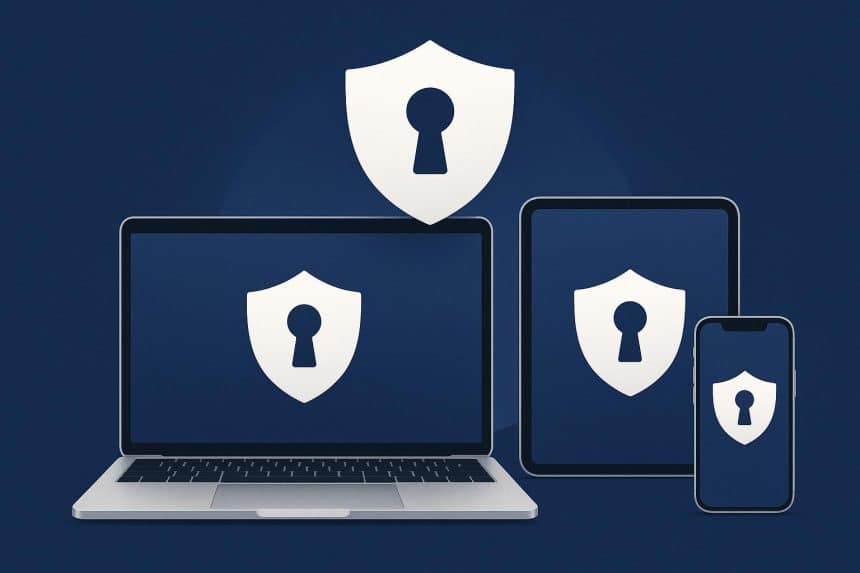
You might use your iPhone to pay for everything. Your Mac might be full of work documents. Your Apple Watch is a treasure trove of information about your daily routine. With iCloud connecting your devices, you can access much of this information wherever you need it.
However, this convenience also creates risks. Apple provides strong privacy and security tools but if someone gains access to your Apple account or you share sensitive information without checking who can see it, there’s a chance that you could lose that security.
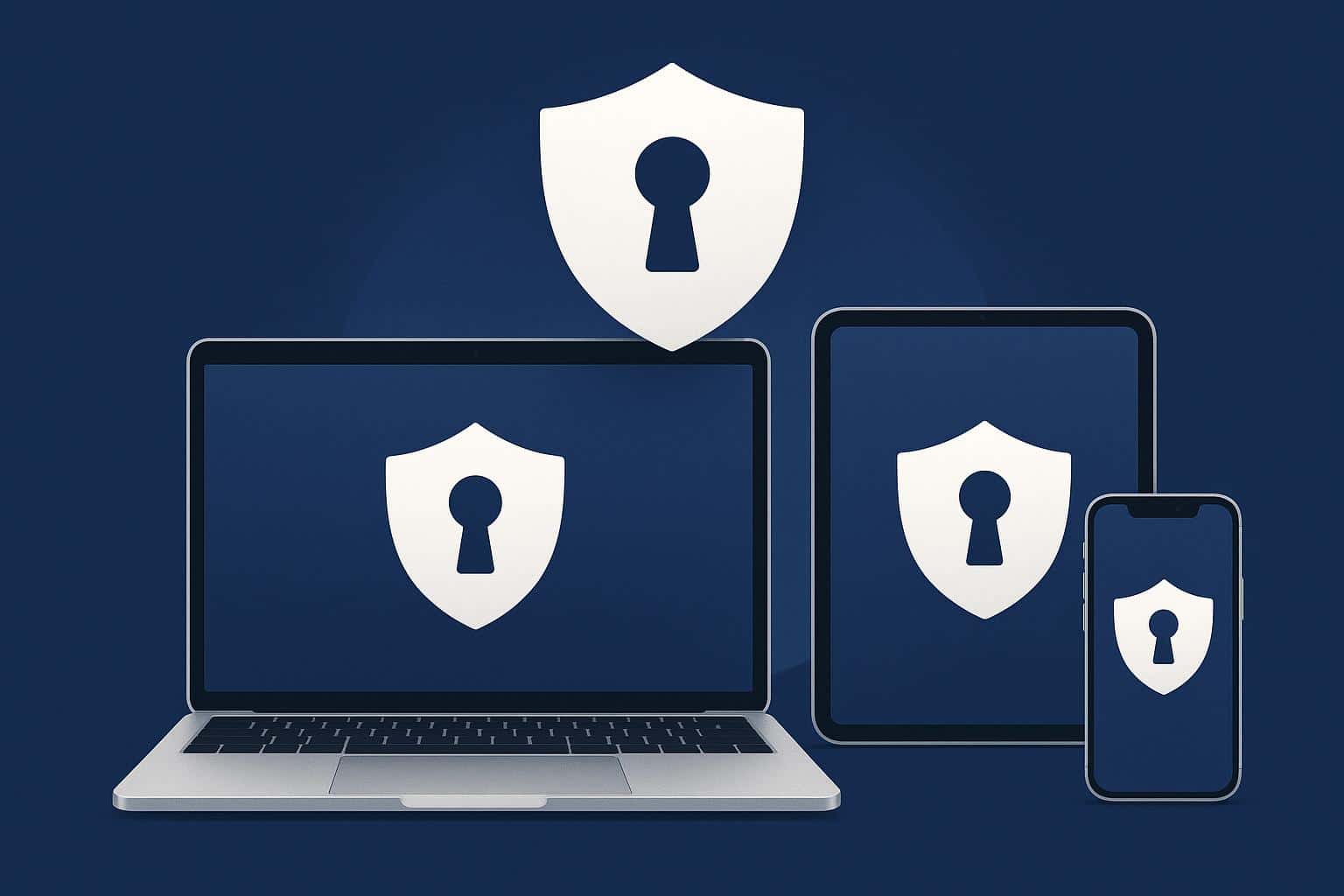
How effective Apple’s privacy settings are is partly dependent on how you use them.
Securing your Apple ID as the foundation of privacy
Your Apple ID unlocks every device, backup, and subscription, making it a primary target for attackers.
Turning on two-factor authentication under your account settings can add a layer of protection. This requires a verification code whenever you sign in on a new device.
For an even stronger shield from cyberattacks, transition away from traditional passwords by using a passkey. This uses cryptographic key pairs tied to your device’s Touch ID or Face ID, rendering phishing attacks completely ineffective.
You should also review your trusted phone numbers in your Apple ID settings to guarantee you never lose access to emergency account recovery options.
Managing data stored and shared through iCloud
iCloud seamlessly syncs your photos, documents, and device backups, but unencrypted cloud storage leaves your information vulnerable to server-side breaches. You can lock down your personal files by enabling Advanced Data Protection in your iCloud settings. This feature upgrades your account to end-to-end encryption, ensuring that only your trusted devices hold the keys to decrypt your data.
Additionally, check the iCloud Drive sharing menu regularly to revoke unnecessary permissions from older shared folders or documents, preventing former collaborators from accessing your live data.
Using privacy features across iPhone, iPad, and Mac
Apple equips iOS, iPadOS, and macOS with robust permissions that block aggressive data harvesters. Open your Privacy & Security settings to enable App Tracking Transparency, which stops applications from tracking your online activities across other apps and websites.
Turn on Mail Privacy Protection within your Mail settings to hide your IP address and block invisible tracking pixels that senders use to monitor when you open an email.
Also, audit your Location Services settings to restrict apps to “While Using” or disable precise location tracking for apps that do not require exact coordinates to function.
Building stronger protection against online threats
While Apple builds impressive hardware defences, your daily browsing habits dictate your overall security setup.
Activate iCloud Private Relay in your iCloud settings to encrypt your Safari web traffic and mask your IP address from third-party network trackers. To handle sensitive logins outside the Apple ecosystem, store your unique credentials in Apple Passwords or a dedicated password manager rather than reusing passwords.
Whenever you connect to untrusted public Wi-Fi networks in cafes or airports, run an encrypted Virtual Private Network (VPN) connection to prevent local network snooping and secure your sensitive internet traffic.
While Apple has robust security settings in place, it’s always worth making sure you’re aware of any suspicious comms. Take the time to double-check unusual emails and screen calls from people you don’t know.