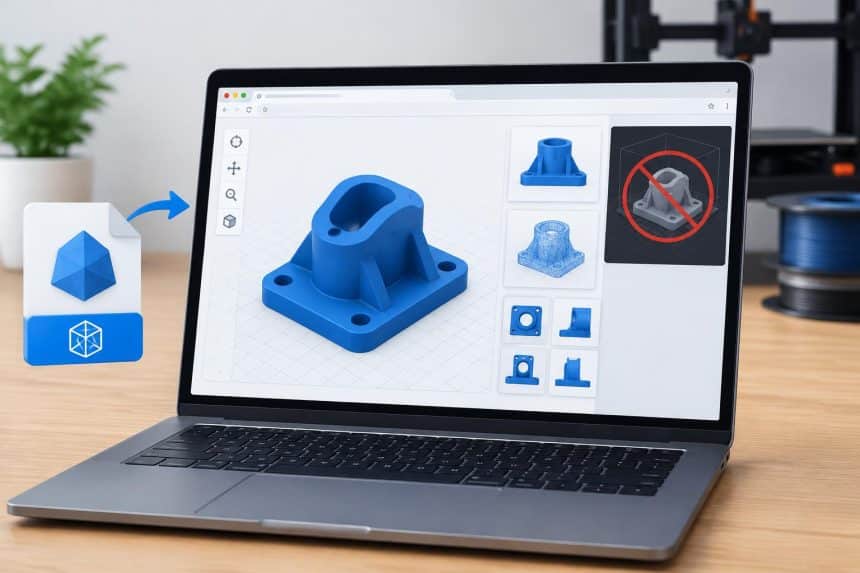
A download thumbnail may hide problems that ruin prints. Perhaps the mounting hole is missing, or the object opens at the wrong size. You can catch many of these problems before starting your slicer. A browser preview takes only a few checks and requires no installation. Here is an inspection routine you can use for downloaded parts and your own designs.
What Can You Check Before Slicing?
An STL file describes an object’s surface using connected triangles. It does not reliably store measurement units, material colors, or printing instructions. Your browser shows the geometry, while slicing software determines how the printer will build it.
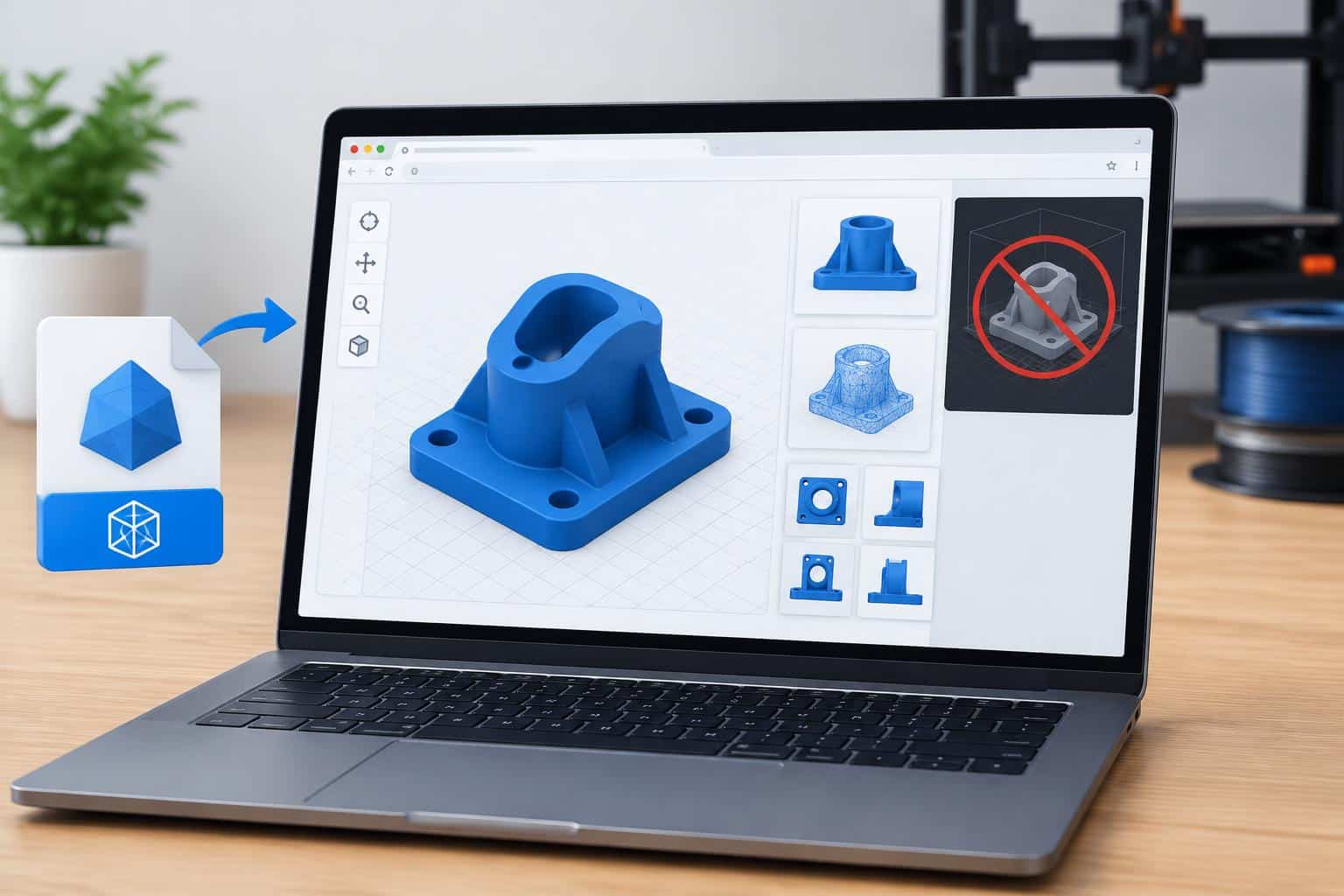
A good STL viewer lets you rotate the object and examine its dimensions. Some tools also report open edges, mesh faults, and measurements between selected points. Even a polished preview cannot prove that every wall will print correctly.
How to Inspect an STL File Online
1. Open the File Without Installing Anything
Choose an online STL viewer that supports files from your device. Open its upload area and select the downloaded .stl file. Meshy’s browser viewer supports 20 file formats including STL and 3MF.
Its free viewer accepts files up to 200 MB without an account. Meshy says viewing runs locally inside your browser rather than uploading geometry to its servers. This distinction is useful when inspecting a client’s unreleased design.
You can find the viewer in Meshy’s 3D Tools menu; try it here.
2. Confirm You Opened the Intended Object
Start with the complete shape before inspecting tiny details. Compare its outline against the product photo or original drawing.
A download package may contain several versions with different tolerances. Check the filename for terms such as left, right, revised, or support.
If a replacement part has two mounting holes, verify both are present. Missing geometry is easier to catch before adjusting printer settings.
3. Rotate Underneath and Inspect Hidden Surfaces
Drag across the preview to turn the model around. Inspect the underside, back, and inside of visible openings.
Zoom into places where separate shapes meet or narrow features connect. A decorative bracket may hide an unsupported ledge beneath its front face. A miniature might have thin accessories that are easy to miss.
Switch to wireframe or section view when your viewer offers those controls. Check for disconnected pieces or openings that should be closed.
4. Check Dimensions Before Trusting the Scale
Find the width, depth, and height in the viewer’s information panel. Compare those figures with a measurement you know from the design.
For example, a bracket intended to measure 80 mm should not display 80 inches. STL coordinates have no dependable unit label, so a viewer must interpret them.
A model made in inches may import far too small when treated as millimeters. For reference, one inch equals exactly 25.4 millimeters.
Correct the unit interpretation or rescale in your design software before slicing.
5. Inspect Holes, Edges, and Overlapping Parts
A printable solid generally needs a closed and manifold outer surface. Problems include missing triangles, floating faces, and edges shared by too many surfaces.
Meshy’s free viewer reports mesh details and includes watertight and non-manifold checks. An automated warning can direct you toward a problem area.
It does not tell you how every tiny feature will behave on your printer. Prusa’s printing design guidance also explains why manifold geometry is important.
Repair defects in suitable mesh-editing software and inspect the saved file again.
6. Consider the Printing Direction and Fragile Details
Imagine which flat surface would rest against your build plate. A broad base can reduce the support material your design needs.
Tall narrow pieces may need additional bed adhesion or a different orientation. Inspect small letters, pegs, and thin walls at close range.
Their visible size alone cannot confirm printability for your nozzle or resin setup. Your slicer’s extrusion-width and layer preview will provide the next check.
Record any risky areas before moving to that stage.
7. Save a Useful Inspection Record
If you are reviewing models for a team, capture screenshots from several angles. Include the model’s filename and displayed dimensions in your notes.
State any suspected defects instead of calling an uncertain model broken. A simple note such as “rear tab missing” is easy to verify later.
Use the original STL for slicing unless you deliberately repaired it. Browser rotation does not change your saved file’s geometry.
Where Meshy Helps Beyond Basic STL Inspection
Meshy also provides browser-based tools for producing and working with 3D models. Its Image to 3D workflow can generate a model from a reference image.
Meshy supports STL and 3MF exports for 3D printing workflows. The platform has free and paid plans, but downloading generated models requires an eligible paid plan.
On Meshy 7, Multi-View generation accepts a main image plus three additional angles. This option is available on Pro and higher paid plans.
For animation projects, Meshy Auto Rigging includes Smart Rig (Beta) for custom or fantasy creatures outside standard categories. Rigging is separate from checking whether an STL will slice correctly.
Common Problems Worth Catching Early
- Wrong size: Compare a known measurement against the displayed model dimensions.
- Upside-down geometry: Rotate the preview and identify a practical bed-facing surface.
- Missing component: Check holes, tabs, and separate parts against the source drawing.
- Open mesh: Run available geometry checks and repair confirmed defects first.
- Unclear file ownership: Verify the download source before uploading sensitive project files elsewhere.
Finish With a Slicer Preview
Once your browser inspection is complete, import the STL into your slicer. Confirm the printer profile and build plate dimensions before adjusting orientation.
Slice the model and examine the first layer closely. Then review upper layers for unsupported sections or missing thin features.
Prusa recommends checking the overall shape, floating areas, and first-layer contact in its slicer instructions.
A browser check is your early warning, not final print approval.
FAQ
Can an STL File Open Without Slicing Software?
Yes, browser viewers can display its triangular geometry without generating printer instructions. You still need slicing software or another supported printing workflow afterward.
Does a Watertight Result Guarantee Successful Printing?
No, a closed mesh can still contain extremely thin features or difficult overhangs. Review the sliced layers and printer settings before committing material.