
The most visible sign of a poorly designed hybrid workstation is not a slow laptop, it is the five-minute ritual of reconnecting it. Two monitors wake in the wrong order, Ethernet is missing, a webcam is still in a backpack, and the laptop is drawing power from an adapter that does not match the desk. A dell docking station should solve that friction by turning one laptop connection into a repeatable workspace. The useful way to assess a dock is therefore not by counting ports in isolation, but by asking which parts of a workday it removes from the setup process.
A Dock Is a Workflow Component, Not Just a Port Expander
A docking station concentrates displays, wired networking, storage, audio, input devices, and power behind a single upstream connection. That sounds basic, but it changes the operating model of a desk. Instead of treating a laptop as a portable computer that must be rebuilt into a workstation each morning, the dock makes the laptop a portable key to an already prepared workplace.

For hybrid teams, that repeatability has operational value. A user can move between home, a hot desk, and a meeting room with fewer forgotten adapters and fewer variables when troubleshooting. IT teams also gain a clearer support boundary: the monitor cable, keyboard, Ethernet, and power source remain attached to the dock rather than being reconnected in a different order every day.
The dock is not an automatic upgrade for every laptop. Its practical result depends on the laptop’s USB-C or Thunderbolt capability, the operating system, available power delivery, display support, and the peripherals connected. That is why a workflow-first evaluation begins with the host computer and the required work rather than a product-family label.
Map the Workload Before Shopping
Start by identifying the desk’s non-negotiable tasks. A finance analyst might need two external displays, wired Ethernet, a keyboard, mouse, headset, and reliable laptop charging. A video editor may care about high-bandwidth external storage and a color-critical display. A sales or operations employee may be better served by a compact dock that supports a monitor, webcam, and conference-room accessories.
This mapping prevents an expensive but poorly matched purchase. A 14-port dock can be useful, but only if its display configuration, host connection, and power delivery suit the laptop actually on the desk. Conversely, a simpler dock may be the cleaner choice when the workstation uses one monitor and a small set of peripherals. When comparing Anker docks for Dell laptops, use that workload list to narrow the options, then check the individual dock’s host and display compatibility before purchasing.
Write down four requirements: number and type of displays; network and storage needs; ports required for daily peripherals; and the laptop’s power needs. Then check the laptop documentation for its USB-C, Thunderbolt, and display capabilities. A dock expands the host computer’s connection; it cannot create capabilities the host does not support.
Display Support Requires More Than an HDMI Count
The monitor question is where docking-station marketing can become misleading. HDMI and DisplayPort connectors tell you what can be physically attached, but they do not alone establish whether two or three displays will operate at the resolution and refresh rate needed for a particular laptop. The graphics capability of the host, the connection standard, operating-system support, and sometimes driver requirements all matter.
A sensible deployment check lists each monitor’s resolution, refresh rate, connection type, and role. A secondary spreadsheet display has different needs from a main design display. Teams using Dell laptops should also distinguish between USB-C, Thunderbolt, and DisplayLink-based workflows rather than assuming every USB-C port behaves identically.
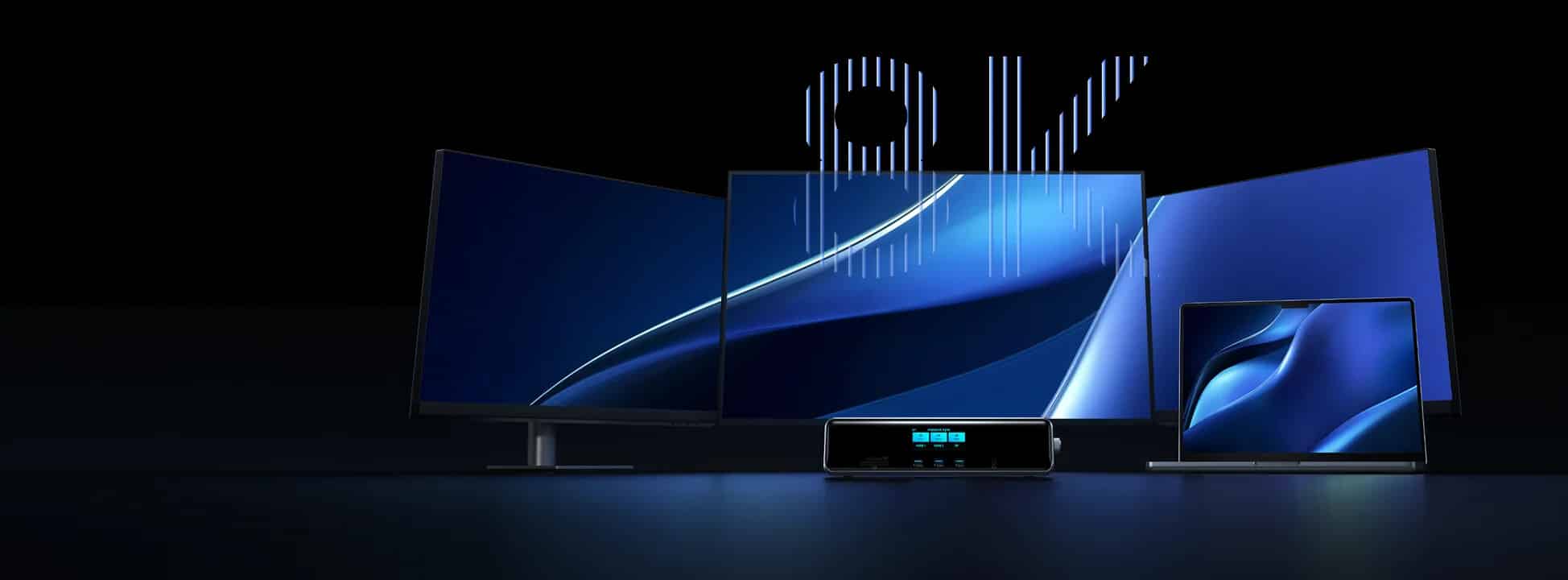
Anker’s docking-station range illustrates why model-level checking matters. For example, the Anker Prime TB5 Docking Station (14-in-1, 8K, Thunderbolt 5) brings together two downstream Thunderbolt 5 ports, USB-A and USB-C connections, 2.5Gbps Ethernet, and SD and microSD card readers. This combination can suit a hybrid workstation where displays, a wired network, and peripherals remain connected as the laptop moves between locations.
Its upstream Thunderbolt 5 port can deliver up to 140W to a compatible laptop. Anker lists support for Thunderbolt 4 and 5 laptops, but buyers should check their exact Dell model, power requirements, and operating-system compatibility. The HDMI 2.1 and DisplayPort 2.1 connections cannot be used simultaneously, and the number and resolution of external displays depend on the host and connection arrangement. The dock’s 8K capability should therefore be checked against the intended laptop and monitors rather than assumed for every setup.
Power Delivery Is Part of Desk Reliability
A dock that connects displays but cannot meet the laptop’s routine power demand creates a hidden compromise: the user may still need a separate charger, or the laptop may charge slowly under load. Power delivery should be evaluated against the laptop’s official charging requirement, not against the largest number printed anywhere on a dock category page.
Ask three questions. What power does the laptop’s manufacturer recommend? What can the dock deliver to the host under the chosen configuration? And does the dock’s supplied adapter provide enough input for the combined laptop and peripheral load? The answers matter most for mobile workstations, larger Dell models, and workflows with multiple displays or bus-powered external drives.
This is not about chasing maximum wattage. It is about matching the desk to the machine. A correctly specified dock lets a worker arrive, connect one cable, and work without turning power management into a second task.
Ports Should Be Assigned to Roles
The best port layout is not necessarily the longest list. Assign roles before choosing hardware: a stable display connection, wired network, keyboard and mouse, webcam or headset, fast external storage, and occasional-access ports for an SD card or USB drive. This reveals whether front-facing ports, an SD slot, or extra USB-C connections will make a real difference.
It also helps preserve desk order. A dock with the everyday cables routed at the rear and occasional-access ports at the front can make a shared workstation easier to use. Ethernet remains valuable for teams transferring large files, using virtual desktops, or working in offices where Wi-Fi conditions vary. A dedicated network port also avoids consuming a separate USB adapter.
Treat ports as an inventory with priorities. If the workstation needs two displays and Ethernet every day, those connections should not compete with a temporary drive or a charging cable. That simple rule improves both reliability and the user experience.
A Practical Deployment Checklist
Before standardizing on a dock, test the exact combination that employees will use. Connect the intended Dell laptop, displays, network, keyboard, mouse, webcam, and storage device. Confirm display behavior after a restart and after the laptop wakes from sleep. Verify that video calls, external-drive transfers, and laptop charging behave normally at the same time.
For an organization, document the approved cable path and display settings. Keep the dock firmware, laptop firmware, operating system, and relevant drivers current according to vendor guidance. A short checklist at a hot desk can eliminate many support tickets: connect the dock’s power first, attach the host cable, select the expected display input, and confirm the network indicator.
The point is not to make employees become technicians. It is to make the desk predictable enough that they do not have to think about connectivity at all.
Shared Desks Need a Standard, Not a Collection of Adapters
A docking station becomes more valuable when it is treated as part of a repeatable workplace standard. In a small team, that can mean using the same host cable, monitor arrangement, power adapter, and network setup across a few desks. In a larger organization, it can mean defining one or two validated configurations for common Dell laptop classes rather than leaving every employee to assemble a different set of adapters.
Standardization reduces friction for people moving between locations. It also makes onboarding simpler: a new employee can receive a short setup guide that reflects the desk they will actually use. When a problem occurs, support teams have a known configuration to inspect instead of a long list of unknown accessories. This does not require every desk to be identical; specialist teams may need their own display or storage needs. It does mean that the core connection path should be documented and deliberate.
For an individual buyer, the same principle applies on a smaller scale. Choose a dock that supports the peripherals you expect to keep for the next few years, but avoid paying for ports that have no place in the workflow. A stable and understood setup is more valuable than a desk that is merely impressive on paper.
A final operational detail is cable management. Labeling the host cable and keeping it easy to reach makes a hot desk more approachable, while separating display, network, and power cables reduces accidental disconnections. Small setup choices like these are what make a dock feel dependable throughout a busy week.
The Bottom Line: Buy for the Workday You Want
A well-chosen docking station is an investment in continuity between locations. It should make the same laptop feel equally ready at home, in the office, and at a shared desk. The most useful evaluation order is host compatibility first, display plan second, power delivery third, and ports fourth.
For Dell users building a multi-peripheral workstation, Anker’s range provides several docking-station formats to compare against that checklist. The brand’s role here is not to substitute for compatibility work; it is to provide configurations with the connectivity categories a modern desk may need. Selecting the right model still comes down to the laptop, displays, and daily workflow.
That approach produces a better outcome than buying a dock for its port count. The right dock is the one that makes arriving at a desk uneventful: one connection, a ready workspace, and fewer small interruptions before the real work begins.