With hundreds of software uninstallers on the market in 2026, claiming to completely wipe unwanted apps from your PC is standard. However, native Windows uninstallation and many third-party tools still leave behind scattered folders, invalid registry entries, and cached data.
This is where IObit Uninstaller positions itself as a market leader. But can it genuinely eliminate every trace of digital clutter? In this comprehensive review, we examine its core features, pros and cons, performance, and whether it stands out as the best uninstaller for Windows.
Part 1: What Is IObit Uninstaller?
IObit Uninstaller is a dedicated software management and removal utility built for Windows environments. Beyond the standard application removal handled by Windows Settings, it acts as an advanced uninstaller for Windows, running automated deep scans to catch and purge residual files, directories, and registry keys left behind by standard deletions.
Designed with a clean, modern interface, it caters to both everyday users and advanced tech enthusiasts looking to maintain a lean operating system without manual registry editing.
Part 2: Key Features: Why It’s Rated Among the Best Uninstallers for Windows
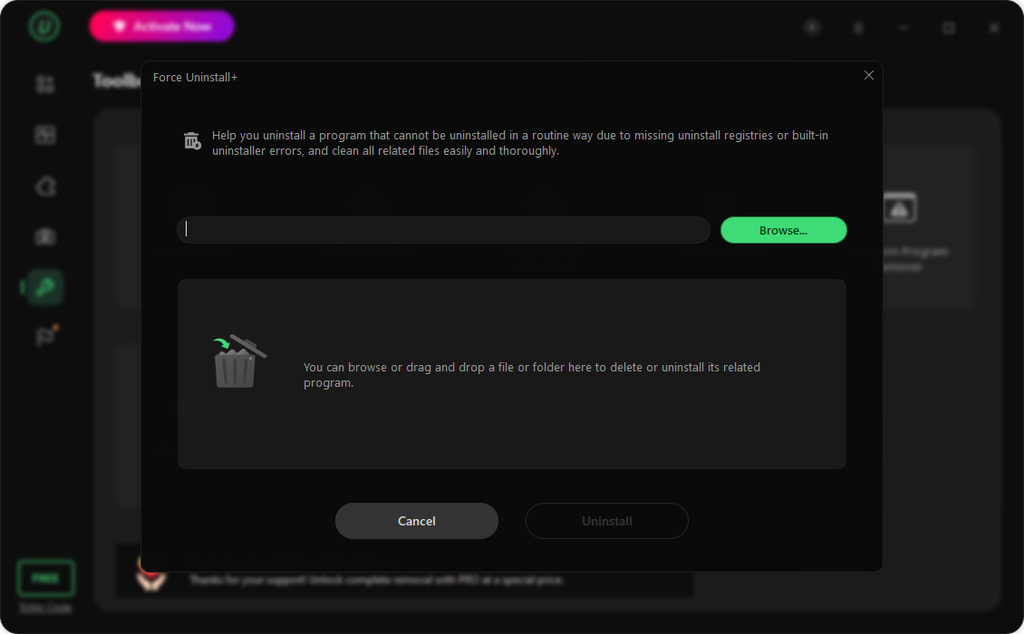
To evaluate its performance, let’s break down the standout features that make IObit Uninstaller a popular choice for system maintenance:
- Massive Stubborn Program Database: The tool supports the removal of over 4,000 stubborn programs, including malicious adware, browser hijackers, and software that resists standard Windows removal.
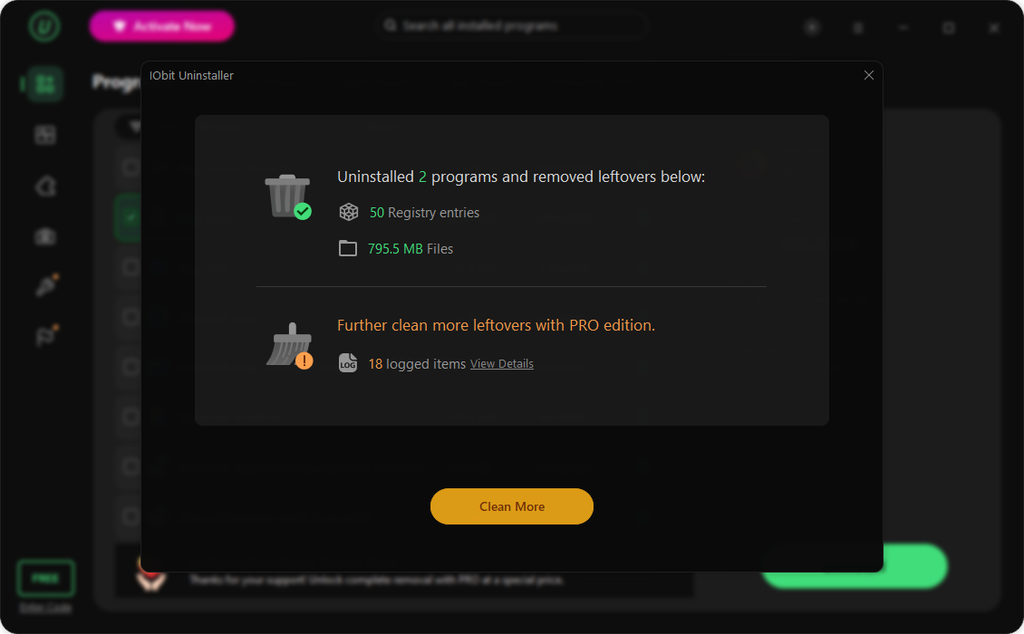
- Automated Deep Cleaning: Once a program’s initial uninstallation finishes, an advanced scanner tracks down residual folders, cache, and leftover registry entries to prevent storage bloat.
- Pre-installed Windows App Removal: It streamlines the process of stripping away default or pre-installed Windows system applications that are normally locked down by default settings.
- All-in-One Maintenance Toolbox: Beyond application removal, it features a built-in bloatware remover, browser extension manager, and a Software Health monitor to keep track of permissions and outdated components.
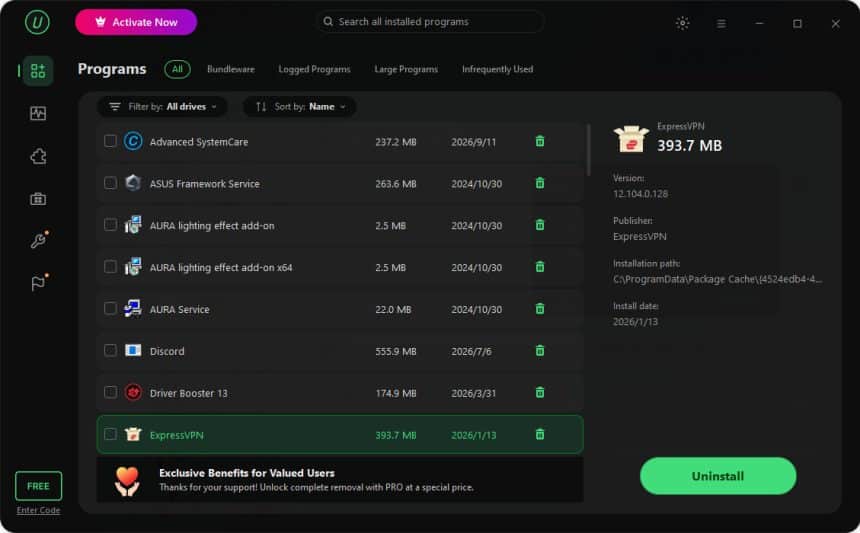
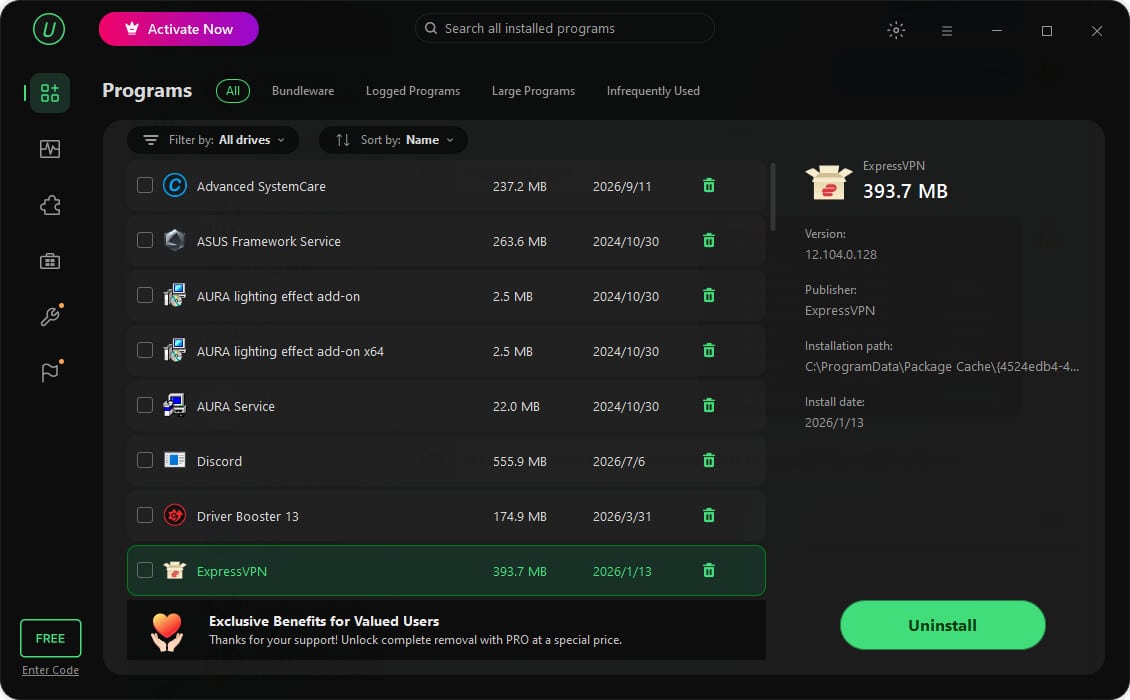
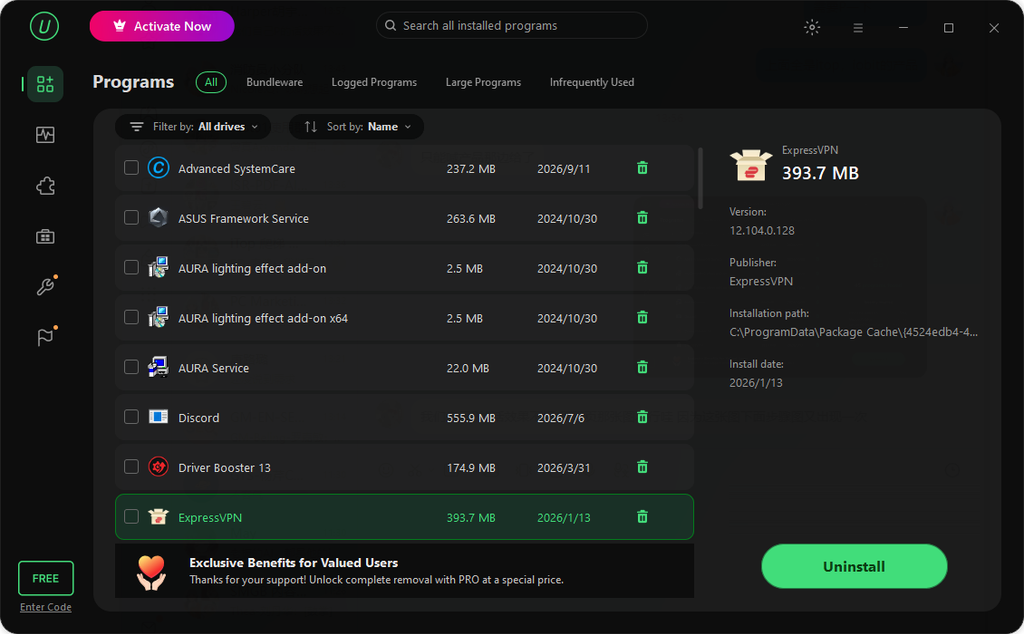
- Beginner-Friendly Dashboard: The streamlined layout allows users to sort installed applications by size, installation date, or frequency of use with a single click.
Part 3: Pros and Cons of IObit Uninstaller
Every software utility comes with a set of trade-offs. Here is a balanced look at its advantages and limitations:
Pros
- Broad compatibility with legacy and modern systems, ranging from Windows 7 up to Windows 11.
- Highly effective database capable of targeting over 4,000 hard-to-remove apps.
- Software Health module actively audits app permissions and flags potential risks.
- Intuitive design that requires zero technical background to navigate.
- Functional free tier handles basic uninstallation effectively.
Cons
- Certain advanced maintenance and deep-cleaning features are locked behind the Pro version paywall.
Part 4: Step-by-Step Guide: How to Uninstall Programs and Leftovers
Using the software to purge unwanted apps and residual files takes only a few steps:
- Download and Launch: Go to the official IObit website to download the latest version. Open the application and navigate to the “All Programs” tab on the left-hand panel.
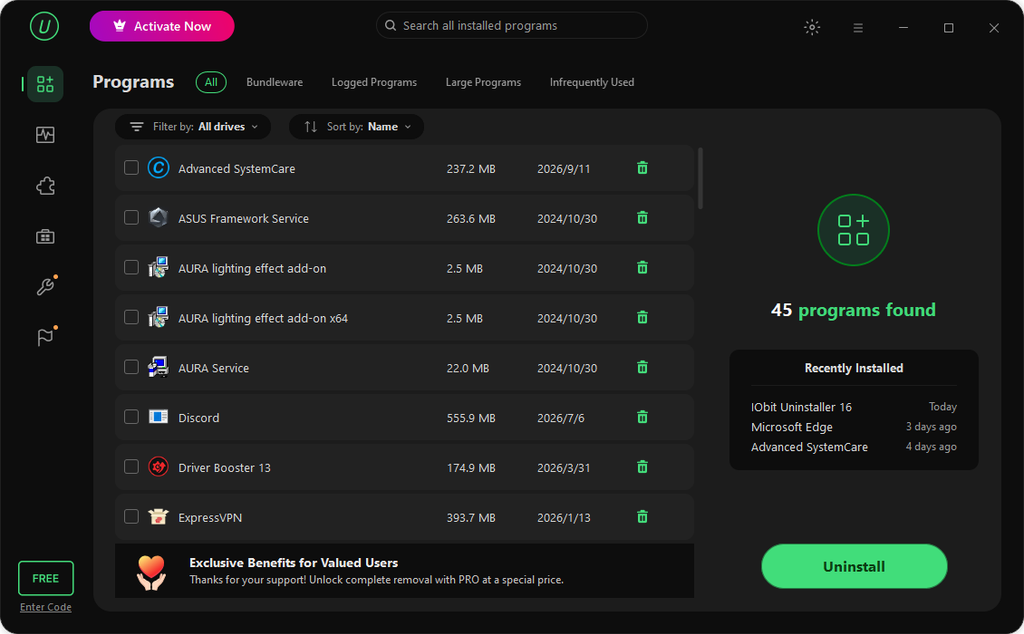
- Select Target Apps: Review the comprehensive list of your installed and pre-installed Windows applications. Check the boxes next to the software you wish to remove.

- Execute Clean Removal: Click the “Uninstall” button. The utility will trigger the application’s native installer first, followed immediately by a deep scan to clear out all associated registry entries and leftover files.
Final Verdict
Does IObit Uninstaller live up to its reputation? Based on its ability to sweep away stubborn software and hunt down hidden residues that Windows misses, it delivers on its core promises. For users looking to bypass manual registry editing and keep their storage organized, it serves as a practical addition to any Windows maintenance toolkit.