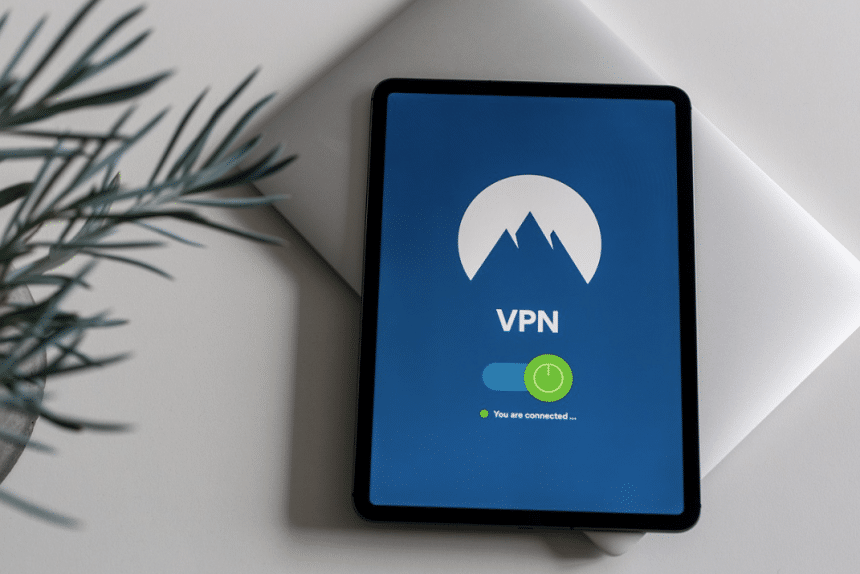
A reliable VPN for the iPhone should protect the traffic leaving your phone without interfering with Apple’s built-in features. AirDrop, Handoff, iPhone Mirroring, local printers, and smart home apps still need nearby-device discovery. When a VPN blocks that local layer, Safari may load just fine, but your Mac suddenly disappears from AirDrop. The better setup is simple: encrypt outside traffic, but let trusted local Apple features keep working.
This is a common iPhone problem because VPN apps are often tested only one way. People open a browser, see that the internet works, and assume everything is fine. Then they try to send a photo to a Mac, continue a note on another device, or open a local speaker app. That is where the setup shows its weak spot. Choosing a secure iPhone VPN makes sense when privacy matters, but so does the Apple ecosystem.
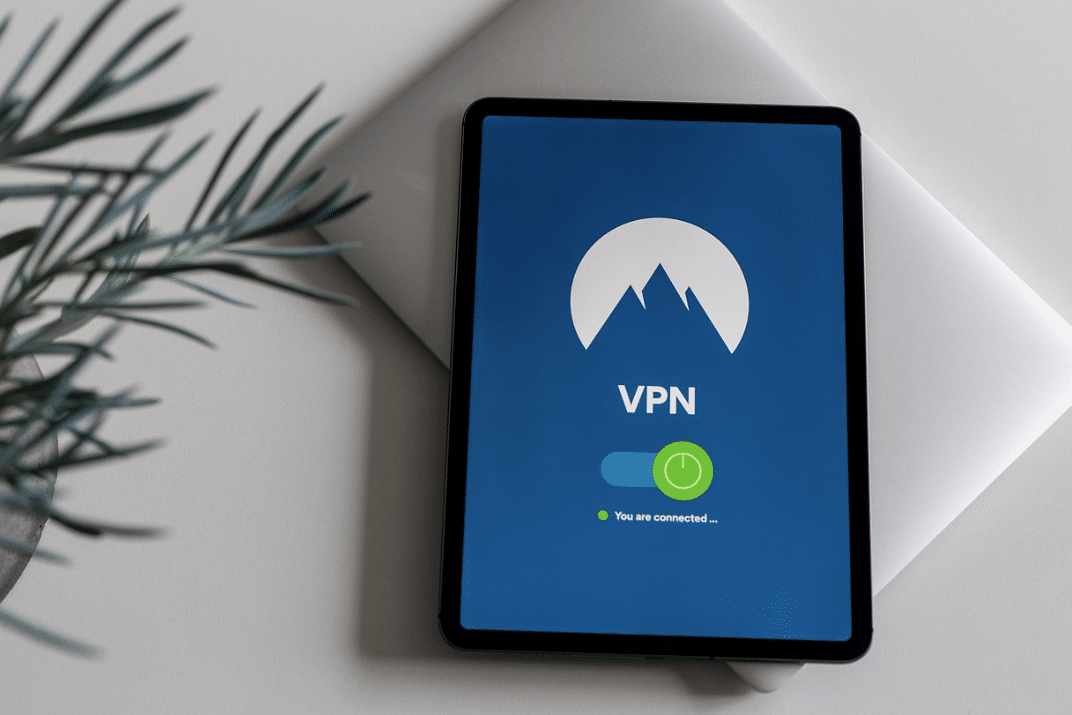
Why a safe iPhone VPN should not block Apple ecosystem features
A Virtual Private Network is required where the network being used is considered to be untrusted: airports, coffee shops, hotels, co-working spaces, rented places, or any open Wi-Fi networks, in general. This traffic is encrypted through the tunnel.
The part people forget is local traffic. AirDrop and Handoff are not just “Apple magic.” Their functions include the use of Wi-Fi, Bluetooth, discovery of the device, Apple ID settings, and local permissions. In the event that the network considers each neighboring connection suspicious, the very route needed by AirDrop might be blocked.
| Setting | Why it matters |
|---|---|
| Wi-Fi and Bluetooth | AirDrop and Handoff need nearby discovery |
| Local Network access | Apps may need it to see local devices |
| VPN local rules | Strict rules can block LAN traffic |
| AirDrop visibility | Wrong visibility can look like a VPN issue |
A secure setup VPN for iPhone use should not make your own Mac look suspicious on your home network. It should protect traffic going out to the internet, not punish local Apple features you actually trust.
How AirDrop, Handoff, Universal Control, and local apps usually fail
The failure usually looks boring, not dramatic. No warning. No big error. A device just does not appear.
Signs worth checking:
- AirDrop cannot see a nearby Mac, iPad, or iPhone.
- Handoff works only after the VPN is turned off.
- A printer, speaker, TV, or smart home device disappears.
- A local app asks for network access but still cannot connect.
- Browsing works, while nearby Apple features feel unreliable.
The VPN is not always guilty. AirDrop visibility, Apple ID mismatch, Bluetooth, router settings, or denied app permissions can cause the same kind of mess. Still, VPN settings are worth checking early because they can block local discovery while leaving normal browsing untouched.
Settings to check before using a trusted iPhone VPN
Start with the plain checks. They fix more than most advanced menus do.
- Turn on Wi-Fi and Bluetooth on both Apple devices.
- Make sure AirDrop is not set to Receiving Off.
- Check that Continuity features use the expected Apple ID.
- Review Local Network permissions for apps that need nearby devices.
- Turn the VPN on and send one small file by AirDrop.
- If it fails, look for VPN options such as LAN access, local network access, trusted networks, or split tunneling.
- Change one setting at a time. Test after each change.
That last step matters. If you change five settings at once, you may fix the problem without knowing what caused it. Next time it breaks, you are guessing again.
Common VPN mistakes that break local Apple features
One mistake is checking only the browser. A VPN can pass that test and still break AirDrop. After setup, test one website, one AirDrop transfer, one Handoff action, and one local device app.
Another mistake is using the strictest mode everywhere. Strict rules may make sense on public Wi-Fi. At home, they can get in the way. Your home network with your Mac, iPad, printer, and speaker is not the same as an airport network.
A third mistake is blaming the VPN before checking permissions. Some apps need Local Network access. If that permission is off, the app may not find nearby devices even when the VPN is fine.
Quick test for a iPhone VPN setup
| Problem | Likely cause | What to check | Quick fix |
|---|---|---|---|
| AirDrop misses a Mac | Local discovery blocked | Wi-Fi, Bluetooth, VPN rules | Allow local traffic |
| Handoff disappears | Continuity path interrupted | Apple ID, Bluetooth, VPN mode | Test trusted network settings |
| Printer is missing | LAN access restricted | Local Network permission | Allow app access |
| Smart home app fails | Device discovery blocked | Router, VPN, app settings | Keep local discovery available |
The practical test should be done within two minutes. First, you should connect to the virtual private network, then visit a website, send an image using AirDrop, enable Handoff, and finally launch an application that can control any device.
Final takeaway
A strong VPN for iPhone should not make an iPhone feel less like an iPhone. It should protect outside traffic and leave AirDrop, Handoff, and trusted local devices alone.
The real test is not only whether Safari loads. Check the full Apple workflow. If browsing is protected and nearby-device features still work, the VPN is doing what it should: adding security without breaking the ecosystem.