Skip to Content

Lion Mail: Faster, full-screen, and feature-packed

During my testing of OS X Lion during the last month, I decided to take a break from my beloved Sparrow to see if the reboot of Mail.app could bring me back into the fold. I hate to tell the Sparrow team, but I'm heading to back to Mail. In this post, I'll discuss the features that have made me happy with Mail again.

When you launch Mail for the first time after upgrading to Lion, the database will need to be updated. I chose not to do that, since I use all IMAP server, and just let Mail download the messages into its database. While I didn't time the process, Mail was able to bring all 40,000+ messages down from eight different mail servers in just a few hours. The process was much faster than it was under Snow Leopard on a more capable Mac.

Adding new accounts has been simplified even more. After entering your name, email address, and the account password into Mail, the app checks to see if it "knows" about the email provider and if so, it automatically configures the settings for you. That's not all -- if your account (Gmail, Yahoo!, whatever...) also includes a calendar, contact, or chat, Mail asks if you'd like those to be set up as well. I added a Yahoo! Rocketmail account that I never read to my list of accounts, and it immediately tried to link me to the Yahoo! equivalents of iCal and iChat.


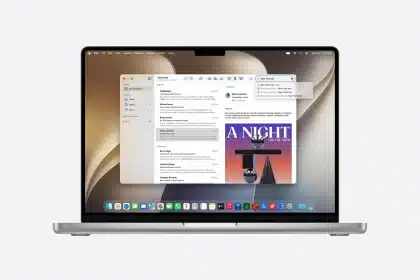
The Mail UI has changed a lot (below), looking much more like the Mail interface on the iPad than the previous Mac Mail. Mail has been written as a full-screen app, so with one click it takes over your entire Mac screen. That's somewhat overkill on a 27" iMac, but perfect on an 11.6" MacBook Air. Enabling full-screen mode allows the app to be have its own Mission Control window. That may not sound impressive, but that means that with a few quick gestures, you can switch between Mail and other full-screen apps.

The Mail toolbar (below) is slightly different, with a few icons that may be confusing even to seasoned Mac users. Get Mail is an envelope icon, New Message uses the familiar iOS "pencil and paper" icon, Note pops up a small yellow lined notepad for writing reminders or short documents, Delete is a trash can, and Junk is a new "thumbs-down" icon. One new icon is the Show Related Messages icon, which looks like a letter with a line over it. A click brings up any replies or forwarded messages that are related to the currently highlighted message. Finally, the Flag icon lets you apply a rainbow of colored flags to a message so that you can group message by color.


As with previous versions of Mail, it's easy to customize the Mail toolbar to your needs. For individual messages, there are some new icons for the Message toolbar -- the Send icon is now a paper airplane, which has to have the Sparrow folks going berserk. There are also buttons for displaying the new Format Toolbar (used to format the text in a Mail message), the Photo Browser for adding photos, and Showing Stationery. The stationery in Lion Mail doesn't seem to have changed from Snow Leopard.

Some of the new Message Toolbar icons are useful -- Append lets you include information from an existing email in a brand new message, while Lists is used to create numbered or bulleted lists in a message. The Format Toolbar (below) is quite helpful for creating nice looking Rich Text emails, with buttons for changing Font, Font Size, Color, Bold/Italic/Underline, Justification, and the Indent/Outdent of a paragraph.


Reading Mail messages is a bit easier now as well. Message headers appear in default with just three lines of information -- the name and email address of the server, the message subject, and the date and time of receipt. Click a new Details link, and the header expands to provide you with extra information.

Conversations (below) is a new feature to help organize chains of emails. At TUAW, we sometimes have emails that have 15 to 20 responses and forwards. Conversations groups together related messages automatically, with each email numbered to help with organization.

One of my favorites is the Hidden Quoted Text in Conversations. If you need to see some of the previous messages to figure out why someone responded a certain way, there's a "See More from" link that appears in the message. With a click, you see the original text.

Searching is tremendously improved over previous versions of Mail. When you start typing a search into the Mail search field, grouped search suggestions appear in a drop-down menu. There are also search tokens (below), which appear when you type in a person's name, a phrase, or some specific label. The tokens often have a small drop-down associated with them which shows available options. Search tokes can be combined to create very focused searches of your mailbox.

Attachments can also be searched. Creating a search token for "attachments" looks for messages with attachments, and adding another search word will look for that word in the attachments.

Data detectors have improved in Lion Mail as well. While in the previous versions clicking on a data detector would open iCal, now a mini-calendar pops up so you can see if you have any calendar conflicts. Have a hyperlink in a Mail message? A click on the disclosure triangle near the link brings up a Quick Look of the web page (below).

All in all, Lion Mail brings a much needed facelift to Apple's built-in Mac email app. Have any questions for the TUAW crew about Mail? Leave a comment below.

The images used in this article are taken from the upcoming Apress book Taking Your OS X Lion to the Max.


Add a Comment

*0 / 3000 Character Maximum Comment Moderation Enabled. Your comment will appear after it is cleared by an editor.

56 Comments

Filter by:
knitwitit

I also like the new Mail with lion. What I would like to be able to do, however, is to since the junk mail so that I don't have reams of it on my iPhone and iPad. Can that be synced to my computer?

January 20 2012 at 11:21 AM Report abuse rate up rate down Reply
Man On Fire

Is there anyway to run Mail NOT in fullscreen? I cannot bring it up without having the projector plugged in go black. Seems like a really poor design blunder.

January 06 2012 at 9:29 PM Report abuse rate up rate down Reply
gseckel

I'm having some hard work to configure new POP accounts. The assistant automatically set the IMAP account if it is enabled, and that can't be changed later. And want my iMac to use POP...IMAP is enabled for the iPhone.

November 12 2011 at 7:36 AM Report abuse rate up rate down Reply
Christine

Hi there - I do like the mac mail in Lion but I can't work out why the groups I make on my gmail contacts won't seem to show up in the mac mail address book.
And also I find making groups in the address book very confusing - I am not sure how I am supposed to go about it!

October 28 2011 at 4:40 AM Report abuse +1 rate up rate down Reply
Kev

I just upgraded to Lion. I clicked on the full screen in Mail and now I can't figure out how to take it back? Please advise.
Thanks,
Kevin

October 17 2011 at 9:47 AM Report abuse rate up rate down Reply
Joyce Fisher

Hi, I would like to know how to increase text size and change text color in lion e-mail list.
My eye sight is not that bad but I am not able to view the e-mails without severe eye strain.
I want to thank you for all of your useful info.
ibboss@mchsi.com

August 11 2011 at 9:15 PM Report abuse rate up rate down Reply
1 reply to Joyce Fisher's comment
Nacho

Just use "cmd +" to increase text size and "cmd -" to decrease it. Works on many apps (Safari, Preview...)

August 15 2011 at 7:25 PM Report abuse rate up rate down Reply
Madison Jayden

Thanks for the fantastic work!Cool blog.You will find a number of opinions on this topic and this blog states the issue very great.
http://seofreetricks.net/

August 07 2011 at 8:06 PM Report abuse +1 rate up rate down Reply
howwow

Hello

The photo ID thumbnail that is on the top right hand corner of an email message, where does it come from?

I understand it could have drawn its source from the Address Book, which in turn could have drawn its source from our mac login photo ID.

My problem now is, when I sign in my Apple ID ending with ...@mac.com, I see my "desired and set" photo ID, which is a graphic icon of my name. Then if I send mail out, using my alternate email address, which ends with me.com, I see another photo ID, a photo of my kitten when she was very young. I do not even remember when I did this, where and when.

Shouldn't both mac.com and me.com IDs share the same photo ID, that is set inside the login account and Address Book? I want to get rid of that kitten photo but don't know where.

Thanks

August 02 2011 at 3:16 AM Report abuse rate up rate down Reply
1 reply to howwow's comment
jrtc27

Yours is your account photo (in System Preferences>Users & Groups) and the rest are from Address Book. Don't worry - the account photo isn't shown to others!

August 12 2011 at 10:05 AM Report abuse rate up rate down Reply
Junid Kureshi

I have one question same like u i ditched outlook, now i use my couple of hotmails, gmail and my official own pop account and for that i have to provide outgoing mail server of my ISP, the day when i started using my lion mail my isp wasnt working, i wrote an email from my pop account and by mistake i press send button i knew that my isp isnt working so the mail should be in outbox but there wasnt any outbox showed and i searched for my unsent mail but i couldnt find that, the small gear keep working time to time in front of my sent mail folder trying to send my mail then after trying alot i gaveup and left the mail on its own after about half an hour when i was working on excel my unsent mail popedup in front and asked me to change my smtp, but i really dont understand where it kept my unsent mail for so long and never showedup untill the mail itself gave up and decided to ask me, do u have any idea about it, and sorry i didnt mentioned this is a nice article.

July 31 2011 at 7:08 AM Report abuse rate up rate down Reply
Keith Emms

Is it possible the new system has an easier method of junking addresses before they appear? Like as in Windows press a button and never do they bother you again!!
Keith Emms

July 27 2011 at 12:48 PM Report abuse rate up rate down Reply
Buy an ad here

Tweets

© 2012 AOL Inc. All Rights Reserved.