Digital artists often spend hours refining the composition, lighting, color, and atmosphere of a single image. Until recently, turning that image into motion usually required animation software, keyframes, compositing skills, or help from a separate animator.
Image to video tools have made the process more accessible. An artist can now upload a finished illustration, describe a few controlled movements, and generate a short animated clip without rebuilding the artwork from scratch. The result might be a living portrait, a moving environment, a portfolio loop, or a social teaser for a larger project.
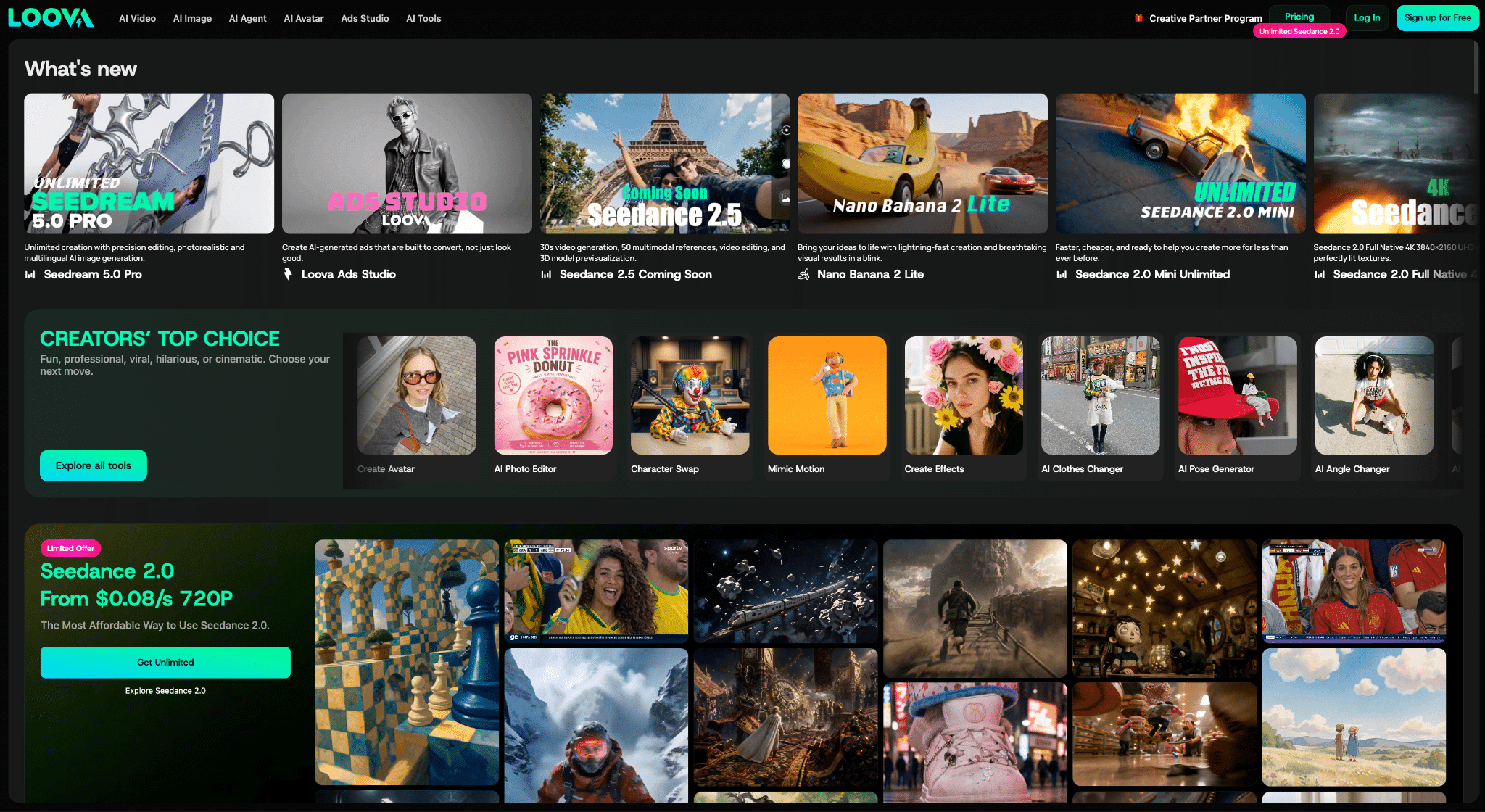
The process is fast, but it is not automatic. Strong results still depend on preparing the source image, choosing motion that suits the composition, writing a focused prompt, and reviewing the output carefully. This guide explains how I approach each stage while keeping the original artwork at the center of the final video.
Why Digital Artists Are Turning Still Images Into Videos
A still image can communicate a complete idea, but motion gives artists more ways to present the same work. A subtle loop can hold attention longer on a social feed, add atmosphere to a portfolio, or help viewers notice details they might otherwise miss.
Motion is also becoming useful in client work. Game studios may need animated key art for a launch post. Musicians may want a moving album cover. Brands may request short vertical clips based on campaign illustrations, while authors and publishers can use animated cover art for book promotion.
These projects do not always require full character animation. Small changes are often enough:
- Hair or fabric moving in a light breeze
- A slow camera push toward the subject
- Rain, dust, sparks, or drifting particles
- Light passing across a face or environment
- Water, clouds, smoke, or foliage moving gently
- A blink, breath, or slight change in expression
The goal is not to make every part of the image move. It is to extend the mood and visual direction that are already present.
What Image to Video Tools Actually Do
An image to video model uses the uploaded artwork as the visual starting point for a new sequence of frames. It estimates depth, identifies subjects and background elements, and predicts how they might move over time. A written prompt tells the model which movement to prioritize.
This is different from traditional animation. The tool does not receive a clean rig, separate layers, or a complete understanding of the scene. It is interpreting a flattened image and generating plausible motion from it. That is why results can vary between generations, even when the same artwork and prompt are used.
The source image strongly influences the output, but no model can guarantee that every line, texture, facial feature, or small object will remain unchanged. Complex hands, detailed accessories, typography, and overlapping characters are especially likely to shift. I treat the generated clip as a new version of the artwork that needs review, not as a perfectly faithful moving copy.
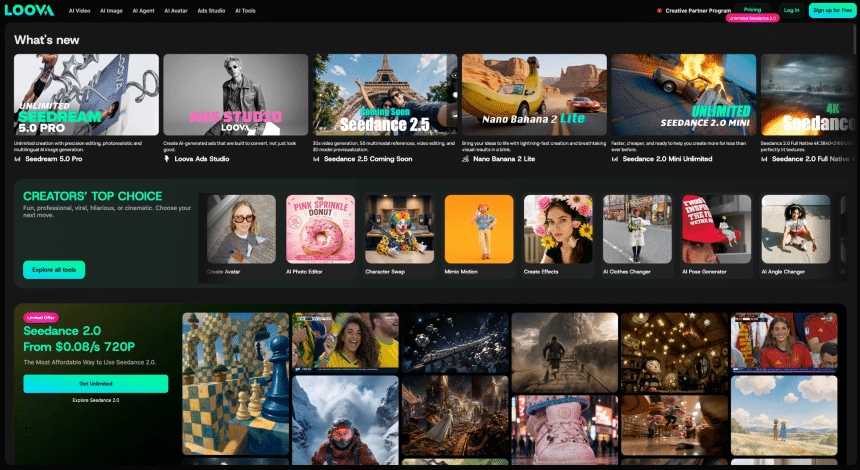
Artists who want to compare different models can use Loova AI to test an illustration across several video generation options in one place. This is useful because one model may handle subtle facial motion well, while another may produce better camera movement, environmental effects, or stylized action. Comparing a few short tests usually reveals more than choosing a tool from its feature list alone.
How to Prepare Artwork for Animation
Better source material gives the model clearer visual information. Before uploading an image, I check several details.
Use a Clean High-Resolution Export
Export the artwork at the highest practical resolution without heavy compression. Fine lines, facial details, textures, and object edges are easier to preserve when the source is sharp.
Avoid enlarging a very small file just to increase its pixel dimensions. Upscaling may make the file larger, but it cannot restore details that were not present in the original.
Make the Main Subject Easy to Read
Clear separation between the subject and background helps the model estimate depth and decide what should move. Contrast in value, color, or lighting can all improve that separation.
This does not mean every image needs a simple background. Detailed scenes can work well, but the focal point should still be visually clear. If the character and environment blend, the model may distort edges or move several elements as one shape.
Review Small Details and Text
Tiny accessories, fingers, thin lines, and decorative patterns can become unstable once motion begins. Text is another weak point because letters may warp from frame to frame.
If typography is important, I usually animate the artwork without it and add the title or logo during editing. This keeps the words sharp and prevents the model from inventing letter shapes.
Avoid Unnecessary Final Effects
Heavy grain, strong motion blur, chromatic aberration, and aggressive sharpening may be interpreted as physical parts of the scene. When possible, export a clean version for generation and restore those effects afterward.
The same principle applies to borders, watermarks, and graphic overlays. Elements that should remain perfectly fixed are usually safer to add during post-production.
How to Choose Motion That Fits the Artwork
The best movement depends on what the original composition was designed to communicate.
Character Portraits
Portraits usually benefit from restrained motion. A blink, a small breath, gently shifting hair, and a slow camera push can make the subject feel alive without changing the pose.
Large head turns, exaggerated expressions, or complicated hand movements create more opportunities for the face and anatomy to drift. If the portrait depends on a precise character design, I begin with the smallest believable action.
Landscapes and Environment Art
Environment pieces can support more movement because they often contain several natural elements. Clouds can drift, water can ripple, signs can flicker, and light can shift across the scene.
Even here, the motion should have a clear hierarchy. I might combine one primary movement, such as a forward camera glide, with one or two atmospheric effects. Asking every object to move independently can make the result chaotic.
Illustrations With Multiple Characters
Group scenes require extra care. When several people move at once, faces, hands, and body positions can change quickly.
I usually choose one focal character and keep the others nearly still. A foreground object or environmental effect can provide additional motion without forcing the model to animate every figure.
Abstract and Stylized Artwork
Abstract art can be animated through changing color, flowing texture, layered parallax, or slow transformation. Because there is less pressure to preserve realistic anatomy, these images sometimes allow more experimentation.
However, a highly recognizable pattern or brush style can still drift. Testing several motion strengths helps identify how far the image can move before it loses its original character.
How to Turn a Finished Image Into a Video
Start With One Clear Purpose
Decide where the clip will be used before generating it. A seamless portfolio loop needs different motion from a dramatic social teaser or a client presentation.
The intended platform also affects aspect ratio, duration, and framing. If the final clip will be vertical, make sure the important subject can fit within that crop. Planning this before generation is easier than trying to rescue the composition afterward.
The basic process to convert image to video is simple, but each decision affects how closely the clip follows the original artwork. I use the following steps to keep testing focused and make problems easier to trace.
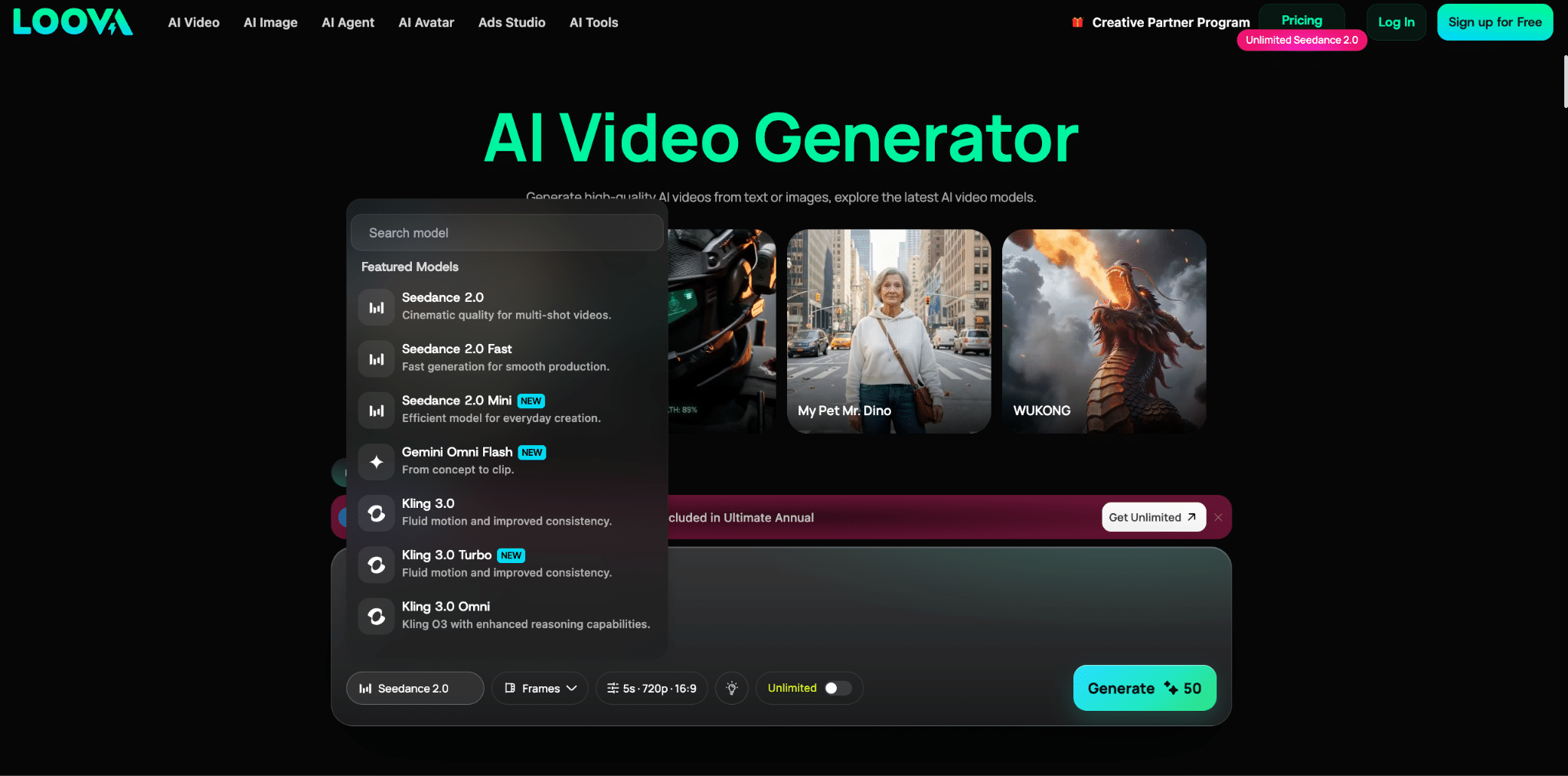
Upload the Final Artwork
Use the clean export prepared earlier. If the tool supports additional references, only include images that provide useful information about the same character, style, or environment.
Too many conflicting references can weaken consistency. Each image should have a clear purpose, and the prompt should explain what the model should learn from it.
Write a Focused Motion Prompt
The uploaded artwork already defines the character, color palette, composition, and visual style. The prompt should concentrate on movement, camera behavior, timing, and atmosphere.
For a portrait, I might write:
The character blinks once and breathes gently as a soft breeze moves a few strands of hair. The camera slowly pushes in. Keep the facial features, pose, clothing, and background composition consistent.
For an environment, I might use:
Slow forward camera movement through the alley. Neon signs flicker subtly, rain falls in the background, and steam drifts from the vents. Preserve the architecture, color palette, and illustrated style.
These prompts describe one clear visual moment. They do not add a chain of unrelated actions or retell the entire scene.
Generate Several Controlled Variations
The first output is a test. I check whether the model understood the intended movement and whether the image remains visually stable.
I usually create two or three variations with small changes to the same prompt. One version might use a slower camera move, another might reduce character motion, and a third might simplify the atmospheric effects. Controlled variations make it easier to identify which instruction caused an improvement.
Avoid rewriting the entire prompt after every attempt. Change one variable at a time so the results remain comparable.
Review the Clip Frame by Frame
A video can look convincing at normal speed while still containing errors that appear for only a few frames. I check:
- Facial features and eye direction
- Hands, fingers, and object interactions
- Edges around hair, clothing, and accessories
- Background shapes and straight architectural lines
- Logos, symbols, and text
- Sudden changes in lighting or color
- Unwanted camera shake or speed changes
If an error appears briefly, trimming the beginning or end may solve it. If the subject changes throughout the clip, a simpler prompt or different model is usually a better fix.
Edit and Export the Final Version
Generation is only one part of the process. Basic editing can make a short clip feel much more intentional.
Trim unstable frames, adjust the speed if necessary, and decide whether the video should loop. Add titles, logos, grain, sound, or color adjustments after the motion is stable. For several clips from the same project, use consistent pacing and post-production so they feel like one series.
Export settings should match the destination. Social platforms usually need vertical or square versions, while portfolios and presentation screens may work better in landscape format.
Common Problems and How to Fix Them
The Character’s Face Changes
Reduce the amount of facial movement and camera rotation. Use a closer, cleaner reference image if available, and explicitly ask the model to preserve the facial features.
The Background Warps
Use slower camera movement or keep the camera locked. Detailed architecture often becomes unstable during large perspective changes, so subtle parallax may work better than a dramatic orbit.
The Original Style Starts to Drift
Shorten the duration, reduce motion strength, and test another model. Highly textured or experimental styles may be interpreted differently by each video engine.
Practical Ways Artists Can Use Animated Images
Short AI-generated clips can support:
- Portfolio headers and showreels
- Social posts and process teasers
- Animated album or book covers
- Game key art and character reveals
- Promotional visuals for prints or digital products
The animation should help present the artwork, strengthen its atmosphere, or adapt it for a format where a still image would be less effective.
Final Thoughts
AI video gives digital artists a practical way to explore motion without turning every illustration into a full animation project. It can create a strong first pass quickly, but the artist still decides what should move, what must remain consistent, and which version best supports the original idea.
Subtle motion is often the most effective place to start. A small change in light, atmosphere, expression, or camera position can bring a still image to life while preserving the composition that made it work in the first place.
Frequently Asked Questions
Can AI Animate Illustrations and Paintings?
Yes. Image to video tools can animate digital paintings, anime art, concept art, 3D renders, collage, and other stylized images. Results vary by model and art style, so testing several short generations is useful.
Will Image to Video Change My Art Style?
It can. The source image guides the output, but fine lines, textures, colors, and facial details may shift between frames. Using a clean source, subtle motion, and a short duration can reduce style drift.
What Resolution Should I Use?
Use a clean, high-resolution export that preserves the important details of the artwork. The exact requirement depends on the tool, but a sharp original is more useful than an enlarged low-resolution image.
Do I Need Animation Experience?
No traditional animation experience is required for basic image to video generation. However, an understanding of composition, timing, camera movement, and visual hierarchy will help you create stronger prompts and choose better outputs.
How Long Should an Animated Art Clip Be?
For a single image, a short clip of a few seconds is often enough for a living portrait, atmospheric loop, or social teaser. Longer videos usually work better when they combine several generated shots.
Can I Use AI-Generated Videos for Client Work?
That depends on the commercial-use terms of the platform and model. Check the current license before delivery, confirm that you have the right to use all source materials, and review the final clip for changes to logos, characters, or protected design elements.