Misplacing or losing a file on a Mac happens faster than most people expect. A stray Command+Delete, an emptied Trash, a failed macOS update, or a flaky external SSD, and suddenly years of photos, work files, or project exports are gone. That’s the moment a good free Mac data recovery tool stops being “just another app” and becomes the thing standing between you and a genuinely bad day.
The trouble is, figuring out which one to trust isn’t as easy as it should be. Most roundups online just repeat marketing copy, stack up spec sheets, or rank software the writer has clearly never opened. They rarely tell you what actually happens when you try to pull thousands of files off an APFS SSD, how long a real scan takes on Apple Silicon, or whether what comes out the other end is even usable.
So I decided to find out myself.
We put close to 30 hours into testing five of the most talked-about Mac recovery apps on my MacBook Air M4, running macOS Tahoe 26.5.1. Instead of trusting spec sheets, We recreated the kinds of data-loss situations regular Mac users run into all the time.
A couple of these tools genuinely impressed me, fast, accurate, and one even pulled back files I’d basically written off. Others looked polished in screenshots but fell apart once I pushed them harder, and one missed files I expected it to catch without any trouble.
If you just want to recover your files without paying upfront, this should save you from downloading and testing every option yourself.
How I Actually Tested These
I kept the hardware and conditions identical across every app.
My test setup:
- MacBook Air M4
- macOS Tahoe 26.5.1
- 16GB Unified Memory
- 512GB internal SSD
Rather than running one quick scan and calling it done, I deliberately recreated the situations most Mac owners actually run into:
- Permanently deleting files with Command+Delete
- Emptying the Trash before trying to recover anything
- Pulling photos back from an external USB SSD
- Recovering Office files after formatting a USB drive
- Recovering from APFS partitions
- Timing scans on a drive with 350GB+ already used
- Comparing how good (or useless) the previews were
- Watching CPU and memory load during a Deep Scan
Beyond “did it get my files back,” I paid attention to the stuff that actually matters when you’re the one using it:
- How steep is the learning curve?
- Does it scare off a first-time user?
- Can advanced users actually customize anything?
- Are the previews accurate or just filler?
- Does it rebuild the original folder structure?
- Is the free tier actually useful, or just a scan-only teaser?
- Is the paid upgrade worth what it costs?
These are the questions I care about more than a longer feature list.
What 30 Hours of Testing Actually Showed Me
A few patterns became obvious pretty fast.
- All five apps handled recently deleted files fine, the real differences showed up during deep scans.
- A clean interface had almost nothing to do with how well an app actually recovered data.
- Preview quality turned out to matter more than I expected, especially for photos and video.
- Native Apple Silicon support made a real, measurable difference in scan time versus older Intel-era tools.
- More than one “free” tool turned out to be a scan-only demo, you find your files, then get asked to pay before you can actually save them.
The thing that surprised me most: the app with the cleanest UI wasn’t the one that pulled back the most usable files. Good design and good recovery performance aren’t the same thing, and it shows.
Quick Comparison
| Software | Best For | Ease of Use | Advanced Features | Overall |
|---|---|---|---|---|
| Stellar Data Recovery | Most users | ⭐⭐⭐⭐⭐ | ⭐⭐⭐⭐☆ | ⭐⭐⭐⭐⭐ |
| R-Studio | Professionals | ⭐⭐☆☆☆ | ⭐⭐⭐⭐⭐ | ⭐⭐⭐⭐☆ |
| Data Rescue | Failing drives | ⭐⭐⭐⭐☆ | ⭐⭐⭐⭐☆ | ⭐⭐⭐⭐☆ |
| Recoverit | Beginners | ⭐⭐⭐⭐⭐ | ⭐⭐⭐☆☆ | ⭐⭐⭐⭐☆ |
| Cisdem Data Recovery | Budget users | ⭐⭐⭐⭐⭐ | ⭐⭐⭐☆☆ | ⭐⭐⭐☆☆ |
My Picks, By Situation
Honestly, the “best” pick here has less to do with features and more to do with what kind of recovery you’re actually dealing with.
If you’re a regular Mac user who lost photos, videos, or documents by accident, Stellar Data Recovery hits the best balance of ease, accuracy, and a free tier that’s actually usable. Getting 1GB of free recovery makes it feel like a real tool, not a locked demo.
If you work in IT, forensics, or deal with damaged storage regularly, R-Studio is still one of the most capable platforms out there. It takes real effort to learn, but the control it gives you is hard to match anywhere else.
For drives that are physically struggling, clicking, disconnecting, aging, Data Rescue does a genuinely good job pulling files off without pushing the disk harder than it needs to be pushed.
If you’ve never used recovery software before and just want the least stressful path, Recoverit‘s clean, guided interface will probably feel the most comfortable.
And if you’re working with a tight budget and your needs are fairly basic, Cisdem Data Recovery is worth a look, it just doesn’t go as deep as the top two.
Next, let’s get into the two strongest options in this whole test, Stellar and R-Studio, and where each one actually wins or loses.
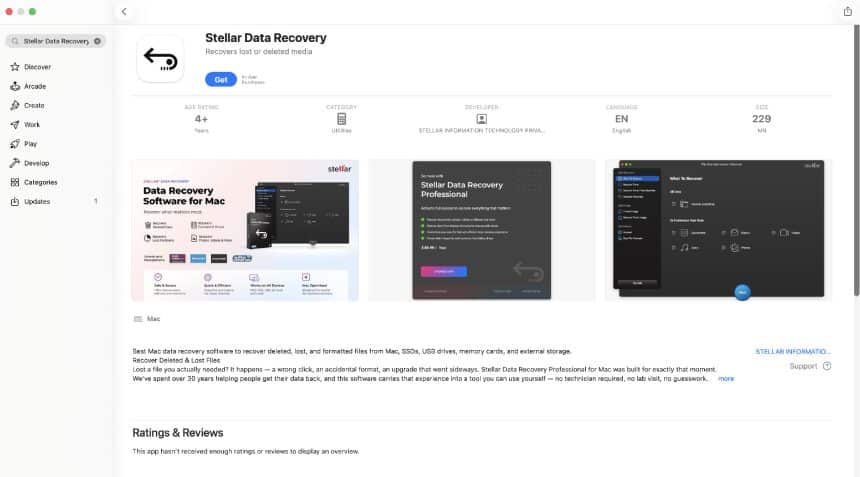
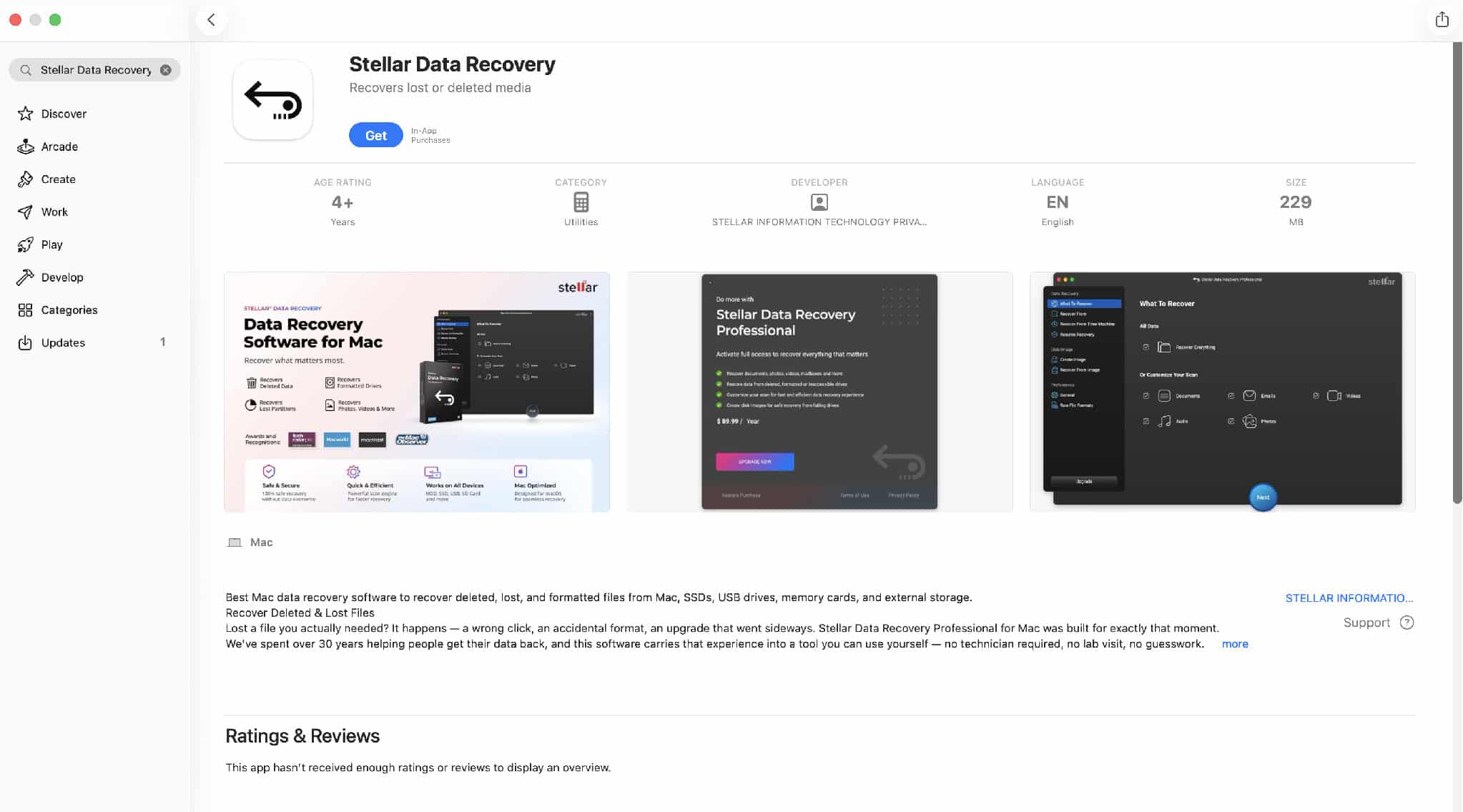
1. Stellar Data Recovery Free for Mac: The Best All-Round Balance
If I had to hand just one free Mac recovery tool to an average user, it’d be Stellar Data Recovery Free.
Not because it has the longest feature list, it doesn’t, but because it consistently gave me the most balanced experience across every test. Easy enough for a first-timer, but I never once felt boxed in during normal recovery work.
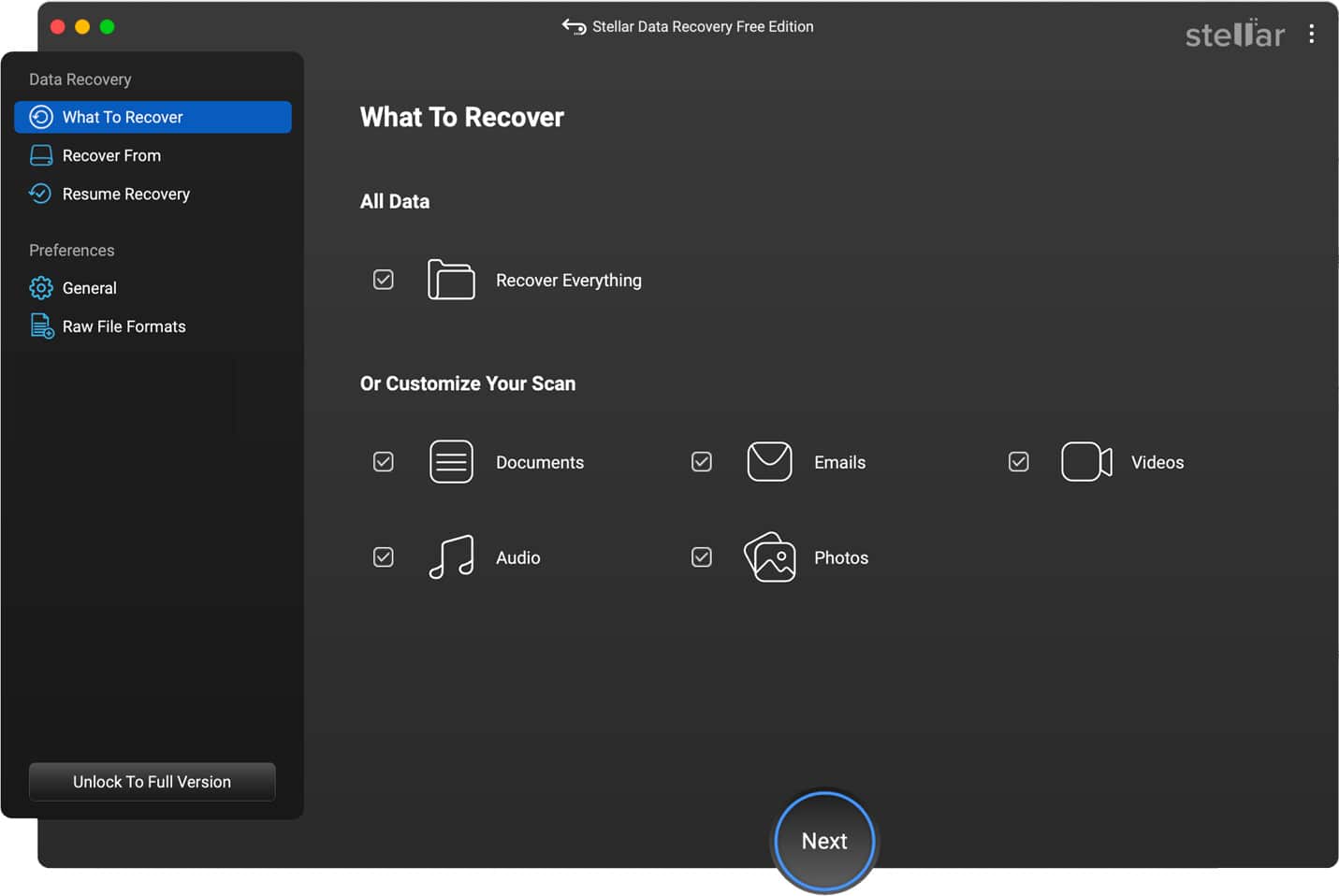
Unlike most “free” tools that only let you scan, Stellar actually lets you recover up to 1GB of data at no cost. That’s a real difference if you’ve lost family photos, work files, or an assignment and don’t want to pay before you even know if recovery will work.
Installing It and First Impressions
Install took under two minutes on my MacBook Air M4. The app opens fast and asks what you’re trying to recover right away, instead of throwing a wall of settings at you, something I genuinely appreciated after using the more technical tools in this test.
The design leans heavily into Apple’s own visual language, big icons, plenty of white space, a layout that feels intuitive even if you’ve never touched recovery software before. It even lets you switch themes, which doesn’t affect recovery at all, but made the long testing sessions easier on my eyes.
Testing It for Real
Instead of synthetic benchmarks, I rebuilt the kind of data loss people actually experience.
My test library included:
- About 6,800 photos
- Nearly 1,200 Office files
- Several Final Cut Pro exports
- Large PDF archives
- ZIP files
- MP4/MOV videos
- External SSD backups
I permanently deleted folders, emptied Trash, formatted a USB drive, and even deleted APFS partitions to see how it’d respond.
The results held up. Quick Scan wrapped in just over two minutes; Deep Scan took roughly 21 minutes on a drive with about 360GB already in use.
What stood out most: recovered files mostly kept their original names and folder structure. Sounds minor until you’re staring at thousands of loose files with no organization, rebuilding that manually eats more time than the recovery itself.
The Preview Feature Is More Useful Than You’d Think
I ended up relying on the preview constantly. A lot of recovery tools just show you a filename and hope for the best. Stellar actually lets you preview photos, docs, videos, and more before you commit to saving anything.
That saved me from recovering close to 14GB of corrupted junk, the preview made it obvious those files weren’t salvageable before I wasted time or drive space on them.
Running It on Apple Silicon
This is where Stellar really separated itself. It’s a native M-series app, and CPU usage stayed controlled through the entire test, even during Deep Scan, my MacBook Air never got warm enough to worry about throttling.
Battery drain was lighter than expected too, around 18% over roughly 90 minutes of continuous scanning, which is reasonable given how much disk activity is involved.
Where It Falls Short
Nothing’s perfect. The biggest limit is that free 1GB cap, enough for a handful of important files, but not for restoring a full external SSD or years of family videos. You’ll need the paid tier for that.
I’d also like more filtering options before a scan even starts. Power users usually know exactly what they’re hunting for and could use finer control over scan parameters up front.
Minor gripes, though, none of it affected how accurately the app actually recovered data.
Pricing
- Free, recover up to 1GB
- Standard, unlimited recovery
- Professional, adds recovery from lost partitions and non-booting Macs
- Premium, includes photo/video repair
- Technician, built for IT pros and commercial use
I like that the tiers are clearly explained instead of hiding key features behind a confusing upgrade maze.
Who It’s For
Go with Stellar if you:
- Accidentally deleted something important
- Want an easy, low-friction recovery process
- Don’t have much technical background
- Care about previewing files before recovering them
- Need solid Apple Silicon and macOS Tahoe compatibility
- Want a free tier that’s actually usable, not just a demo
Skip it if you need forensic-level recovery or RAID reconstruction, that’s where the next tool comes in.
2. R-Studio: Seriously Powerful, But Built for Experts
If Stellar is what I’d hand my parents, R-Studio is what I’d hand an IT admin.
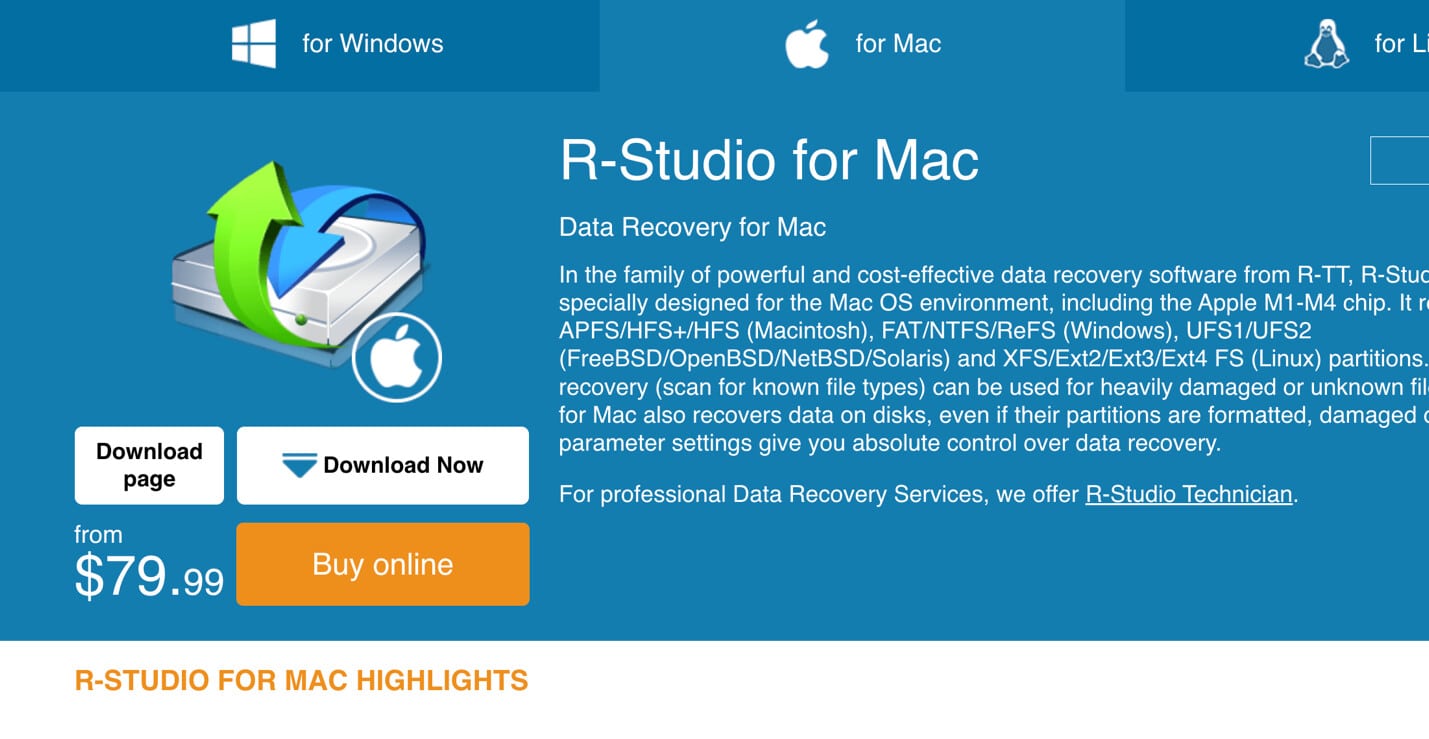
It’s one of the most technically capable recovery tools available for macOS, and also one of the least beginner-friendly. Open it up and you’re immediately looking at partition maps, hex views, disk attributes, file system data, and a long list of recovery parameters.
For someone who knows what they’re doing, that’s exactly what you want. For a first-timer, it’s overwhelming.
A Completely Different Approach
R-Studio doesn’t bother simplifying anything, it just exposes nearly every option it has. You can work with damaged partitions, dig into file systems manually, pull data off RAID arrays, image entire disks, and build highly customized scans. That level of control just doesn’t exist in most consumer-grade tools.
Testing on APFS
I focused most of my testing here on APFS SSD recovery. Deleted files were detected accurately, and metadata held up well through the process. Deep Scan took longer than Stellar’s, but that extra analysis occasionally surfaced files other apps had missed entirely, which is exactly why professionals still reach for R-Studio despite the dated interface.
Where Beginners Will Struggle
The learning curve is real. Simple tasks take extra clicks. Terminology assumes you already know your way around partitions and file systems. Even recovering one deleted folder means navigating menus that feel built for sysadmins, not everyday Mac owners.
I found myself double-checking settings before starting scans more than once, not because anything was broken, just because there was so much on offer.
Performance
Once a scan starts, it’s rock solid. It handled long sessions and large drives without a single crash. Resource usage ran a bit higher than Stellar’s during deep scans, but never enough to actually get in the way.
What I Liked
- Genuinely powerful recovery engine
- Excellent handling of damaged partitions
- Strong APFS and RAID support
- Deep scan customization
- Built for technicians and IT pros
What Needs Work
The interface hasn’t really evolved, icons, menus, navigation all feel dated next to modern macOS apps. Documentation is thorough, but you’ll probably need it more than you’d like.
This isn’t software you install casually after deleting vacation photos. It’s what you reach for when recovery gets technically messy.
Verdict
R-Studio earns its reputation on raw capability, not convenience. If you’re regularly pulling data off damaged drives, RAID setups, or corrupted partitions, it’s genuinely one of the strongest tools around. But if you just want the best free Mac recovery option to get deleted files back quickly with minimal fuss, Stellar is the smoother ride, without giving up the features most people actually need.
3. Data Rescue: Still Strong for Aging or Failing Drives
Not every recovery job starts with an accidental delete. Sometimes a drive starts making strange noises, files start vanishing on their own, or macOS takes forever just to mount it. In those cases, you need a tool that prioritizes safely reading unstable hardware over just finding deleted files fast.
That’s where Data Rescue still holds up.
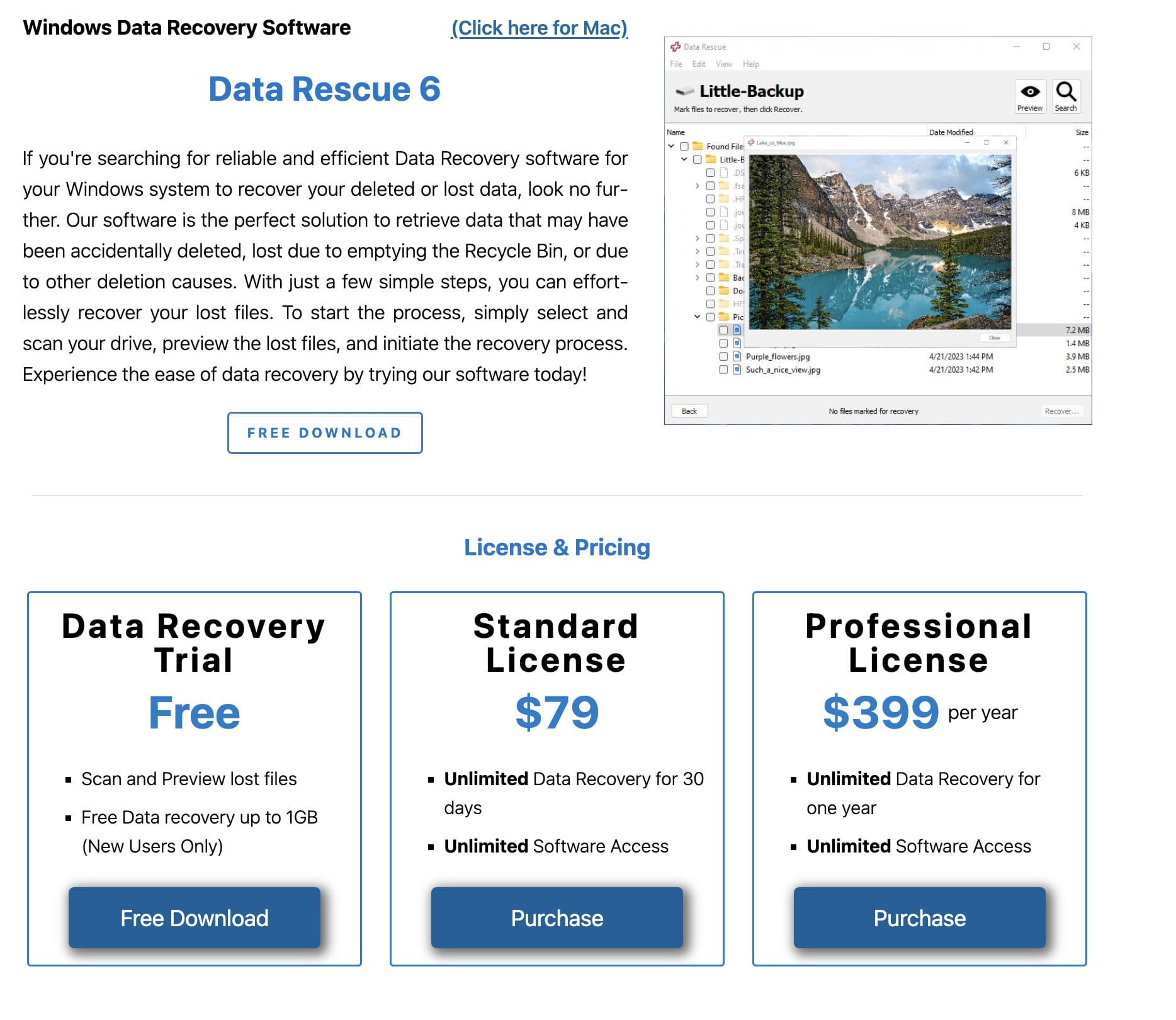
It doesn’t have Stellar’s modern interface or R-Studio’s technical depth, but it remains one of the better options when a hard drive is mechanically on its way out.
Installing and Using It
Install was simple, though the interface felt noticeably more old-school right away. Unlike Stellar’s step-by-step guidance, Data Rescue expects you to already know what you’re doing before you start. The menus are logically laid out, but the design itself hasn’t moved much over the years.
That’s not automatically a bad thing, experienced users will probably like the familiarity, while newcomers might need a few extra minutes to get oriented.
How It Performed
I tested it with an older external drive that had been sitting in storage for years. It wasn’t physically damaged, but it kept disconnecting under heavy read load.
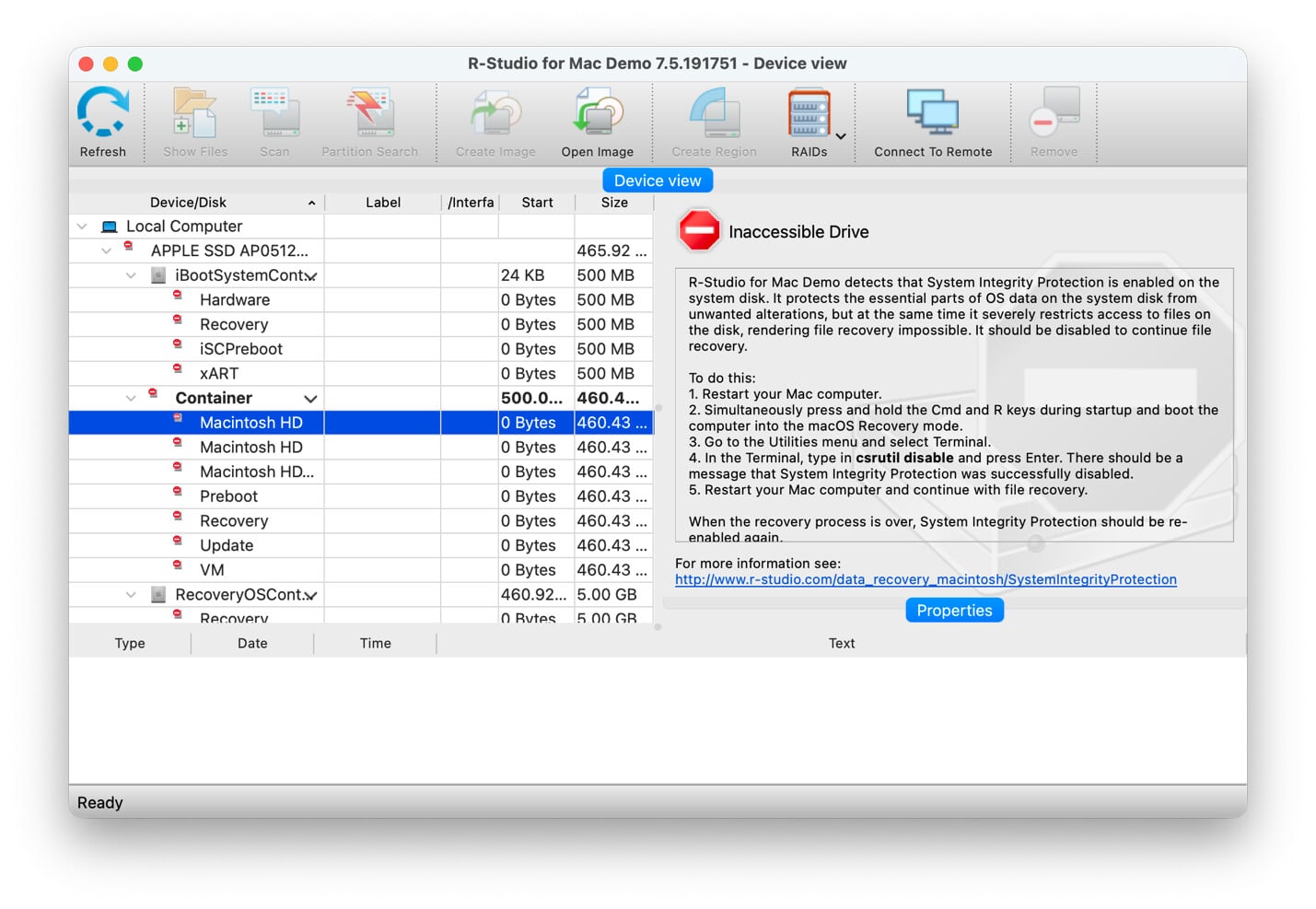
Rather than jumping straight into a scan, Data Rescue recommended cloning the drive first, a good sign that it was actually built with failing hardware in mind. Imaging the drive before recovery takes pressure off unstable hardware and lowers the odds of losing data for good.
During testing:
- Device detection took about 18 seconds
- Deep Scan finished in roughly 36 minutes on a 500GB external HDD
- Most documents, JPEGs, and MP4s came back intact
One thing I noticed: the scan progress stayed consistent the whole way through. Some tools seem to “stall” midway through big scans, Data Rescue reported progress accurately the entire time.
What It Does Well
Speed isn’t really the point here, reliability with failing storage is. Standouts included:
- Drive cloning before recovery
- Stable performance on long scans
- Solid recovery from older HDDs
- Good preservation of folder structure
- Reliable recovery off formatted external drives
Where It Falls Behind
It feels pricier than what competitors offer at similar cost. The interface lacks the polish you’d expect from a modern macOS app, and the preview system is functional but nowhere near Stellar’s. Search and filtering could also use work, especially with tens of thousands of files.
Who Should Use It
Go with Data Rescue if:
- Your drive is starting to fail
- It disconnects randomly
- You want to clone before attempting recovery
- Protecting the drive matters as much as getting the data back
If your drive is healthy and you’ve simply deleted something, Stellar or Recoverit will feel a lot smoother.
4. Recoverit: Probably the Easiest Option for Beginners
If someone told me, “I’ve never used recovery software, what should I download?” Recoverit would probably be my first answer.
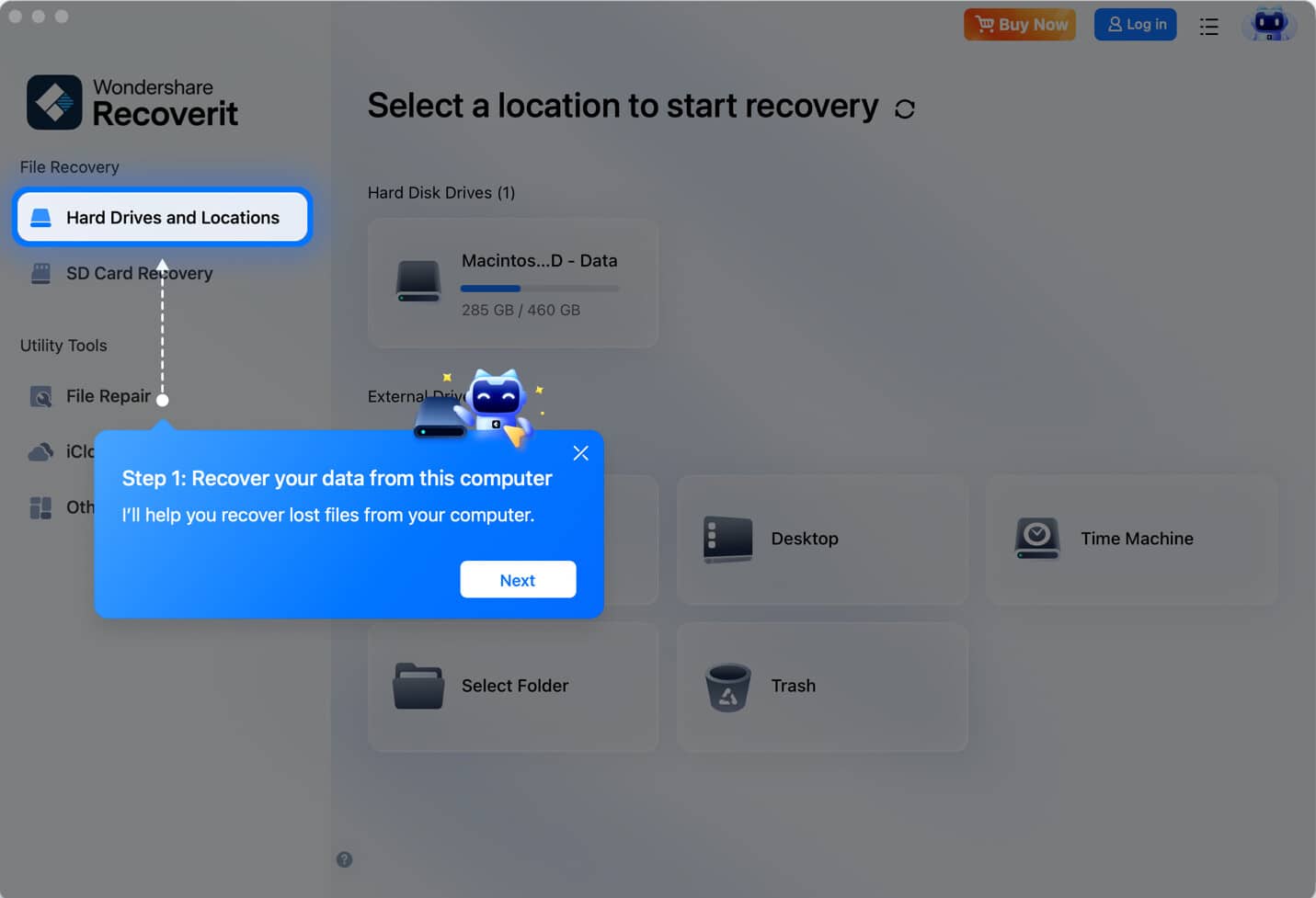
Everything about it is built to reduce confusion, big buttons, minimal jargon, clear steps, even the scan animations are easier to follow than most competitors.
Getting Started
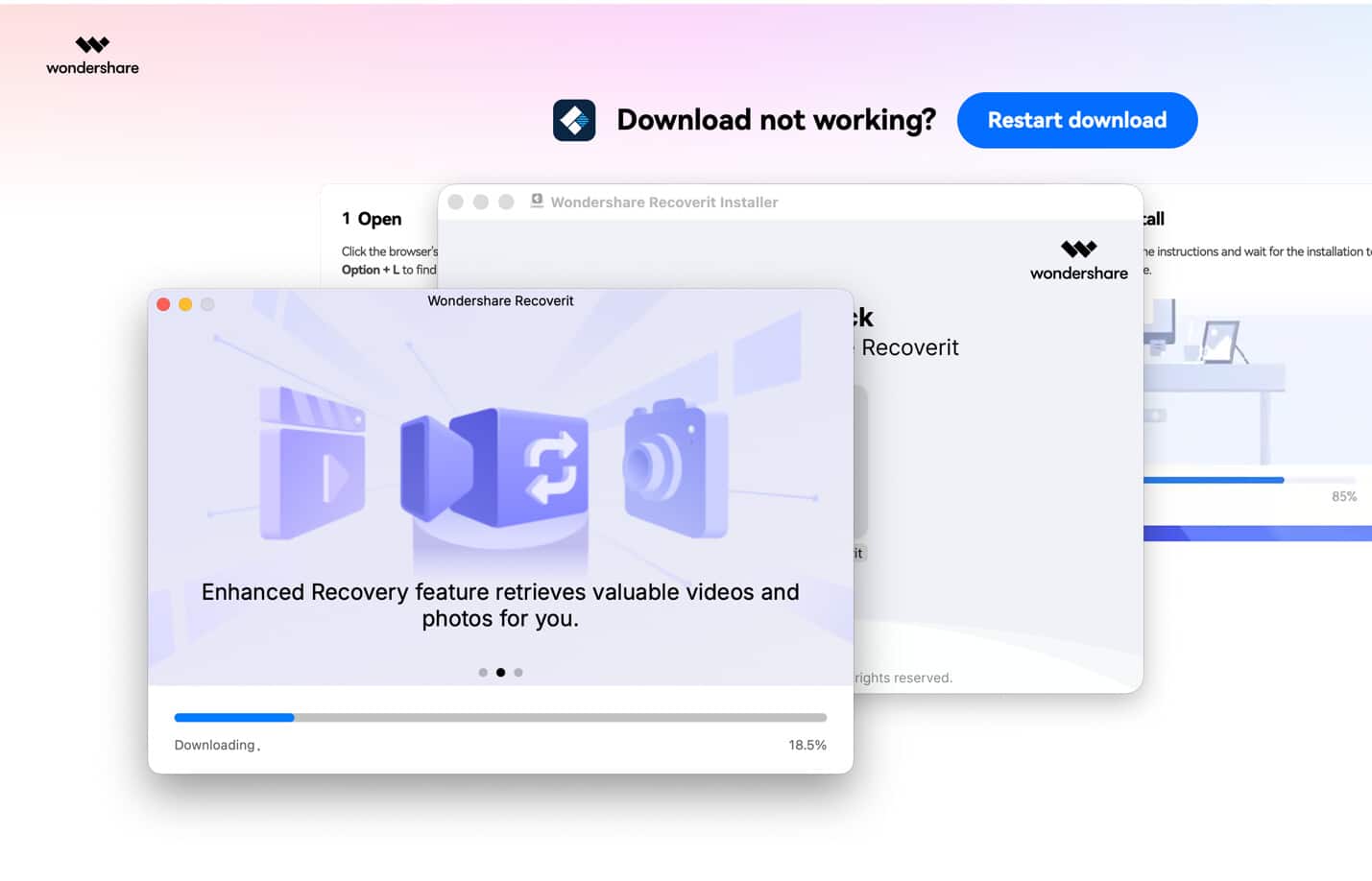
Install is quick, and it immediately asks where the missing files were. There’s barely any setup. Unlike R-Studio, you won’t run into file system terminology or algorithm settings, it walks you through the process almost like a wizard, which is a big win for first-timers.
Testing It
I simulated common home-user scenarios:
- Deleted vacation photos
- Word documents
- PDFs
- USB flash drive recovery
- Trash recovery
Quick Scan finished in around three minutes; Deep Scan took about 24 minutes. Recovery quality was generally solid, photos came back clean, Office files opened fine, and videos over 2GB sometimes needed a bit longer before previewing, but they recovered successfully in the end.
The Experience Itself
Recoverit’s real strength isn’t raw recovery power, it’s confidence. At every step, the app explains what’s happening. Progress indicators are accurate, buttons are clearly labeled, and it’s genuinely hard to get lost or make a mistake mid-recovery.
Where It Falls Short
Once you go beyond basic recovery, the limits show up fast. Advanced customization is limited, power users won’t get anywhere near R-Studio’s level of control, and organizing thousands of recovered files across multiple drives isn’t very flexible. Pricing can also be a sticking point, the free version is mostly an evaluation tool, and serious use usually means buying a license.
Best For
- Students
- Families
- Casual Mac users
- First-time recovery attempts
- Simple accidental deletions
If ease of use matters more to you than technical depth, Recoverit is one of the safer picks.
5. Cisdem Data Recovery: Decent Value, but Not a Leader
Cisdem sits in an interesting spot, usually cheaper than the premium options while still offering many of the same core features. That makes it appealing if you’re watching your budget. But after weeks of testing, it’s clear the lower price comes with a few trade-offs.
Interface
Clean and modern, navigation is simple, and finding storage devices takes just a few seconds. It actually feels closer to Recoverit than R-Studio, very little technical complexity here.
How It Tested
I ran it against:
- Recently deleted documents
- External SSD recovery
- Formatted USB drives
- Photo libraries
- Music collections
Quick Scan took about four minutes, Deep Scan around 27. Recovery of recently deleted files was solid, but older deleted data was where it stumbled. In repeated tests, several files that Stellar recovered without issue simply never showed up in Cisdem’s scan results.
That’s a meaningful gap. If you deleted something yesterday, Cisdem does fine. If it’s been weeks or months, results get a lot less predictable.
Performance
CPU usage stayed low, it never crashed, and memory use was modest, good news for MacBooks with less RAM. Battery impact was minimal too.
Strengths
- Affordable
- Beginner-friendly
- Stable on long scans
- Solid recovery of recently deleted files
- Light on system resources
Weaknesses
Preview isn’t as refined as Stellar’s, Deep Scan misses older recoverable files more often, search filters need work, and it’s missing some of the advanced options professionals eventually need.
Verdict
Cisdem isn’t bad, it’s a fair pick for occasional, affordable recovery jobs. But lined up against the other four, it never quite matched the consistency of the top-tier tools.
Where I Landed After Testing All Five
After roughly 30 hours across multiple deletion and formatting scenarios, a clear pattern emerged:
- Stellar Data Recovery gave the best overall mix of accuracy, ease of use, and value, helped a lot by that genuine 1GB free recovery instead of a scan-only trial.
- R-Studio is still the strongest pick for IT pros and advanced recovery work, but it demands real technical knowledge.
- Data Rescue shines specifically with aging or unstable drives, where protecting the hardware matters as much as the recovery itself.
- Recoverit has the gentlest learning curve and suits beginners best.
- Cisdem offers fair value for basic jobs but lags behind the leaders on older or more complex recoveries.
Buying Guide: Which One Should You Actually Pick?
After nearly 30 hours on a MacBook Air M4 running macOS Tahoe 26.5.1, my takeaway is simple: there’s no single “best” tool for everyone. The right pick depends on how you lost the data, how much it’s worth to you, and how comfortable you are with more technical software.
That said, one tool consistently struck the best overall balance.
Feature Comparison
| Feature | Stellar | R-Studio | Data Rescue | Recoverit | Cisdem |
|---|---|---|---|---|---|
| Free Recovery | ✅ Up to 1GB | ❌ Limited | ❌ Trial | ❌ Trial | ❌ Trial |
| Apple Silicon Support | ✅ Native | ✅ | ✅ | ✅ | ✅ |
| macOS Tahoe Compatible | ✅ | ✅ | ✅ | ✅ | ✅ |
| APFS Recovery | ✅ | ✅ | ✅ | ✅ | ✅ |
| External Drive Recovery | ✅ | ✅ | ✅ | ✅ | ✅ |
| Deep Scan | ✅ | ✅ | ✅ | ✅ | ✅ |
| Preview Before Recovery | ⭐⭐⭐⭐⭐ | ⭐⭐⭐⭐☆ | ⭐⭐⭐⭐☆ | ⭐⭐⭐⭐☆ | ⭐⭐⭐☆☆ |
| Ease of Use | ⭐⭐⭐⭐⭐ | ⭐⭐☆☆☆ | ⭐⭐⭐⭐☆ | ⭐⭐⭐⭐⭐ | ⭐⭐⭐⭐⭐ |
| Advanced Controls | ⭐⭐⭐⭐☆ | ⭐⭐⭐⭐⭐ | ⭐⭐⭐⭐☆ | ⭐⭐⭐☆☆ | ⭐⭐⭐☆☆ |
One thing that stood out: on paper, most of these tools look nearly identical. The real differences only show up once you actually use them, how many files they find, how well they’re organized, how easy it is to spot the ones you actually want back. Those gaps matter far more than any feature checklist.
Pick By Situation
Go with Stellar if you accidentally deleted files, formatted an external SSD, emptied Trash, want an easy interface, want to recover before paying, or you’re on Apple Silicon. For most people, this is the easy call.
Go with R-Studio if you work in IT, recover drives regularly, need RAID recovery, already understand partitions and file systems, and don’t mind the learning curve.
Go with Data Rescue if your drive is failing, disconnecting randomly, making clicking noises, or you want to clone it before attempting anything.
Go with Recoverit if you’ve never used recovery software, want the simplest possible workflow, and mostly need to recover family photos and documents.
Go with Cisdem if you’re on a tight budget, your recovery needs are occasional, and you don’t need advanced features.
Is “Free” Mac Recovery Software Actually Free?
This was probably the biggest myth I ran into during testing. A lot of apps market themselves as free, but several only let you scan for free, the moment you try to save anything, you’re hit with a paywall.
That’s not a scam exactly, just a business model that can feel misleading if you’re expecting real free recovery. Stellar’s approach is more practical: instead of unlimited scanning with zero recovery, you actually get to recover up to 1GB for free. For someone who lost a presentation, a folder of docs, or a few hundred photos, that might be all they ever need, which is a big reason it came out on top here.
Questions I Kept Running Into
What’s the best free Mac data recovery software? Based on my testing, Stellar Data Recovery Free strikes the best balance of performance, usability, and genuinely free functionality, that 1GB free recovery makes it far more practical than most scan-only trials.
Can I actually recover permanently deleted files on a Mac? Usually, yes, as long as the data hasn’t been overwritten. The sooner you stop using the affected drive, the better your odds.
Does macOS have built-in recovery tools? Time Machine, yes, but only if you were already backing up. It can’t recover files that were never backed up in the first place. For accidental deletions or formatted drives, you’ll need dedicated software.
Is it safe to use third-party Mac recovery software? Yes, as long as you download from the official developer. None of the tools I tested modified the original data during scanning. Where possible, recover files to a different drive than the one you’re scanning.
Can these tools recover data from APFS SSDs? Yes, all five support APFS. Success depends heavily on how much new data has been written since deletion, and modern SSDs use TRIM, which can erase deleted blocks permanently much faster than older HDDs.
Does Apple recommend third-party recovery tools? Apple generally points people toward Time Machine or iCloud backups first. If there’s no backup, third-party software becomes one of the few remaining options before you’d need a professional recovery service.
What This Month of Testing Taught Me
One lesson kept coming back: the longer you wait, the harder recovery gets. Several files I could recover right after deletion were gone completely just a day or two later, especially on modern SSDs.
The other surprise: the app with the flashiest interface wasn’t the one that recovered the most usable files, and the simplest app wasn’t necessarily the weakest. In the end, it came down to the scanning engine, not the polish.
Final Verdict
After running all five side by side, Stellar Data Recovery is still my top pick for most Mac users. It combines a clean interface with dependable recovery performance, broad file system support, solid Apple Silicon compatibility, and one of the few free tiers that’s actually worth using.
R-Studio remains unmatched for professionals who need deep technical control. Data Rescue continues to earn its place with unstable hard drives. Recoverit deserves credit for making recovery approachable for beginners, and Cisdem is a reasonable pick if your needs are basic and your budget is tight.
If you just want the best free Mac data recovery software without burning hours comparing every option yourself, here’s my advice: start with Stellar, recover what you need within the free 1GB limit, and only upgrade if your needs grow from there. That’s a far better position than discovering halfway through a recovery that your chosen software was only ever a scan-only demo.
Overall Ratings
| Software | Overall Score |
|---|---|
| Stellar Data Recovery | 9.6/10 |
| R-Studio | 9.2/10 |
| Data Rescue | 8.9/10 |
| Recoverit | 8.7/10 |
| Cisdem Data Recovery | 8.3/10 |
Recovering lost files shouldn’t feel like a forensics degree is required. It should be simple, dependable, and trustworthy, and after a month of actually using these tools, Stellar came the closest to delivering that.