
Seeing “iPhone Locked to Owner” after resetting an iPhone can be confusing, especially when the device is legitimately yours.
Maybe you forgot which Apple Account was connected to an older iPhone. Maybe you bought a second-hand iPad and the seller forgot to remove it from Find My. Or perhaps you still have the original receipt but no longer have access to the account that activated the device.
These situations all lead to the same search: iCloud Activation Lock removal.
Activation Lock is not the same as a forgotten screen passcode. It is part of Apple’s Find My security system and remains associated with the Apple Account that enabled Find My, even after the device is erased. Apple says an iPhone or iPad contacts its activation servers during activation or recovery to check whether Activation Lock is still enabled.
That is why repeatedly factory-resetting the phone usually does not solve the problem.
This guide covers the practical options available in 2026, starting with Apple’s official methods and then looking at AnyUnlock as an alternative for supported devices that you own or are authorized to manage.
Important: Activation Lock is designed as an anti-theft feature. Only attempt to remove it from a device you own or have explicit authorization to manage.
First, Identify Which Lock You Actually Have
Before trying any removal method, make sure Activation Lock is really the problem.
If the setup screen says “iPhone Locked to Owner” or asks for the Apple Account previously used with the device, you are dealing with Activation Lock.
That is different from:
- Screen passcode lock: The iPhone asks for a four-digit, six-digit, or alphanumeric passcode.
- Apple Account sign-in problem: You can use the device but cannot sign in to iCloud or the App Store.
- Carrier/SIM lock: The phone works but will not accept another carrier.
- MDM restriction: The device is controlled by a school or company management profile.
Using a screen-unlock tool for an Activation Lock problem will not address the actual issue.
A simple way to choose a solution is:
Your situation | Best first option |
| You know the Apple Account/password | Remove the lock directly |
| You forgot your own password | Recover the Apple Account |
| Previous owner is reachable | Ask them to remove the device remotely |
| You have valid proof of purchase | Submit an Apple support request |
| Official routes are unavailable on your own supported device | Check a compatible third-party option such as AnyUnlock |
| School/company-owned device | Contact the organization’s IT administrator |
Apple specifically directs business- or education-owned device users to their IT department or manager.
Method 1: Remove Activation Lock with Your Apple Account
If the device belongs to you and you still know the Apple Account associated with it, this is the simplest solution.
On the Activation Lock screen, follow Apple’s onscreen prompts and enter the Apple Account and password originally used to set up the device. Depending on the device and situation, Apple may also present an option involving the device passcode.
If you remember the account but not the password, do not immediately jump to an unlock tool. Try Apple’s account recovery process first.
This approach is preferable because it removes the lock through Apple’s own system and preserves normal access to Apple services.
It is also useful to remember that Apple now refers to an Apple ID as an Apple Account, so older guides mentioning an “Apple ID password” are generally talking about the same account system.
Method 2: Ask the Previous Owner to Remove the Device Remotely
A very common Activation Lock scenario involves a legitimate second-hand iPhone.
The previous owner erased the device but forgot to remove it from their Apple Account. When the new owner starts setup, the phone displays “Locked to Owner.”
The seller does not need to give you their password.
Apple allows them to remove the device remotely:
- The previous owner signs in to Find Devices on iCloud.com.
- They select the affected iPhone or iPad.
- They choose Remove This Device.
- You restart the device and begin setup again.
Apple’s current support documentation says that an iPhone may sometimes be removed through the web even when it is not offline.
This is generally the cleanest solution for a used device.
If you are still shopping rather than troubleshooting a phone you already purchased, do not accept ownership of an iPhone or iPad that is still connected to the seller’s Apple Account. Apple recommends confirming that the device reaches the Hello screen without requesting the previous owner’s credentials.
Method 3: Request Activation Lock Removal from Apple
What if the Apple Account is inaccessible and the previous owner cannot help?
If you can prove that the device legitimately belongs to you, Apple provides an official Activation Lock support request.
Apple’s current instructions state that users who need help removing Activation Lock and have proof of purchase documentation can submit an Activation Lock support request.
This makes the most sense when:
- you purchased the iPhone from an authorized seller;
- you still have the purchase documentation;
- the device is yours but the original account information is unavailable;
- the device came through a legitimate ownership transfer.
Prepare your documentation before starting the request.
The important distinction is that Apple is verifying ownership. This is not a general-purpose method for unlocking an unknown device.
If you bought a second-hand phone and the seller cannot remove the lock or provide sufficient ownership documentation, returning the device is usually safer than paying random online “IMEI unlock” services.
Method 4: Check AnyUnlock for a Supported Device You Own
If Apple’s normal account-recovery routes are unavailable, another option for a personally owned device is a desktop unlocking utility.
AnyUnlock includes a dedicated Bypass iCloud Activation Lock mode alongside its other iOS unlocking functions.
According to iMobie’s current feature-specific documentation, Activation Lock support currently covers iOS 12 through iOS 26.1, with supported iPhones ranging from iPhone 5S through the iPhone 17 series. Windows and Mac versions are available.
That compatibility detail matters.
Do not assume that because AnyUnlock supports a newer iOS version for another feature, the Activation Lock function supports it too. Check your exact model and installed iOS version before purchasing.
How to Use AnyUnlock for Activation Lock Removal
The workflow differs somewhat by iOS generation, but the current iMobie guide provides a simplified process for newer supported versions.
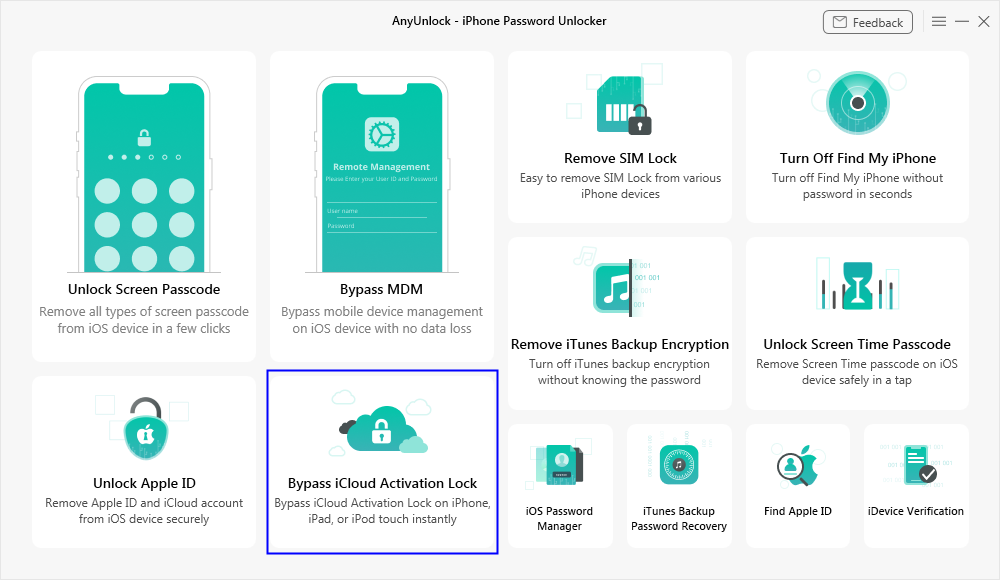
Step 1: Install AnyUnlock and select the correct mode
Download AnyUnlock on a Windows PC or Mac and launch the application.
From the main interface, choose Bypass iCloud Activation Lock. Do not select Screen Passcode or Apple ID removal, because those address different lock types.
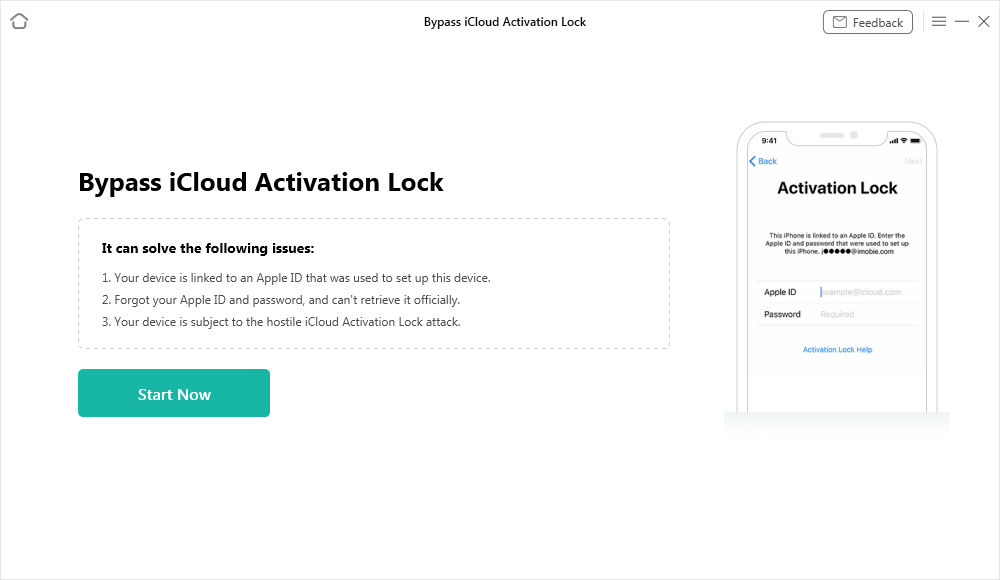
Step 2: Connect the iPhone or iPad
Connect the locked device to the computer with a reliable USB cable.
After AnyUnlock detects the device, check the displayed device information carefully. Read the terms presented by the software before continuing.
Select Start Now or Bypass Now, depending on the interface shown for your device.
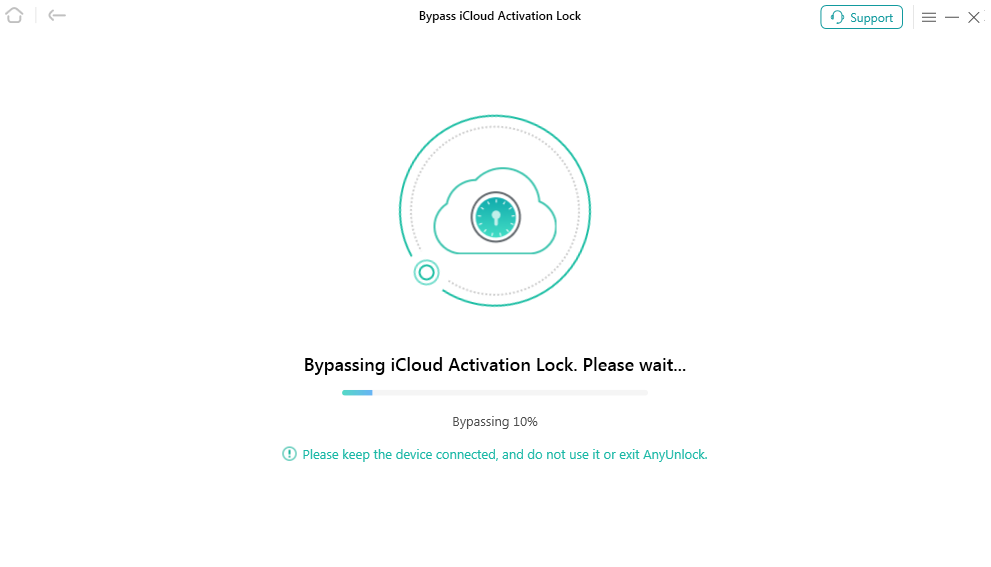
Step 3: Keep the device connected during the process
AnyUnlock then performs the supported removal process for that device and iOS version.
Do not disconnect the USB cable while the process is running. On newer documented workflows, the iPhone or iPad may restart several times automatically.
Step 4: Check the result
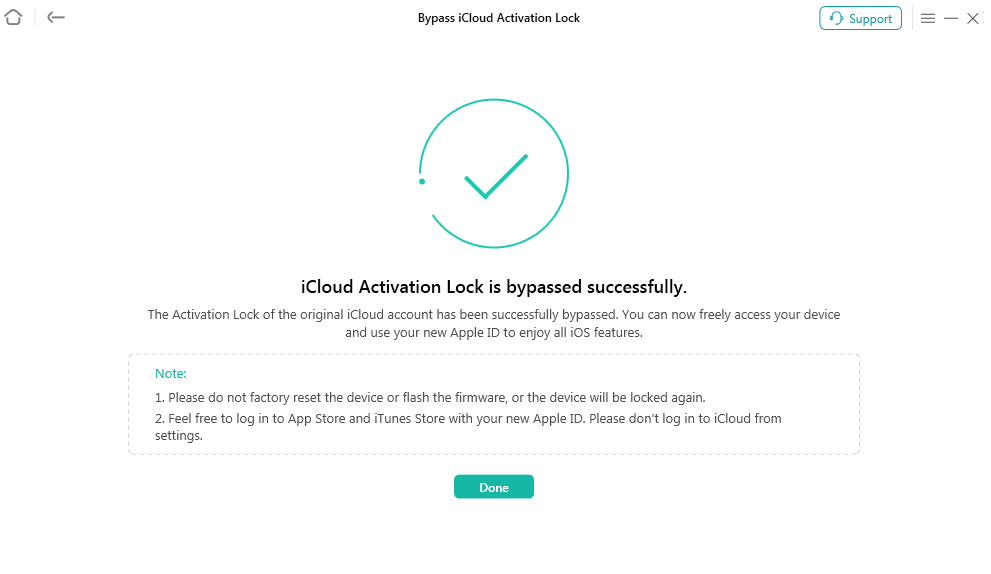
When the process finishes, AnyUnlock displays a completion message. Restart or continue setup only as directed by the software for your particular workflow.
Important Limitations to Check Before Paying
This is the section many Activation Lock removal articles skip.
Different devices and iOS generations can have different post-removal behavior.
For some documented AnyUnlock bypass workflows, iMobie’s feature page warns that phone calls, cellular data, FaceTime, iMessage, iCloud sign-in from Settings, or iTunes use may be unavailable, and that resetting, updating, or flashing the device can cause the Activation Lock to return.
At the same time, iMobie’s newer guide documents a separate iOS 17.2–26.1 workflow that finishes with the device accessible after the Activation Lock is removed.
That is why checking compatibility by exact model + exact iOS version is more useful than relying on a generic claim that a tool “supports iPhone.”
For older supported devices, some AnyUnlock workflows may also involve jailbreaking. iMobie’s current product documentation says only a limited number of older iOS devices require that additional step.
If your phone supports an official Apple removal route, use that first. A third-party tool makes more sense only after you understand its compatibility and limitations.
Does Factory Reset Remove iCloud Activation Lock?
No—not by itself.
This is one of the most common misconceptions behind this keyword.
Activation Lock is tied to Find My and Apple’s activation system rather than simply to the data stored on the iPhone.
Apple explains that each time an iPhone or iPad is activated or recovered, it contacts Apple to determine whether Activation Lock is enabled.
That means erasing the phone can remove your personal data while still leaving you at the “Locked to Owner” screen during setup.
Before resetting a device you plan to sell, remove it from your Apple Account and disable Find My correctly.
Which Activation Lock Removal Method Should You Use?
There is no single best method for every case.
- If you know your Apple Account credentials, use them.
- If you bought the device second-hand, contact the seller and have them remove it through Find My. That takes only a few minutes and does not require the seller to disclose their password.
- If you are the documented owner but cannot access the account, Apple’s Activation Lock support request is the most authoritative next step.
- If those options are unavailable and the device is legitimately yours, a third-party utility such as AnyUnlock can be evaluated—but only after checking the exact compatibility and understanding what functionality may change after removal.
The worst approach is blindly trying multiple “free iCloud unlock” websites without knowing what they actually do.
Frequently Asked Questions
Q1: Can I remove Activation Lock without the previous owner?
If the device is yours, first try recovering the associated Apple Account or submitting an Apple Activation Lock support request with proof of purchase. For a used device, asking the previous owner to remove it remotely is Apple’s recommended solution.
Q2: Can the seller remove Activation Lock without having my iPhone?
Yes. The previous owner can sign in to Find Devices on iCloud.com, select the device, and remove it from their account remotely.
Q3: Will restoring an iPhone with Finder or iTunes remove Activation Lock?
Erasing or restoring the device does not automatically sever the Activation Lock relationship. The device checks its lock status with Apple during activation.
Q4: Does AnyUnlock support iOS 26?
For its Activation Lock feature, iMobie’s current compatibility page lists support through iOS 26.1. Check your exact installed version before downloading or purchasing.
Q5: Is AnyUnlock free?
AnyUnlock can be downloaded so users can inspect the software and compatibility, but completing supported unlock operations may require a paid license. iMobie’s official product page directs users to a separate pricing option.
Final Thoughts
An Activation-Locked iPhone is frustrating, but the fastest solution depends on why the lock appeared.
Start with the method that proves legitimate ownership most cleanly: your Apple Account, the previous owner, or Apple’s proof-of-purchase support process.
If those routes are not available and you are working with your own supported device, AnyUnlock provides another workflow worth evaluating. Its biggest advantage is that it puts multiple iPhone unlocking functions in one desktop interface and provides a guided Activation Lock process rather than requiring users to piece together multiple utilities.
Still, compatibility matters more than marketing claims. Verify the exact iPhone or iPad model, iOS version, and expected post-removal functionality before proceeding.
That extra check can save considerably more time than discovering after purchase that your particular Activation Lock scenario requires a different solution.