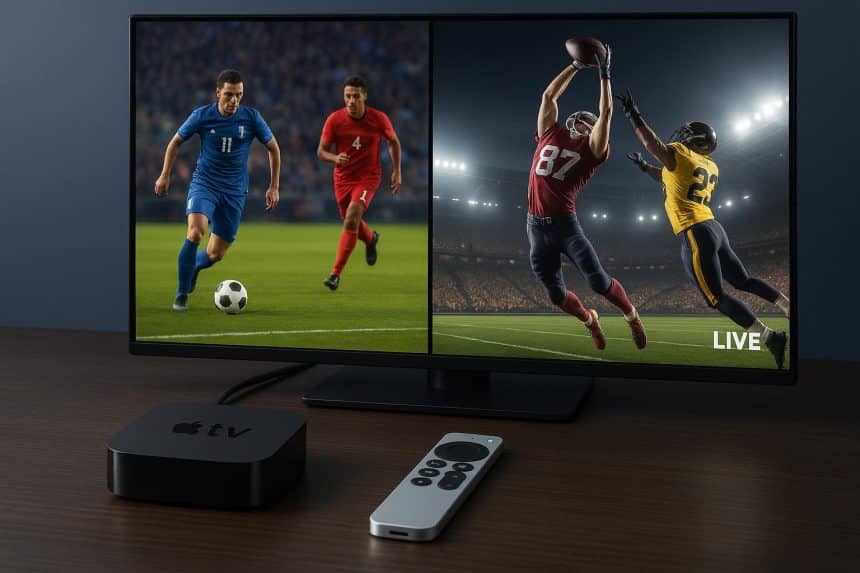
Setting Up Your Apple TV for High Definition Live Sports and Entertainment: The Home Upgrade Every Fan Deserves
Picture this. It is Saturday afternoon, the biggest match of the season is minutes from kickoff, and instead of squinting at a stuttering stream on a phone screen, you sink into your sofa as the stadium roars to life in razor-sharp 4K. Every blade of grass is crisp, every chant rolls around the room, and you feel the electricity of the crowd without leaving your living room.
Setting Up Your Apple TV for High Definition Live Sports and Entertainment is like trading a bicycle for a grand tour racer. The destination is the same, but the journey becomes pure pleasure.
You have already made the smartest first move by choosing Apple hardware, because Apple TV 4K is widely regarded as one of the most polished streaming boxes ever made. For fans who want every Premier League clash, every Champions League night, and every late-night thriller in one seamless place, streaming UK sports through a dedicated service paired with your Apple TV is the move that turns good intentions into unforgettable match nights.
In this guide, you will discover exactly how to unlock every pixel and every decibel your setup can deliver, so you never miss a moment that matters.
What You Will Need Before You Begin
A great match day experience starts long before kickoff. Gather these essentials and the rest of this guide will feel effortless.
- An Apple TV 4K box. The second or third generation models are ideal, since they support 4K HDR, Dolby Vision, and Dolby Atmos. If you are setting up an Apple TV for the first time, the latest model gives you the most future-proof performance.
- A 4K HDR television. Your Apple TV can only shine as bright as the screen it feeds. Look for a TV that supports HDR10 or Dolby Vision for the richest picture.
- A high-speed HDMI cable. Use the cable in the box or a certified Ultra High Speed cable, plugged into an HDMI port on your TV that supports 4K at 60 frames per second.
- Fast, stable broadband. You will need at least 25 Mbps for smooth 4K streaming, though 50 Mbps or more is the sweet spot for households where several devices are online at once.
- An Apple ID. This unlocks the App Store, purchases, and syncing across your iPhone, iPad, and Mac.
- Your sports apps and subscriptions. Download the apps for the competitions you follow before match day, and sign in while you are calm, not two minutes before kickoff.
Setting Up Your Apple TV for High Definition Live Sports and Entertainment, Step by Step
Follow these steps in order,e,r and you will go from sealed box to stadium atmosphere in under thirty minutes.
- Connect the hardware. Plug one end of the HDMI cable into your Apple TV and the other into your television. Connect the power cable, then switch your TV to the correct HDMI input.
- Choose Ethernet if you can. Live sport is unforgiving of Wi-Fi wobbles. If your router sits near the TV, run an Ethernet cable directly to the Apple TV for the most stable connection you can get.
- Join your Wi-Fi network. If Ethernet is not practical, select your Wi-Fi network under Settings and enter your password. Position your router as close to the TV as possible and keep it away from microwaves and thick walls.
- Sign in with your Apple ID. Follow the on-screen prompts, or use your iPhone to sign in instantly by holding it near the Apple TV. You will receive a confirmation once the devices are linked.
- Set your video output. Go to Settings, then Video and Audio, then Format. Choose 4K Dolby Vision or 4K HDR at the highest frame rate your TV supports. This single step is the heart of Setting Up Your Apple TV for High Definition Live Sports and Entertainment, so do not rush it.
- Enable Match Content. Turn on both Match Dynamic Range and Match Frame Rate. This tells your Apple TV to automatically switch to the exact format each app provides, so films stay cinematic and live sport stays silky smooth.
- Configure your audio. Under Audio Output, select your soundbar, AV receiver, or HomePods, then enable Dolby Atmos if your equipment supports it. Crowd noise in spatial audio is a genuine goosebump moment.
- Download your sports apps. Open the App Store, search for each service you subscribe to, and install them. Sign in to each one now, while there is no pressure, and pin your favourites to the top row of the home screen for one-click access on match day.
Fine-Tuning Picture and Sound for Match Day Glory
Out of the box, Apple TV looks good. With ten minutes of careful tuning, it looks sensational. When Setting Up Your Apple TV for High Definition Live Sports and Entertainment, the default settings are only the starting line, and the real magic happens when you tailor the output to your exact television.
Unlocking True 4K HDR and Dolby Vision
High Dynamic Range is what separates a flat, washed-out picture from one with dazzling highlights and deep, inky shadows. First, confirm your TV is actually receiving an HDR signal by checking the picture info banner during playback. If colours look dull or grey, the culprit is almost always a mismatch between the Apple TV output and the TV input. Revisit Settings, then Video and Audio, and run the Check HDMI Connection test.
Apple will verify your cable can carry the full signal. Many viewers are surprised to learn that an older cable is silently downgrading their entire setup, and swapping it is the cheapest upgrade in home entertainment.
Getting the Sound to Match the Spectacle
Great pictures deserve great sound. If dialogue sounds buried under crowd noise, open the Audio settings and experiment with the Reduce Loud Sounds option, which compresses the dynamic range for late-night viewing.
For the full stadium effect, route audio through a soundbar or AV receiver that supports Dolby Atmos, and let the height channels place you right in the stands. A separate, dedicated audio path over HDMI ARC or eARC keeps everything in sync, so the roar hits your ears at the exact moment the ball hits the net.
The Numbers Behind the Beautiful Game in Ultra High Definition
You are not imagining the shift. The whole country is moving toward streamed sport, and the data proves that Setting Up Your Apple TV for High Definition Live Sports and Entertainment is not a luxury, it is simply keeping pace with how Britain watches now.
| What the data shows | The headline figure |
| UK sports streaming platform revenue, 2024 | USD 2,987.4 million, forecast to reach USD 5,943.8 million by 2030 at a 12.4 percent CAGR. |
| UK connected sports viewers using streaming apps | 71 percent watch live sport via streaming apps, using an average of 2.6 apps, up 39 percent from 1.9 apps in 2024. |
| UK online live video sports streaming market | Valued at USD 1.3 billion in 2024, projected to grow to USD 2.2 billion by 2033. |
| Minimum broadband for 4K HDR streaming | 25 Mbps per stream, with 50 Mbps recommended for busy households; one hour of 4K uses around 7 GB of data. |
| Broadcaster content watched via apps in the UK | 52.7 percent of broadcaster television content is now watched through apps rather than traditional transmission. |
These figures tell a clear story. Fans are collecting more apps, demanding higher quality, and abandoning old-fashioned schedules in favour of on-demand, high-definition sport. Your Apple TV sits at the centre of that revolution, but only if it is configured to deliver the quality your broadband already pays for.
Real World Proof That the Setup Pays Off
Statistics are persuasive, but real-world behaviour is even more convincing. According to research from Antenna, reported by Bloomberg, live sport has become the single most powerful driver of new Apple TV subscriptions.
Major League Baseball games drove more sign-ups than prestige dramas like The Morning Show, and a single May game between the Los Angeles Dodgers and the New York Yankees triggered 722,000 new subscriptions.
Individual games accounted for six of the ten biggest sign-up pushes between April and September 2025. When hundreds of thousands of people join a platform for one match, the quality of that match day experience becomes everything.
Independent reviewers have reached the same verdict on picture quality. In detailed side-by-side testing, video streamed through the Apple TV 4K was found comparable to the same content played from 4K discs, with compression artefacts rarely noticeable. In plain terms, a properly configured Apple TV 4K can stand shoulder to shoulder with physical media, which was unthinkable for streaming only a few years ago.
Troubleshooting Common Match Day Headaches
Even the best setup can hit a snag. Here is how to fix the problems that occur most often, quickly and without panic.
- Buffering during live matches. Run a speed test on the Apple TV itself. If you are below 25 Mbps, switch to Ethernet, move closer to the router, or ask others in the house to pause large downloads during the game.
- Dull or washed out HDR picture. Double-check that Match Dynamic Range is enabled, and confirm your TV input is set to enhanced HDMI mode. A surprising number of HDR complaints trace back to this one toggle.
- Audio out of sync. Under Video and Audio, use the Wireless Audio Sync feature with your iPhone to automatically calibrate lip sync. It takes sixty seconds and works beautifully.
- An app keeps crashing. Delete the app, restart the Apple TV from Settings, then reinstall. This clears corrupted cache data that builds up over a long season.
- The remote stops responding. Charge it for thirty minutes, then hold the TV button and Volume Down together for five seconds to re-pair it. Keep a clear line of sight to the box during big matches.
Your Front Row Seat Is Waiting: Make Every Match Night Unforgettable
You now hold the complete playbook. From unboxing to fine-tuning, from broadband maths to troubleshooting, Setting Up Your Apple TV for High Definition Live Sports and Entertainment is a one-time investment that pays you back every single match day.
The difference between a good setup and a great one is rarely money. It is attention to the small details: the right HDMI port, the matched frame rate, the wired connection, the audio calibration that takes a minute and lasts for years.
Many supporters complete their setup by pairing the box with a single, dependable sports package such as Televo, keeping every competition one click away instead of scattered across half a dozen apps. Whatever services you choose, take action tonight. Run the setup steps, test with a live event, and feel the difference for yourself, because the next unforgettable sporting moment is already on the calendar, and you deserve to witness it in all its glory. So, are you ready to turn your living room into the best seat in the house?
Frequently Asked Questions
Do I need the Apple TV 4K, or will the HD model handle live sports?
The HD model will play sports, but it cannot output 4K or HDR, which defeats the purpose of a high-definition setup. If your television is 4K, the Apple TV 4K is the only model that lets you see what you paid for.
What internet speed do I really need for live sport in 4K?
Plan for 25 Mbps as the absolute floor for one 4K stream, and aim for 50 Mbps or more in a busy household. Live streams are less forgiving than on-demand video because there is no deep buffer to hide behind, so stability matters as much as raw speed.
Can I watch the Premier League on Apple TV in the UK?
Yes. Apple TV is a platform, not a channel, so you simply install the apps for whichever services hold the rights you want, sign in with your subscriptions, and watch. Availability depends on your subscriptions rather than the box itself.
Why does my picture look dull when HDR is enabled?
This almost always means your TV and Apple TV disagree about the signal. Enable Match Dynamic Range and Match Frame Rate, set your TV HDMI input to enhanced mode, and use a high-speed cable. Nine times out of ten, the picture snaps into vivid life immediately.
Is Ethernet genuinely better than Wi-Fi for live sport?
For live events, yes. Ethernet removes the interference and congestion that cause the micro-stutters Wi-Fi can suffer at the worst possible moment, like during a penalty shootout. If running a cable is impractical, a mesh Wi-Fi node near the TV is the next best thing.
How much data does a full match use in 4K?
Roughly 14 to 16 GB for a two-hour broadcast with pre- and post-match coverage, since 4K HDR consumes about 7 GB per hour. If your broadband has a data cap, this is worth knowing before a busy weekend of fixtures.