
Editing a PDF on a Mac can be simple if you use the right tool for the job. Some users only need to add a quick note or insert an image, while others need full control over text, formatting, and layout. The good news is that you have two practical ways to edit PDFs: a dedicated PDF editor like Wondershare PDFelement, or Apple’s built-in Preview app. Here’s how each method works and when it makes the most sense to use it.
1. Use a PDF Editor for Mac
If you need more than basic markup, a dedicated PDF editor is usually the better choice. PDFelement is a full-featured PDF editor for Mac that is designed for creating, editing, converting, reading, and organizing PDFs in one place.

It supports macOS and is positioned as a cross-platform PDF solution, so it works well for users who switch between Mac and other devices. Its main strengths include editable text tools, image editing, PDF conversion, OCR for scanned files, annotation tools, form support, and e-signature features.
Pros
- More advanced editing than built-in Mac tools
- Lets you edit PDF text and images more freely
- Supports additional tasks like OCR, conversion, and form creations
- Good fit for students, business users, and anyone who works with PDFs often
Cons
- Requires a download and installation
- It is not as instantly accessible as Preview
Step 1. Download and install PDFelement
Go to the official PDFelement website or Mac App Store and download the app. Install it as you would any other Mac app, then launch the software and open the PDF you want to edit.
Step 2. Edit PDF text
One of the biggest reasons to use a dedicated PDF editor is text editing. With PDFelement, you can work with the text inside a PDF much more naturally.
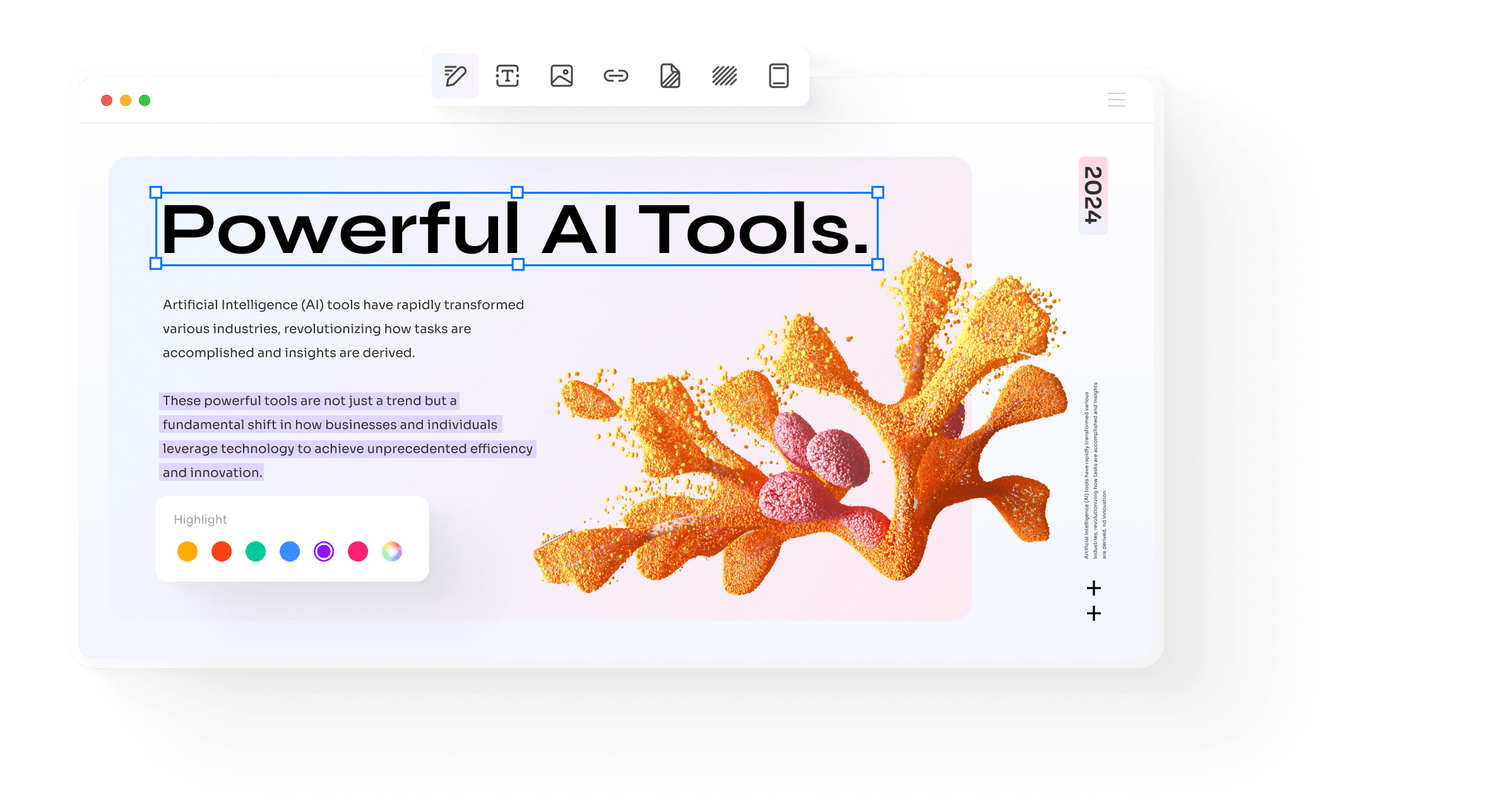
Delete or add text
Open your file, click the Edit All button, click into the paragraph or sentence you want to change. From there, you can remove unwanted text or add new wording where needed. This is useful for fixing typos, updating dates, or rewriting sections of a document.
Format text
After changing the content, you can adjust the look of the text to better match the original file. PDFelement supports editing font-related elements such as size, color, and alignment, which helps the document stay consistent.
Replace text
If a section of text needs to be updated instead of simply expanded, replace the original wording directly. This is especially helpful when revising contracts, reports, or reusable templates.
Tip: After making text edits, zoom in and review the spacing carefully. Even a good PDF editor can produce awkward line breaks if the original layout is very tight.
Step 3. Edit images
Text is only part of PDF editing. In many files, images also need to be updated.
Replace images
If you want to swap out an old logo, screenshot, chart, or photo, select the image and replace it with a new file. This is useful for refreshing branded documents or updating visuals in guides and presentations.
Delete images
You can also remove images that are no longer needed. This is helpful when simplifying a document, clearing outdated visuals, or making room for new content.
Step 4. Save changes
Once you finish editing, save the file. It’s smart to save a copy first if the original document is important. That way, you can compare versions or go back if needed.
2. Use Preview on Mac
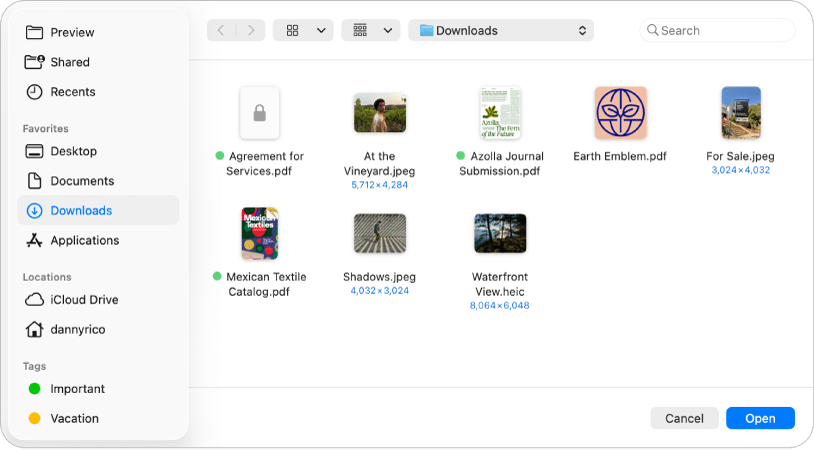
Preview is Apple’s built-in app for viewing images and PDFs on macOS. It comes preinstalled, so you do not need to download anything to start using it.
For PDFs, Preview works well for reading, annotating, highlighting, signing, and adding basic text. It can also handle simple image insertion in some workflows. However, it is not a full PDF editor, so it has clear limitations. It is best for light changes rather than deep document editing.
What Preview can do well:
- Open PDFs instantly
- Add text boxes, shapes, highlights, and signatures
- Make quick comments or visual annotations
Main limitation:
- It is not ideal for directly editing existing PDF text the way a dedicated PDF editor can
Step 1. Open PDF in Preview
Locate your PDF in Finder and open it with Preview. If it does not open there by default, right-click the file, choose Open With, and select Preview.
Step 2. Add text
Use Preview’s markup tools to insert a text box where you want to add content. This works well for labels, notes, short comments, or filling in simple visual gaps.
Keep in mind that this usually adds new text on top of the page rather than rewriting the original paragraph text underneath.
Step 3. Add images
If you need to place an image into a PDF, you can copy and paste or drag the image into the document, depending on the file and your macOS behavior. This can be enough for adding a logo, stamp, or simple visual element.
Preview is fine for basic placement, but it is not built for detailed image replacement workflows.
Step 4. Save changes
When you are done, save the PDF. As with any important file, saving a duplicate first is a good habit.
Common mistakes to avoid
When editing PDFs on Mac, a few mistakes can create extra work:
- Editing the original file without a backup: Always save a copy first for important documents.
- Using Preview for complex edits: It is great for quick markup, but not for full text replacement or layout-sensitive editing.
- Ignoring formatting after text edits: Check fonts, spacing, and alignment before sending the file.
- Overwriting images without checking size: A replacement image may distort the page if the proportions do not match.
Which method should you use?
If you only need to add a note, insert a quick text box, or make light annotations, Preview is the fastest option because it is already on your Mac.
If you need to edit PDF text, replace images, keep formatting clean, or do more professional document work, PDFelement is the better choice. It gives you fuller editing control and handles more demanding PDF tasks with less friction.
In short, Preview is best for simple edits, while PDFelement is better for real PDF editing. Choosing the right method can save time, protect formatting, and make your workflow much smoother.