
Moving mailbox data from Outlook for Mac to Outlook for Windows can be challenging because the two versions use different file formats. Outlook for Mac uses OLM files, while Outlook for Windows commonly works with PST files.
This is where an OLM to PST converter can be useful. Instead of manually moving mailbox data, users can convert the OLM file into a format that can be accessed in Outlook for Windows.
Stellar Converter for OLM is a Windows-based application designed to convert Outlook for Mac OLM files into PST and other supported formats. It scans the OLM file, displays the mailbox data for preview, and allows users to select the required folders or items before saving the converted data.
Stellar also offers an online OLM to PST converter for users who prefer a browser-based solution without installing desktop software.
In this review, we look at the desktop and online versions separately, including their features, conversion process, supported data, pricing, usability, and key differences.
Stellar Converter for OLM: Quick Overview
| Category | Details |
| Product Name | Stellar Converter for OLM |
| Primary Purpose | Convert Outlook for Mac OLM files |
| Main Conversion | OLM to PST |
| Available Versions | Desktop Software + Online Converter |
| Supported Mailbox Data | Emails, attachments, contacts, calendars, tasks, notes |
| Desktop Platform | Windows |
| Online Platform | Web browser |
| Desktop Maximum OLM Size | No file-size limitation |
| Online Premium Limit | Up to 5 GB per OLM file |
| Best Suited For | OLM-to-PST and Mac-to-Windows Outlook migration |
What Is a Stellar Converter for OLM?
Stellar Converter for OLM is a Windows application that converts Outlook for Mac OLM files into PST and other supported formats.
The primary use case is moving mailbox data from Outlook for Mac to Outlook on Windows. The software scans the selected OLM file and provides a preview of the mailbox contents before the data is exported.
Users can browse the mailbox structure and preview supported items such as emails, attachments, contacts, calendars, tasks, and notes.
The software also provides options for selecting specific mailbox folders or items rather than necessarily exporting the entire mailbox.
Why Convert OLM Files to PST?
OLM and PST are different mailbox file formats associated with Outlook on Mac and Windows.
Outlook for Mac uses OLM files for storing mailbox data, while PST files are commonly used by Outlook for Windows for local mailbox storage.
Converting OLM to PST can be useful when users need to:
- Move from Outlook for Mac to Outlook for Windows
- Transfer emails and other mailbox information to a Windows computer
- Access an old OLM archive in Outlook for Windows
- Preserve mailbox folders during migration
- Move business email data between platforms
- Prepare mailbox data for use in a Windows Outlook environment
Stellar Converter for OLM Key Features
1. OLM to PST Conversion
The primary function of Stellar Converter for OLM is converting Outlook for Mac OLM files into PST format.
The resulting PST file can be opened or imported into Outlook on Windows.
The software also supports additional export formats depending on the edition.
2. Mailbox Scanning and Preview
Before saving the converted mailbox, the software scans the OLM file and displays the available mailbox data.
The preview interface allows users to browse the mailbox structure and inspect individual items.
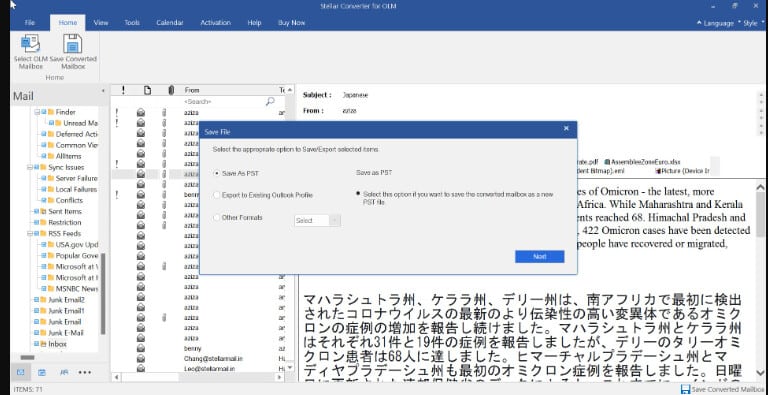
The three-pane interface generally provides:
- Left panel: Mailbox folders and hierarchy
- Middle panel: Items available in the selected folder
- Right panel: Preview of the selected mailbox item
This allows users to check the available data before exporting it.
3. Selective Conversion
Users may not always need to convert an entire mailbox.
Stellar Converter for OLM allows users to select required folders or mailbox data before saving.
This can be useful when someone wants to migrate only specific parts of an OLM file instead of transferring everything.
For example, users may select folders such as:
- Inbox
- Sent Items
- Drafts
- Custom folders
- Contacts
- Calendar
- Other supported mailbox folders
4. Maintains Mailbox Folder Structure
Maintaining the original mailbox organization is important during an email migration.
The software is designed to retain the original folder hierarchy while converting the OLM data.
This includes standard folders such as:
- Inbox
- Sent Items
- Drafts
- Deleted Items
- Custom folders
Preserving the folder structure can reduce the amount of manual organization required after migration.
5. Converts Emails and Attachments
The software converts email messages along with their attachments.
Supported mailbox items include:
- Emails
- Attachments
- Contacts
- Calendars
- Tasks
- Notes
This makes it suitable for users who need to migrate more than just email messages.
6. Find OLM Files
If users know they have an OLM file but cannot remember where it is stored, the desktop application provides a Find option to search for OLM files.
This can be useful when working with archived mailbox files stored in different locations on a computer.
7. Multiple Saving and Export Options
The available export options depend on the desktop edition.
The Standard edition supports saving converted data in formats such as:
- PST
- MSG
- EML
The Technician edition provides additional options, including:
- PST
- MSG
- EML
- HTML
- Direct export to Microsoft 365
This gives users more flexibility when the converted mailbox needs to be used outside a standard PST workflow.
How to Convert OLM to PST Using Stellar Converter for OLM
The desktop conversion process follows a relatively straightforward workflow.
Step 1: Install and Launch the Software
Download and install Stellar Converter for OLM on a supported Windows computer.
Launch the application after installation.
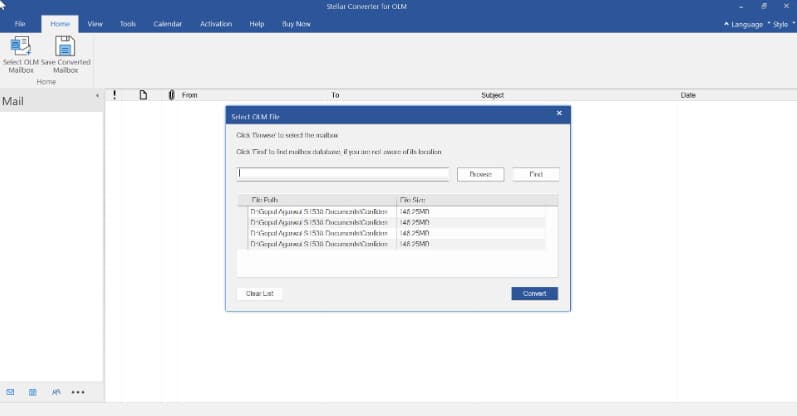
Step 2: Select the OLM File
Click Browse and select the OLM file stored on the computer.
If the location of the OLM file is unknown, use the Find option to search for OLM files.
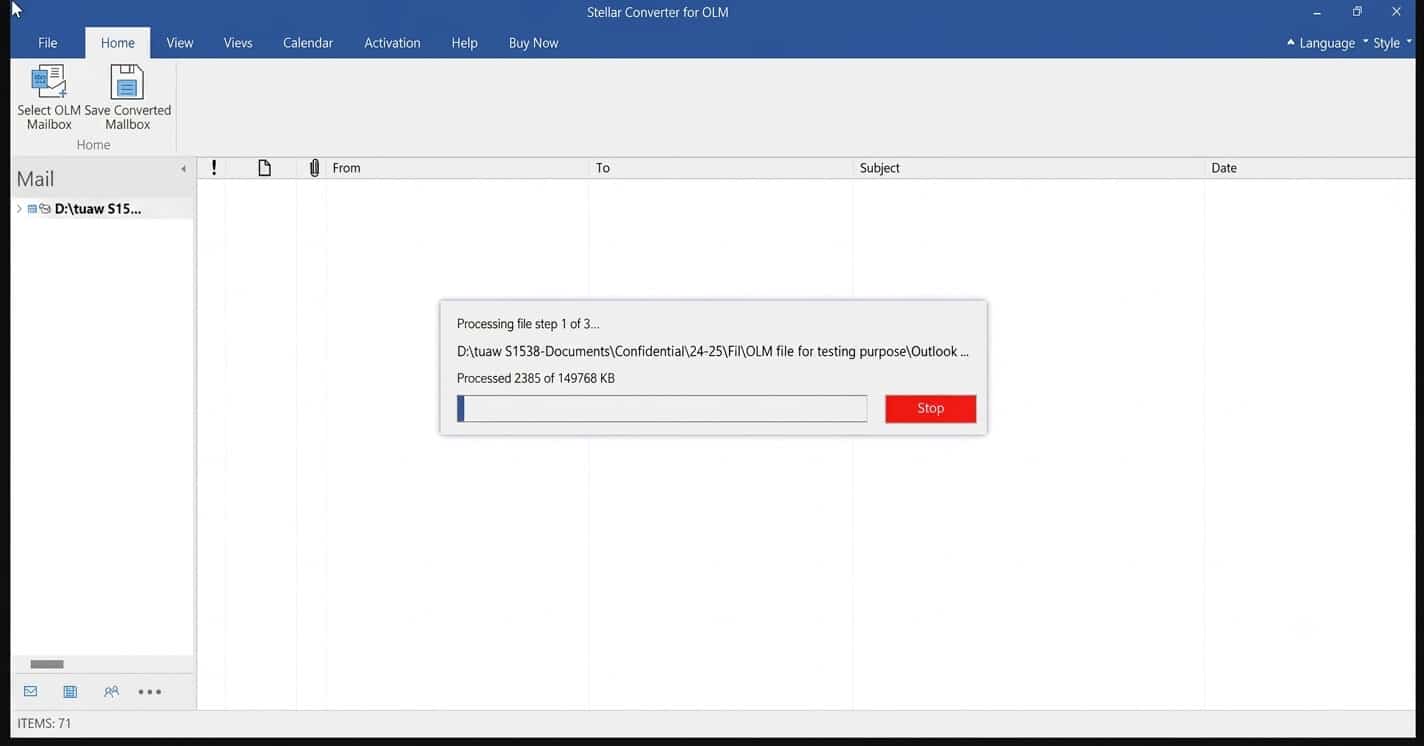
Step 3: Scan the OLM File
Start the scanning process after selecting the OLM file.
The software analyzes the mailbox and prepares the available data for preview.
The scanning time can vary depending on the size and contents of the OLM file.
Step 4: Preview the Mailbox Data
Once scanning is complete, the software displays the mailbox data in the preview interface.
Users can browse the folder structure and select individual folders or items.
The preview can include:
- Emails
- Attachments
- Contacts
- Calendars
- Tasks
- Notes
Previewing the data before export allows users to verify that the required mailbox information is available.
Step 5: Select the Required Data
Select the folders or mailbox items that need to be converted.
Users can choose the required mailbox data instead of necessarily exporting the entire OLM file.
Step 6: Save or Export the Converted Data
Choose the required saving or export option.
Depending on the edition, the converted data can be saved as PST, MSG, EML, PDF, or HTML, or exported directly to Microsoft 365.
Follow the on-screen instructions to complete the export.
Stellar Converter for OLM Online Review
Users who do not want to install desktop software can use Stellar’s online OLM-to-PST converter.
The online version works through a web browser, so there is no desktop installation required.
It is designed primarily for OLM-to-PST conversion and is subject to file and usage limits based on the selected plan.
How to Use Stellar Online OLM Converter
Step 1: Open the Online Converter
Open the Stellar online OLM-to-PST converter in a supported web browser.
No desktop application installation is required.
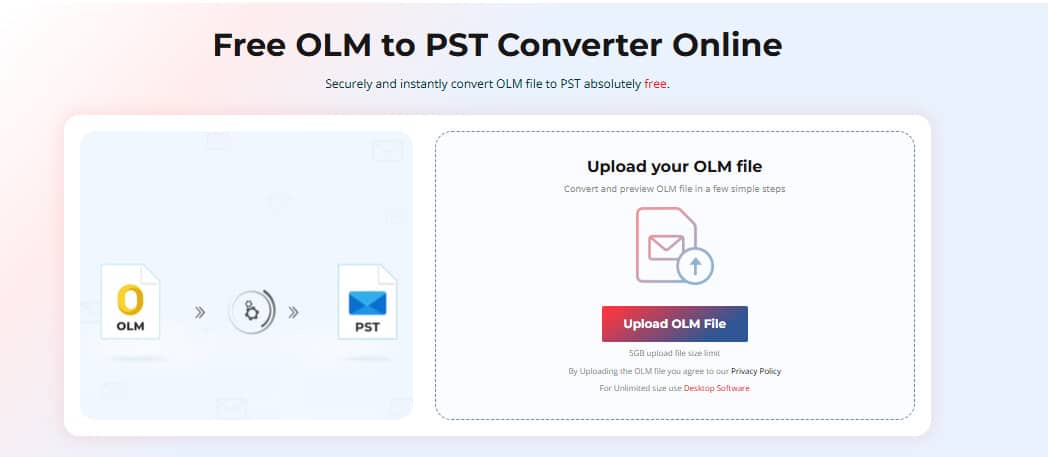
Step 2: Upload the OLM File
Select the OLM file from your computer and upload it to the online converter.
The available file-size limit depends on the plan.
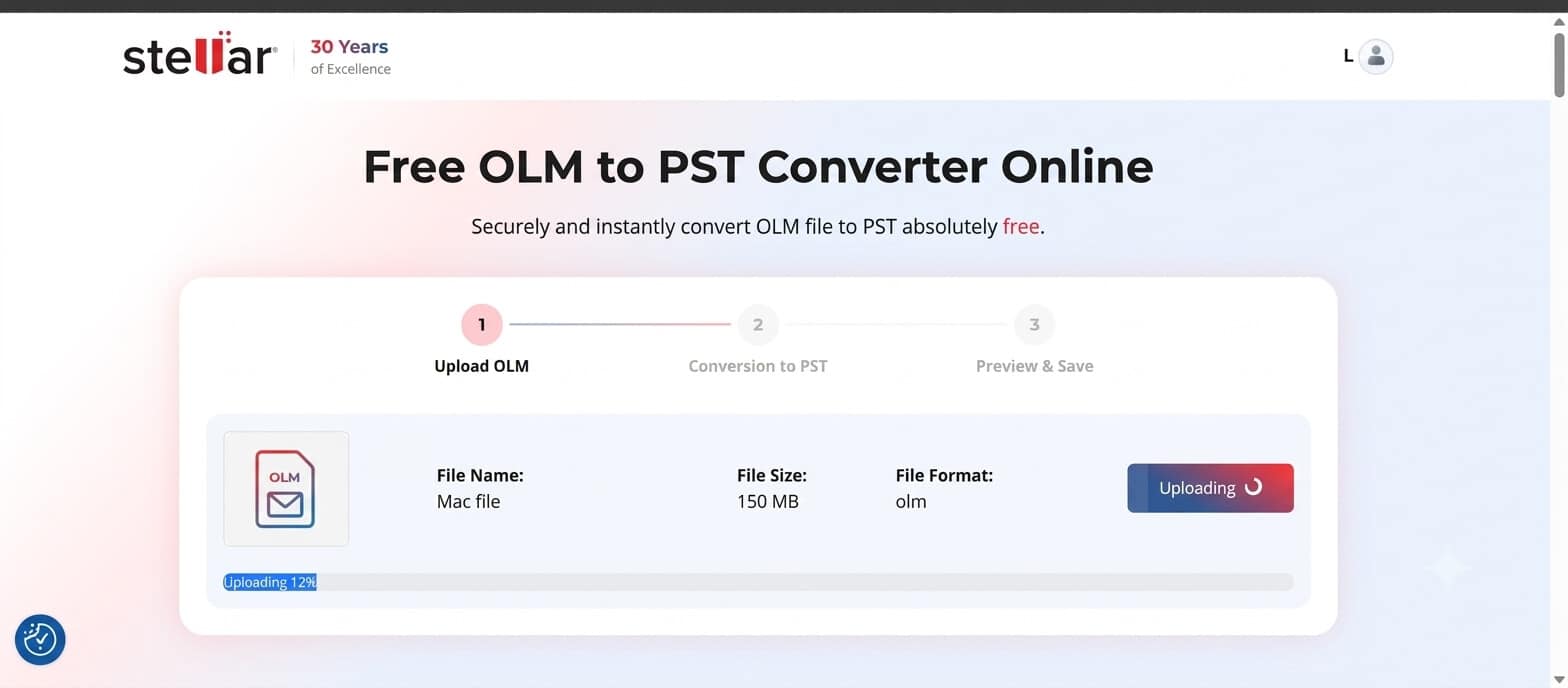
Step 3: Convert the OLM File
Start the conversion process and allow the online service to process the uploaded OLM file.
The processing time can vary depending on the file size and mailbox contents.
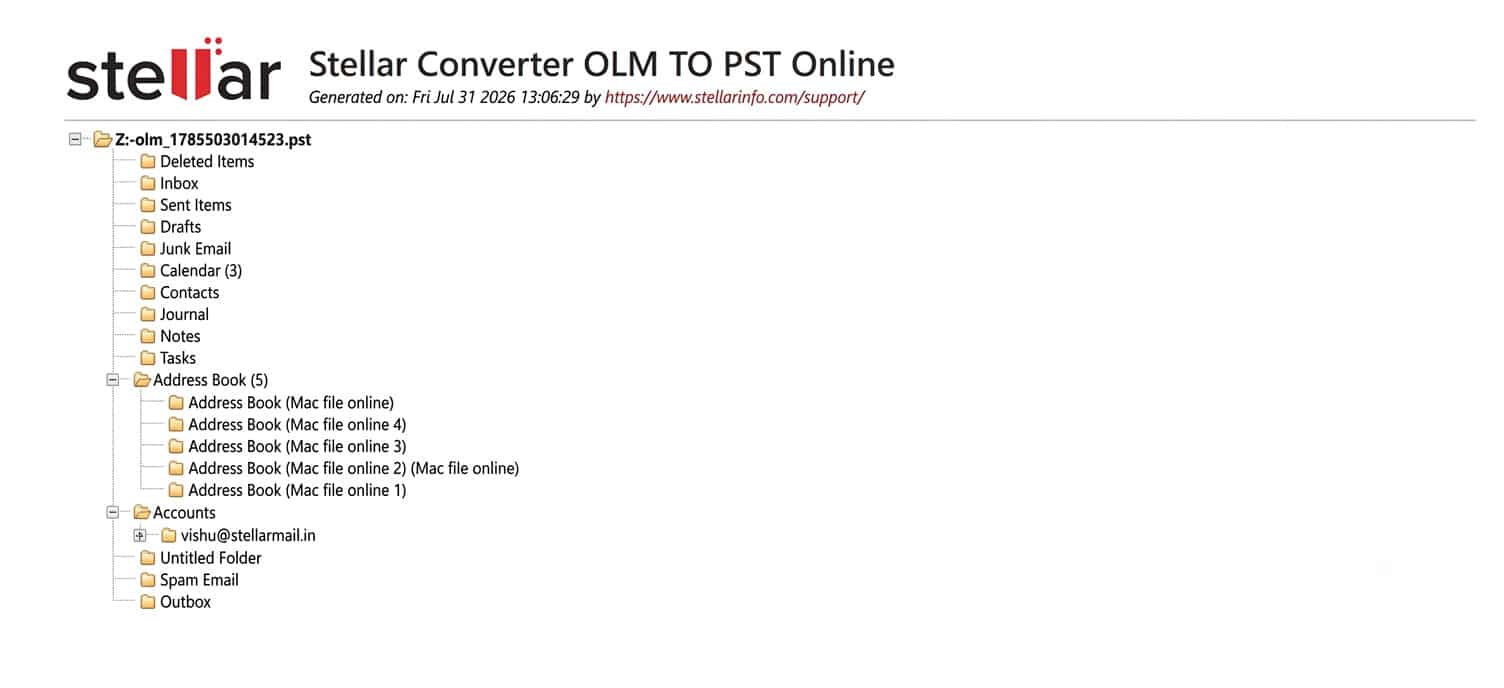
Step 4: Preview the Converted Data
After conversion, the service provides an HTML preview of the converted mailbox data before downloading the PST.
This gives users an opportunity to check the available mailbox information before downloading the result.
Step 5: Download the PST File
After checking the converted mailbox data, download the resulting PST file to the computer.
Online Version: File Limits and Pricing
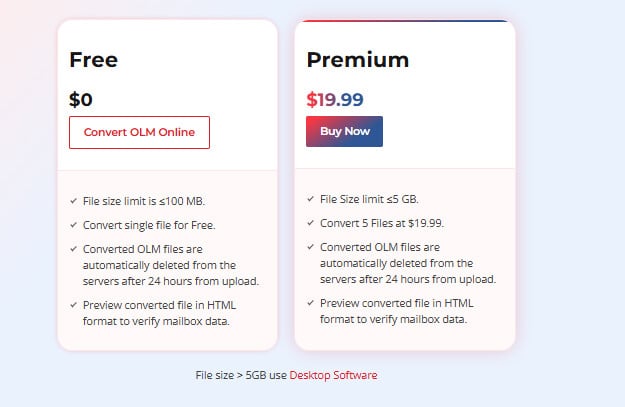
The online converter has separate free and paid usage limits.
| Plan | Price | Limit |
| Free | Free | 1 OLM file up to 100 MB |
| Premium | $19.99 | Up to 5 OLM files, up to 5 GB each |
The online service provides browser-based conversion without requiring software installation.
Uploaded and converted files are automatically deleted after 24 hours according to Stellar’s online service information.
Desktop Version vs Online Version
The desktop and online versions serve somewhat different use cases.
| Feature | Desktop Version | Online Version |
| Installation | Required | Not required |
| Platform | Windows application | Web browser |
| OLM File Size | No file-size limitation | Up to 5 GB per file with Premium |
| Free Usage | Trial/preview available | 1 file up to 100 MB |
| Preview | Yes | HTML preview |
| PST Conversion | Yes | Yes |
| MSG/EML Export | Yes | No |
| PDF/HTML Export | Technician edition | No |
| Microsoft 365 Export | Technician edition | No |
| Folder Structure | Maintained | Maintained |
| Best Suited For | Larger or advanced migrations | Quick browser-based conversions |
Stellar Converter for OLM Desktop Pricing
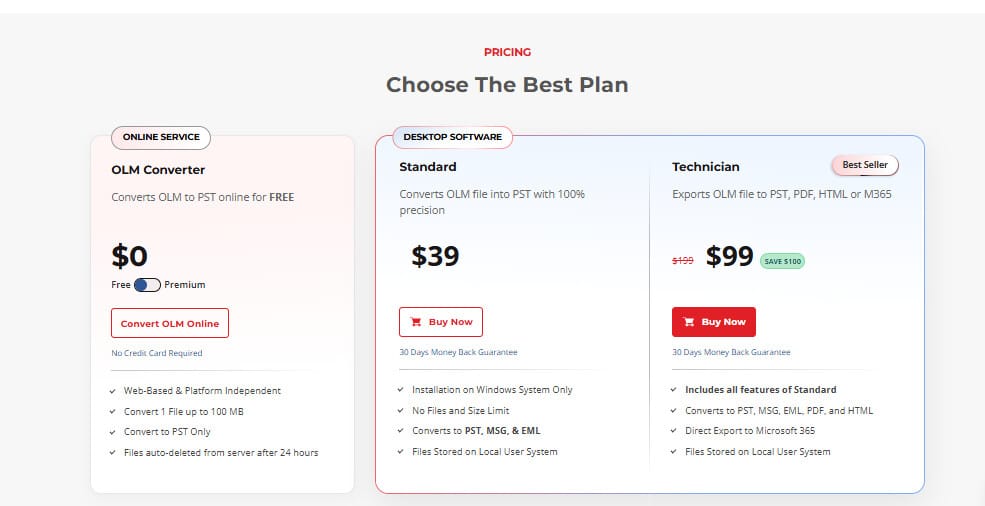
Stellar offers different desktop editions depending on the required features.
| Edition | Price | Key Features |
| Standard | $39/year | OLM to PST, MSG, EML conversion and mailbox preview |
| Technician | $99/year promotional price | Additional export options, including PDF, HTML, and Microsoft 365 export |
The pricing shown above is based on the current product information and may change with promotions or product updates.
My Experience Using Stellar Converter for OLM
The desktop workflow follows a clear sequence:
- Select the OLM file
- Scan the mailbox
- Preview the data
- Select required folders or items
- Choose an export option
- Save the converted data
The preview stage is particularly useful because it lets users check mailbox contents before exporting.
For someone moving from Outlook for Mac to Outlook for Windows, the main benefit is having the OLM data converted into a Windows-compatible format without manually recreating the mailbox structure.
The online version follows a shorter browser-based process and can be useful when installing desktop software is not preferred.
Important for the reviewer: This section should be based on the reviewer’s actual hands-on testing. Any observations about conversion speed, successful recovery, formatting, or specific mailbox contents should be added only after testing the product.
What I Liked
The basic process is easy to follow: select the OLM file, scan it, preview the data, and export the required content.
Being able to browse mailbox data before saving the converted file is useful for verifying the available information.
Maintaining the mailbox hierarchy can make the migration process easier because users do not have to manually recreate all folders afterward.
The desktop Technician edition provides additional formats such as PDF and HTML, along with Microsoft 365 export.
Users who do not want to install software have the option of using the browser-based converter.
Areas That Could Be Improved
No conversion tool is suitable for every situation. A few areas could be improved:
- The online service has file-size and usage limitations.
- Users handling very large OLM files may prefer the desktop application.
- More flexible batch-processing capabilities could be useful for users managing multiple OLM files.
- Additional enterprise-oriented migration features could make the product more suitable for larger organizations.
Pros and Cons
Pros
- Converts OLM files to PST
- Provides mailbox preview before export
- Supports emails and attachments
- Maintains mailbox folder hierarchy
- Supports contacts, calendars, tasks, and notes
- Provides MSG and EML export options
- Technician edition supports PDF and HTML export
- Technician edition provides direct Microsoft 365 export
- Online version does not require software installation
Cons
- Desktop version requires Windows
- Online version has file-size and usage limits
- Advanced desktop export features require the Technician edition
- Online version focuses primarily on OLM-to-PST conversion
Who Should Use Stellar Converter for OLM?
Individual Users
Users moving from Outlook for Mac to Outlook for Windows can use the software to convert their OLM mailbox data into PST.
Business Users
Organizations moving employees from Mac-based Outlook environments to Windows systems may use OLM conversion as part of their mailbox migration process.
IT Professionals
IT administrators handling mailbox migrations may benefit from the preview and selective export options, particularly when working with larger OLM files or Microsoft 365 migration requirements.
Users Looking for a Browser-Based Option
Users who do not want to install desktop software can use the online converter for smaller OLM-to-PST conversion jobs within the available limits.
Final Verdict: Stellar Converter for OLM Review
provides two approaches for converting Outlook for Mac mailbox data: a Windows desktop application and a browser-based online converter.
The desktop version provides a broader set of conversion and export options, including PST, MSG, EML, PDF, HTML, and direct Microsoft 365 export with the Technician edition. It is also suitable for users working with larger OLM files.
The online version offers a simpler browser-based workflow for users who prefer not to install software. Its conversion limits make it more appropriate for smaller OLM files.
Features such as mailbox preview, selective data selection, and folder hierarchy preservation can help users check their data before completing the conversion.
For anyone moving Outlook for Mac mailbox data to Outlook for Windows, the choice between the two versions mainly depends on the OLM file size, required export format, and whether desktop installation is preferred.
Frequently Asked Questions
Q1. Can Stellar Converter for OLM convert OLM files to PST?
Yes. Stellar Converter for OLM is designed to convert Outlook for Mac OLM files into PST format for use with Outlook on Windows.
Q2. Does Stellar Converter for OLM preserve the folder structure?
Yes. The software is designed to maintain the original mailbox folder hierarchy during conversion.
Q3. Can I preview OLM mailbox data before conversion?
Yes. The desktop application provides a preview of mailbox data before exporting it. The online service also provides an HTML preview of the converted mailbox before the PST is downloaded.
Q4. What mailbox data can Stellar Converter for OLM convert?
The software supports mailbox data including emails, attachments, contacts, calendars, tasks, and notes.
Q5. Does Stellar Converter for OLM require Outlook to be installed?
The conversion process does not require Outlook for Mac to be installed on the Windows computer. The online version works through a web browser without requiring desktop software installation.
Q6. What is the maximum OLM file size supported by the online converter?
The Premium online plan supports OLM files of up to 5 GB each. The free plan supports one OLM file up to 100 MB.
Q7. What formats can the desktop version export?
Depending on the edition, the desktop software supports formats including PST, MSG, EML, PDF, and HTML. The Technician edition also supports direct export to Microsoft 365.
Q8. Which is better for a large OLM file: the online or desktop version?
The desktop version is more appropriate when working with large OLM files because the desktop application does not impose the same 5 GB online file limit.
Q9. Can I convert only selected mailbox folders?
Yes. After scanning, users can select the required mailbox folders or items before saving the converted data.
Q10. How long are files retained by the online converter?
According to Stellar’s online service information, uploaded and converted files are automatically deleted after 24 hours.